
Put each department's work in order with Lists
How do I decide what each department does next, and see whether it will fit?
- For
- Production managers and whoever plans the work
- Where to find it
- SidebarProductionScheduleLists
- Takes
- 5 minutes
- You need
- A login that can see the production schedule
What it is for
Lists is the planner turned on its side: one column for each department, with its jobs numbered in the order to do them. Sign OS works out the best order from the due dates and the hours you have. You change it when you know better, and the floor sees the same list.
After this you can
- Read what each department has to do and whether it fits the next shift
- Move a job up or down, or into or out of the next shift
- Mark a job urgent
- Take a job off the list while it waits on someone else
The Lists view
Point at a number in the list and it lights up on the picture.
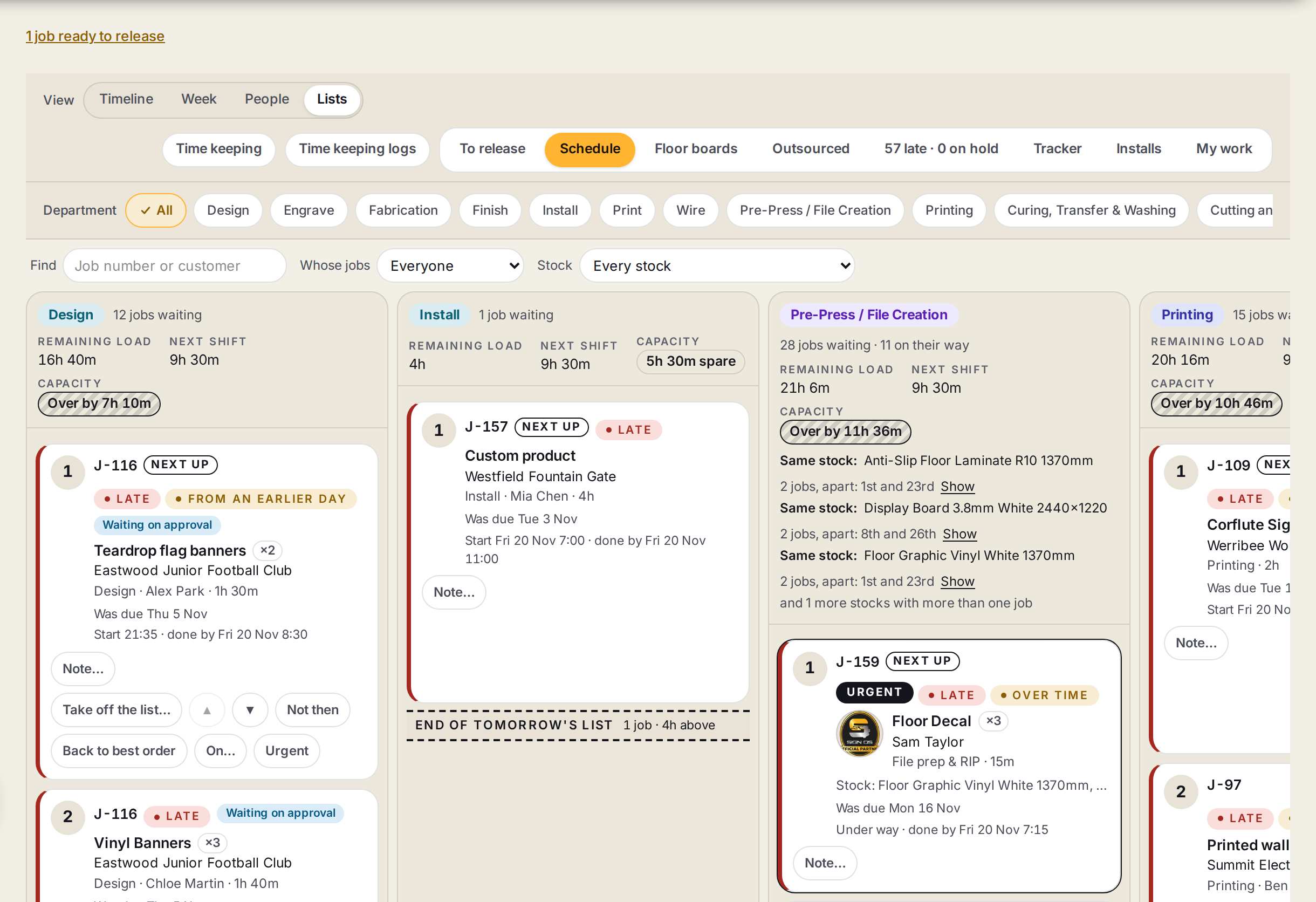
- 1ListsThe fourth view of the planner, beside Timeline, Week and People.
- 2Find, Whose jobs and StockNarrow every list to one job or customer, one person's jobs, or the jobs that use one stock.
- 3Remaining load, Next shift and CapacityThe work still to do in this department, the hours in its next shift, and what is spare or how far over it is.
- 4A jobIts number on the list, what is being made, the customer, the step, who has it and how long. Next up marks the first one.
- 5Note and the other buttonsNote is always there. Point at a job, or tap it, and the rest appear: up, down, Urgent, Take off the list and more.
- 6The end of the list lineEverything above the line fits the next shift. Everything below is for later.
Step by step
- 1
Open Lists
Go to Production, then Schedule, and press Lists.
You’ll seeA column for each department with work, its jobs numbered from 1.
- 2
Check what fits
Read Capacity at the top of a column. It says how much is spare, or how far over the department is for its next shift.
- 3
Change the order
Point at a job and press the up or down arrow, or drag it by its number.
- 4
Move it in or out of the next shift
Use the button that reads Do today or Not today. It reads tomorrow when the next shift is tomorrow's.
- 5
Mark it urgent
Press Urgent on the job.
You’ll seeThe job goes to the top of every list it is on and shows Urgent.
- 6
Take it off the list
If a job is waiting on someone else, press Take off the list…, say what it is waiting on and when it is expected back.
You’ll seeIt leaves the numbered list and shows as waiting. Press Back on the list when it returns.
- 7
Leave a note
Press Note… and type it. The note shows on the job in the list and on the floor.
Words on this screen
Remaining load
The hours of work this department still has waiting.
Next shift
The working hours in the department's next shift, from your shop hours.
Capacity
Next shift less remaining load. It reads as time spare, or Over by.
Best order
The order Sign OS works out from due dates, what is ready and the hours you have.
Same stock
A note at the top of a list when jobs that use the same stock sit apart, so you can run them together.
Tips
A job you have moved shows Back to best order. Press it to hand the job back to the worked-out order.
Press On… to say which machine in the department a job runs on.
Pick a department at the top to see just its list, wider.
Watch out
Moving a job here changes the plan for everyone, on the Timeline, the Week and the floor.
Urgent is for the whole job, not one step. It moves every step of that job up.
A job taken off the list is not being worked on. Put it back as soon as what it was waiting on arrives.
Over by means the department has more work than hours. The list does not find the hours for you: move work, add hours or move a date.