
Follow your own jobs on the Job tracker
A customer is on the phone. Where is their job up to, and will it be ready?
- For
- Account managers, sales and project managers
- Where to find it
- SidebarProductionTracker
- Takes
- 1 minute
- You need
- A login that can see jobs
What it is for
The tracker answers the phone call. It opens on the jobs you own, grouped by customer and order, and for each one says which department it is in, how long it has been there, the steps still to go, the hours of work left and whether it will make its date.
After this you can
- Find a customer's job in seconds
- Say where it is and when it should be done
- See which of your jobs are late, at risk, on hold, outsourced or waiting on an install booking
- Print the list
The Job tracker
Point at a number in the list and it lights up on the picture.
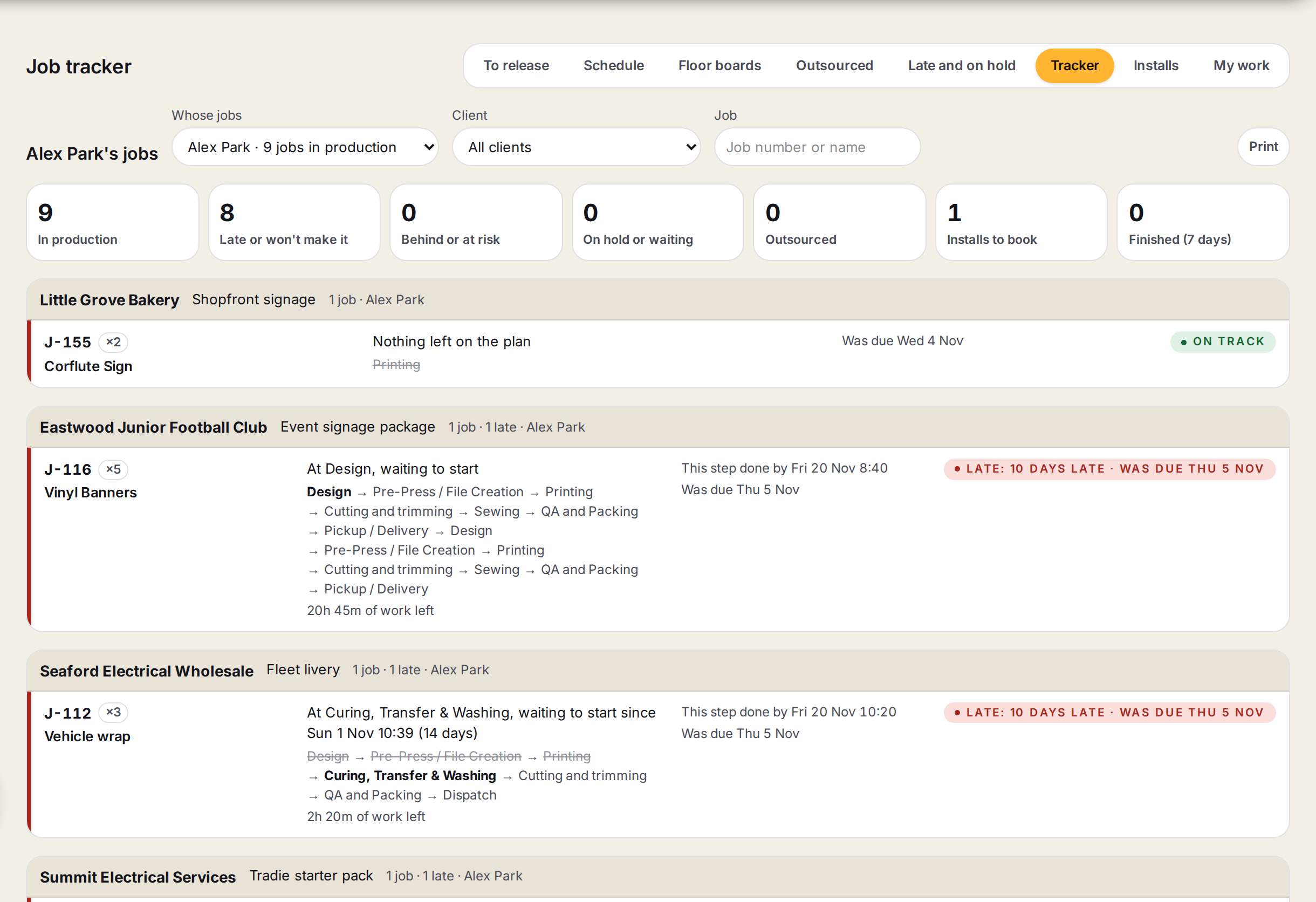
- 1Whose jobs, Client and JobIt opens on your own jobs. Pick another person or everyone, a client, or type a job number or name.
- 2The countsIn production, late or won't make it, behind or at risk, on hold or waiting, outsourced, installs to book, and finished in the last 7 days. Press one to show only those.
- 3An orderThe customer and the order, how many jobs it has and who owns it.
- 4Where it isThe steps in order. Done is marked, and here now marks where the job is sitting.
- 5What is leftThe hours of work left, when this step should be done, and the due date. Late jobs say how late.
Answering where a job is
- 1
Open the tracker
Go to Production, then Tracker.
You’ll seeYour own jobs, grouped by customer.
- 2
Find the job
Pick the customer under Client, or type the job number under Job.
- 3
Read where it is
The step marked here now is where it is sitting, with how long it has been there.
- 4
Read when it will be done
The line underneath gives the work left and when this step should be done, against the due date.
- 5
Open the job if you need more
Click the job number to open the job.
Tips
Press a count, such as Late or won't make it, to see only those jobs.
Press Print for a list to take to a production meeting.
Admins and production managers can pick anyone under Whose jobs. Everyone else sees their own.
Watch out
Done by is the plan's forecast from the hours you have, not a promise. Check the floor before giving a customer a time.
A job only shows under your name if you are its job owner.
Finished jobs drop off the tracker after 7 days. Find older ones on the Jobs list.