
Work from the Do next list on the floor
What should my department work on next?
- For
- Everyone on the floor
- Where to find it
- SidebarProductionFloor boardsA departmentDo next
- Takes
- 1 minute
- You need
- A login that can see the production schedule
What it is for
Do next is your department's list in the order the office wants it done, in type you can read from across the room. The first job says Next up. Start it from here, leave a note, or say it is waiting on something.
After this you can
- See your department's jobs in the order to do them
- Start the next job from the list
- Leave a note or say a job is waiting on something
- Put the list on a wall screen, or print it
A department's Do next list
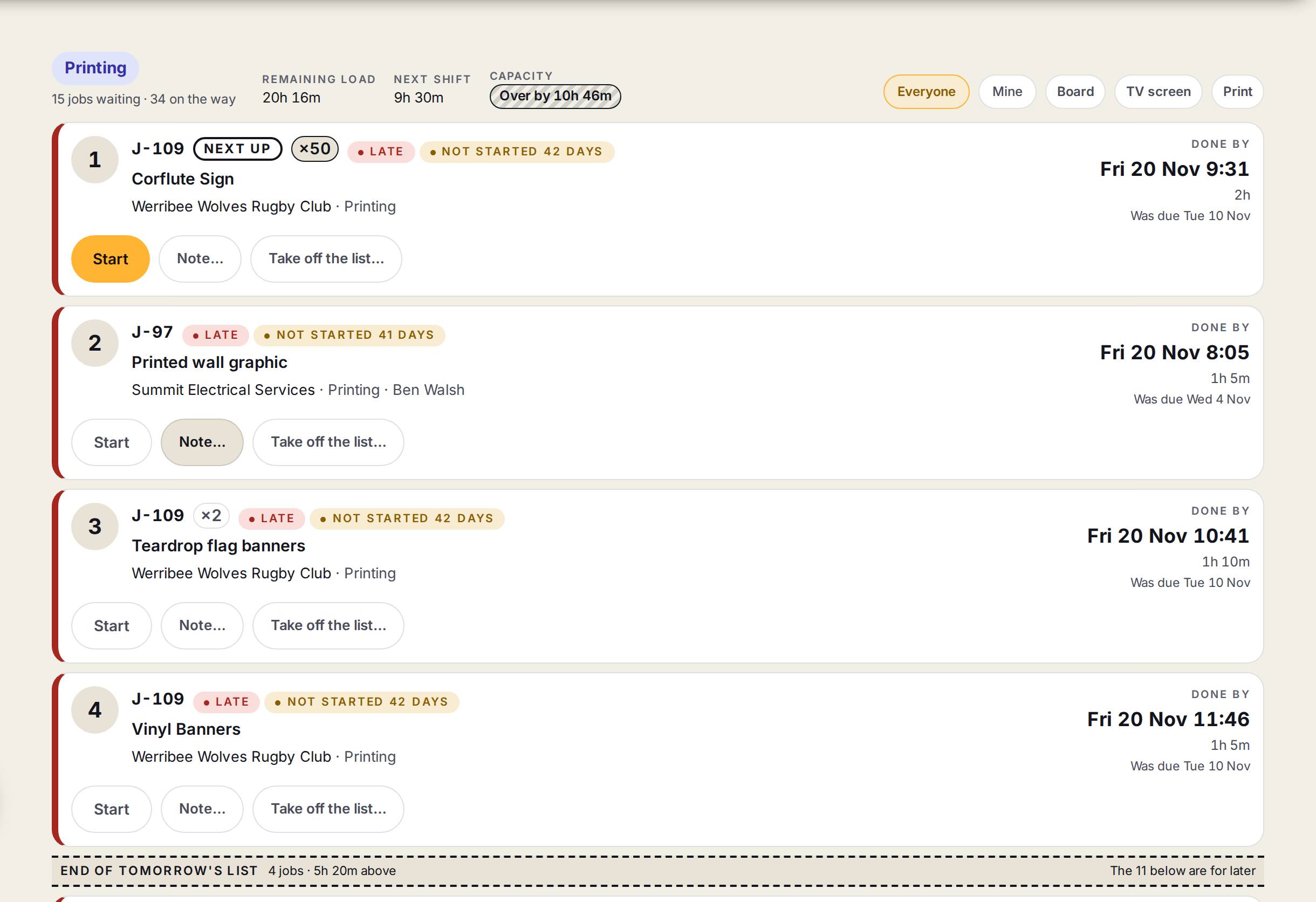
- 1Remaining load, Next shift and CapacityHow much work the department has, the hours in its next shift, and what is spare or over.
- 2Everyone and MineThe whole department's list, or only the jobs with your name on them.
- 3Board, TV screen and PrintBack to the department's board, the list for a wall screen, or a list to print.
- 4Next upThe first job on the list: what is being made, how many, the customer, and when it should be done by.
- 5Start and Take off the listStart begins the step. Take off the list says it is waiting on something.
Step by step
- 1
Open your department
Go to Production, then Floor boards, open your department and press Do next.
- 2
Read the first job
The job marked Next up is the one to do. Check what it is, how many, and its done-by time.
- 3
Start it
Press Start, or scan the QR code on the job sheet.
You’ll seeThe job shows as running. Press Finish when it is done and the next job moves up.
- 4
Say it is stuck
If you can't do it, press Take off the list… and say what it is waiting on.
You’ll seeIt leaves the list and the office sees why.
- 5
Put it on the wall
Press TV screen on a screen the department can see. It shows the same list with no buttons, and keeps itself up to date.
- 6
Print it
Press Print for a black and white tick-box list, the next shift's work first.
Tips
The line across the list marks the end of the next shift's work. Jobs below it are for later.
Press Note… to leave a note on a job. The office sees it on their list too.
A note someone left on the job shows on its row, with who wrote it and when.
Watch out
Work top to bottom. The order is the office's decision, so ask before skipping ahead.
A job marked Not here yet is still in an earlier department. It can't be started.
The printed list is right when it is printed. The screen is right now.