
See your own week on My work
What am I meant to be working on today and this week?
- For
- Everyone with a staff login, the floor included
- Where to find it
- SidebarProductionMy work
- Takes
- 2 minutes
- You need
- Any staff login
What it is for
My work is your own slice of the production plan. It lists what you are planned to do each day this week and next, every step that has been handed to you, and the open jobs you own. You can tick a step off from here, and send your planned work to your phone's calendar. Nothing on it shows a price.
After this you can
- Read what is planned for you each day
- Tick a step off when it is finished
- Find every step handed to you, and the jobs you own
- Put your planned work in your phone's calendar
My week
Point at a number in the list and it lights up on the picture.
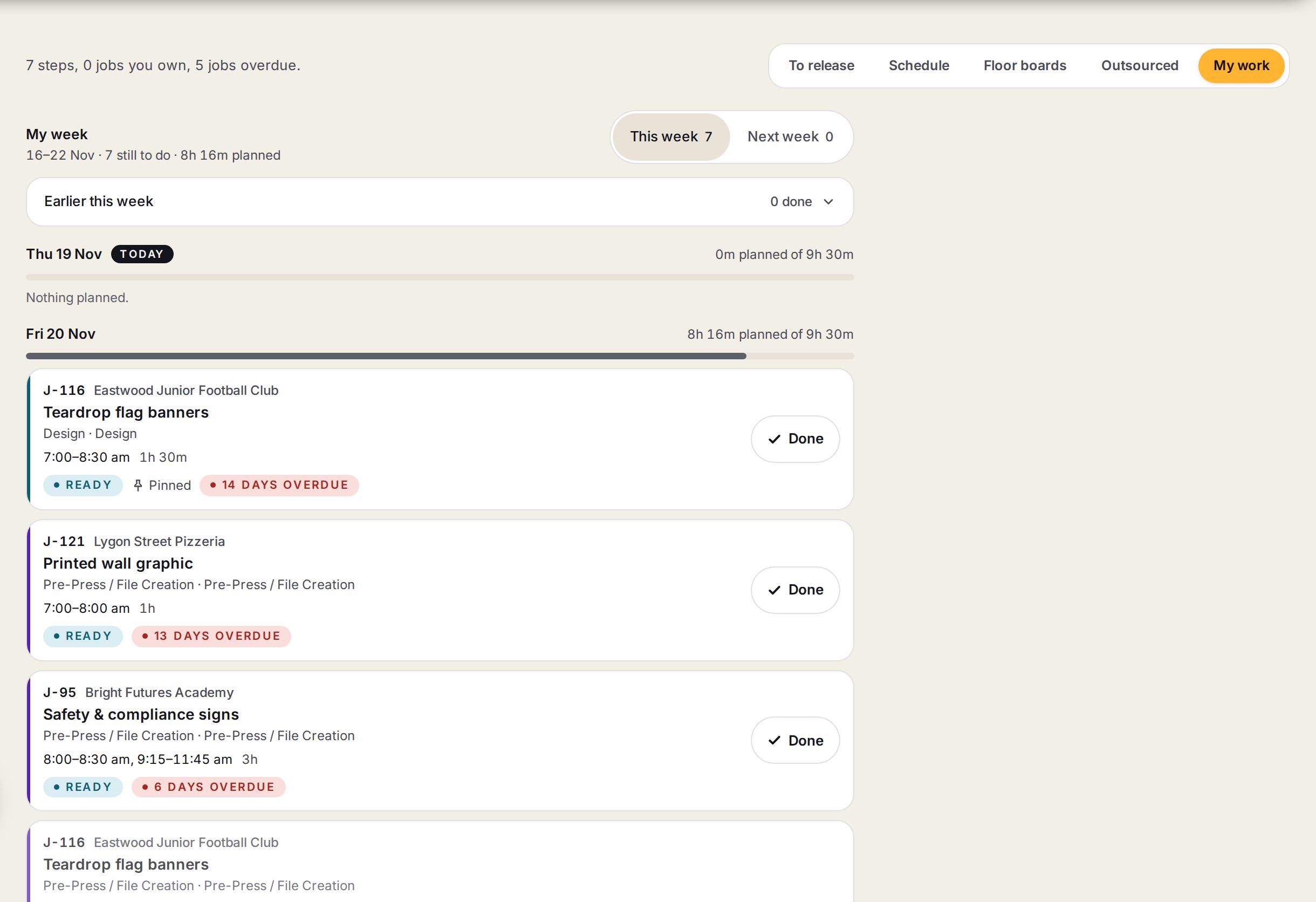
- 1My workThe last of Production's screens. The line on the left counts your steps, the jobs you own and how many are overdue.
- 2This week and Next weekSwitches the week. The number is how many steps are still to do.
- 3A dayThe date, and how much is planned against the hours you work that day. Today is marked.
- 4A stepThe job, the customer, what is being made, the step and its department, when it is planned and how long. Click it to open the job.
- 5DoneFinishes the step. It shows on steps that are ready to work on.
Working from My work
- 1
Open My work
Go to Production, then My work.
You’ll seeThis week, a day at a time, with today marked.
- 2
Read today
Look under today's date. Each card is one step, with the time it is planned for and how long it should take.
- 3
Open the job if you need more
Click a card to open the job, with its files, notes and the rest of its steps.
- 4
Tick it off
When a step is finished, press Done on its card.
You’ll seeThe card shows Finished, and a message offers Undo for a few seconds.
- 5
Look ahead
Press Next week to see what is planned after this week.
- 6
Send it to your calendar
Scroll down and press Put my work in my phone's calendar, then add the link on your phone.
The calendar link and the steps handed to you
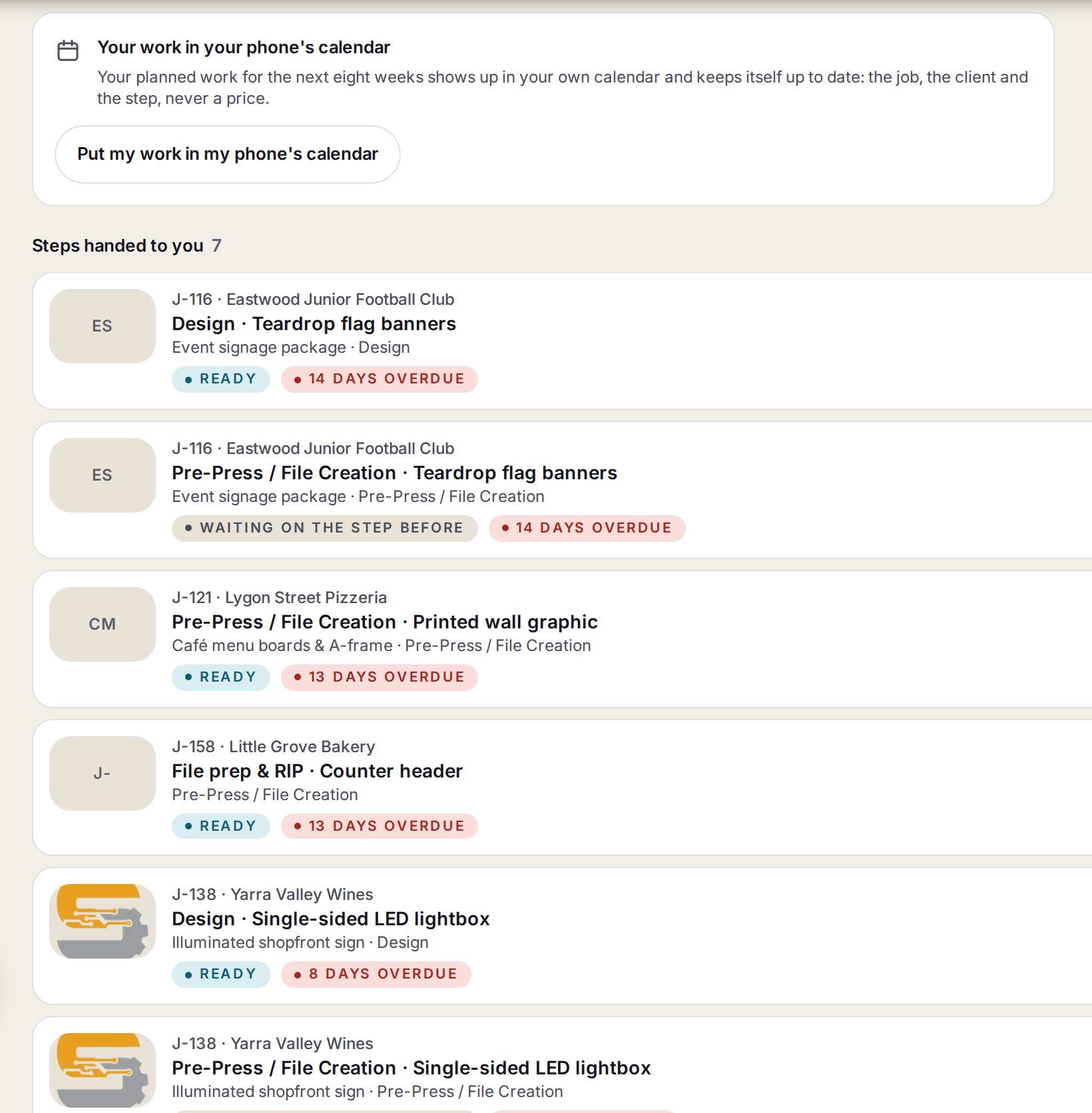
- 1Put my work in my phone's calendarMakes a private link. Add it on your phone and your planned work turns up in its calendar and keeps itself up to date.
- 2Steps handed to youEvery step with your name on it, in any department, whether or not it is on the plan yet.
- 3A handed-over stepReady means you can start. Waiting on the step before means something has to finish first. Overdue counts the days past the job's due date.
Words on this screen
Ready
The step before is finished, so this one can start.
Waiting on
A step that can't start yet, with what it is waiting on, such as Waiting on design.
Pinned
Someone fixed this step to its time on the planner, so the plan won't move it.
Jobs you own
Open jobs where you are the job owner, at the bottom of the screen.
Tips
Open Earlier this week to see what you have already finished.
The calendar shows the job, the customer and the step for the next eight weeks, never a price.
The link has one address for iPhone, iPad and Mac and another for Google Calendar. Use the one that suits your phone.
Watch out
A day reads Nothing planned when the plan has no step for you that day. Steps handed to you still show lower down.
Done finishes the step for the whole shop, not just on your screen. Use Undo straight away if you pressed it by mistake.
Anyone with your calendar link can see your planned work. Press Stop sharing your calendar to switch the link off, or make a new one.