
Book installs and check production will be ready
How do I book an install and know the signs will be made by then?
- For
- Project managers and whoever books installs
- Where to find it
- SidebarProductionInstalls
- Takes
- 2 minutes a booking
- You need
- A login that can see the production schedule
What it is for
An install can only happen once the signs are made. This screen lists every job with an install still to book, says when production expects to finish each one, and lets you book a date, a start time, the hours and who is doing it. If the date you pick is before production will be ready, it tells you.
After this you can
- See every install that still needs booking
- Book a date, time, hours and installer
- Mark a booking tentative until the site agrees
- Spot installs where production won't be ready in time
The Installs screen
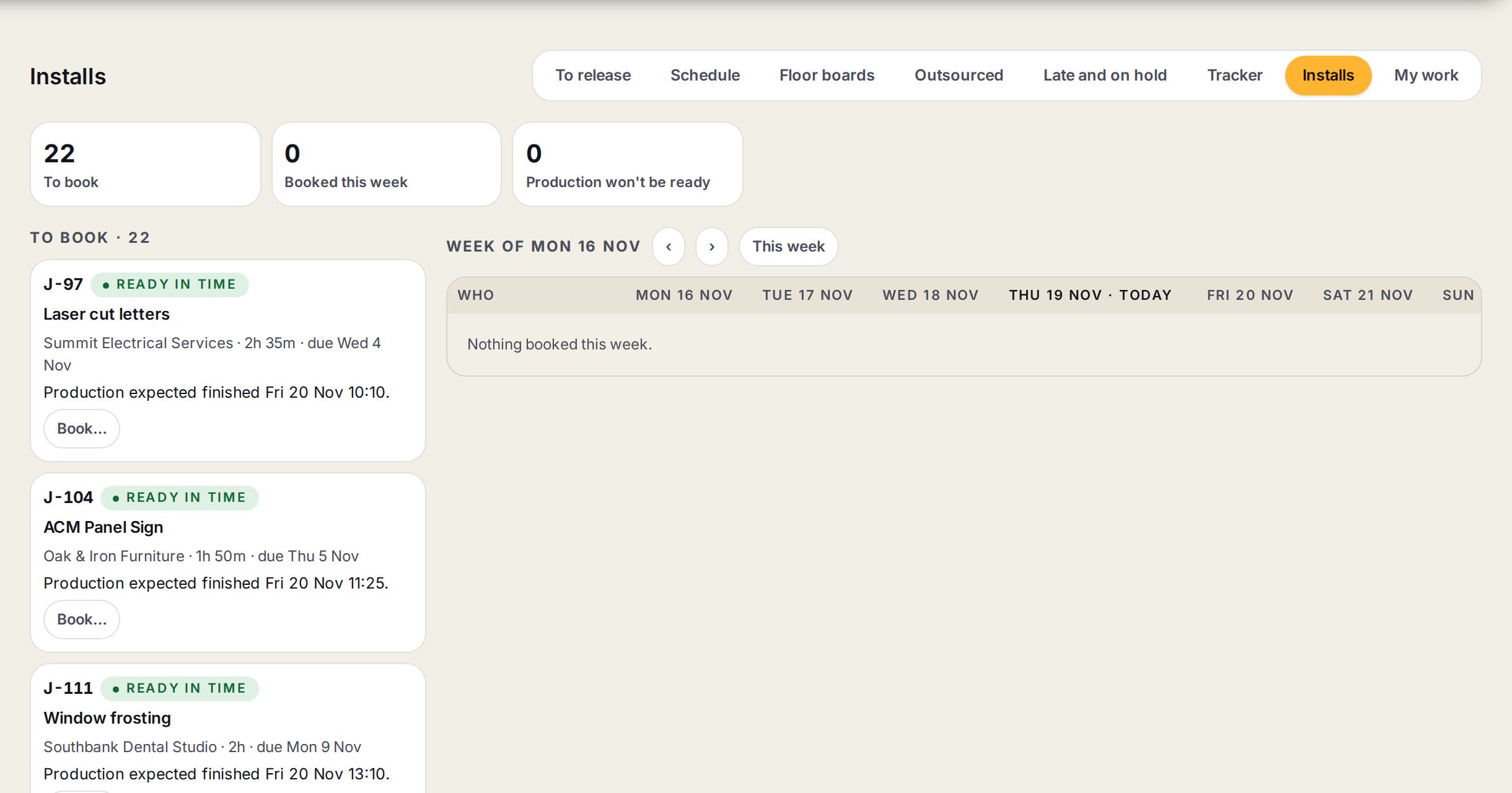
- 1The countsInstalls to book, installs booked this week, and bookings where production won't be ready.
- 2To bookEvery job with an install that has no booking yet.
- 3Ready in timeWhether production will finish before the job's date.
- 4Production expected finishedWhen the plan has the last production step finishing. Book the install after this.
- 5BookOpens the booking for that job.
Step by step
- 1
Open Installs
Go to Production, then Installs.
You’ll seeInstalls to book on the left, the week's bookings on the right.
- 2
Pick a job
Press Book… on the job.
You’ll seeThe booking opens with the site address, contact and access notes from the job.
- 3
Set the date and time
Choose the date, the start time and how many hours it will take.
- 4
Choose who
Pick one of your own people or a contractor, or leave it as Not decided.
- 5
Tentative or confirmed
Leave it Tentative until the customer or the site has agreed the time, then change it to Confirmed.
- 6
Read the readiness line
Check the line that says whether production will be ready. If the date is after the customer's date, say why in the box.
- 7
Book it
Press Book it.
You’ll seeThe install moves to the week on the right, under the day and the installer.
Tips
Use the arrows above the week to look at the weeks before and after.
Open a booking again to change it, then press Save booking. Take the booking off puts the job back under To book.
A booked install shows on the job's row in the planner's Lists and on the tracker.
Watch out
Production expected finished is a forecast. A machine down or a late delivery moves it, so check again the day before.
Booking an install does not tell the customer. Ring or email them.
Check a contractor's insurance and licences are current before you book them.
A booking after the customer's date needs a reason, and the reason is kept on the job.