
Price delivery from your own weight bands
How do I get every quote to charge delivery from my own price list?
- For
- Admins
- Where to find it
- SidebarSettingsShipping & deliveryPricing delivery on quotes
- Takes
- 5 minutes
- You need
- Your boxes and sign weights set up
What it is for
If you charge delivery from a price list in your head (under 1 kg $18.50, 1 to 3 kg $22.50, heavier I'll work it out), write it down here and every quote offers it. Over your top band, the quote leaves the price to you.
After this you can
- Choose how the delivery charge on a quote gets its number
- Enter your bands, for one courier or for all of them
- Use the band price on a quote
Before you start
- Your boxes and sign weights are set up, so a quote knows what the parcel weighs.
What is on this screen
Point at a number in the list and it lights up on the picture.
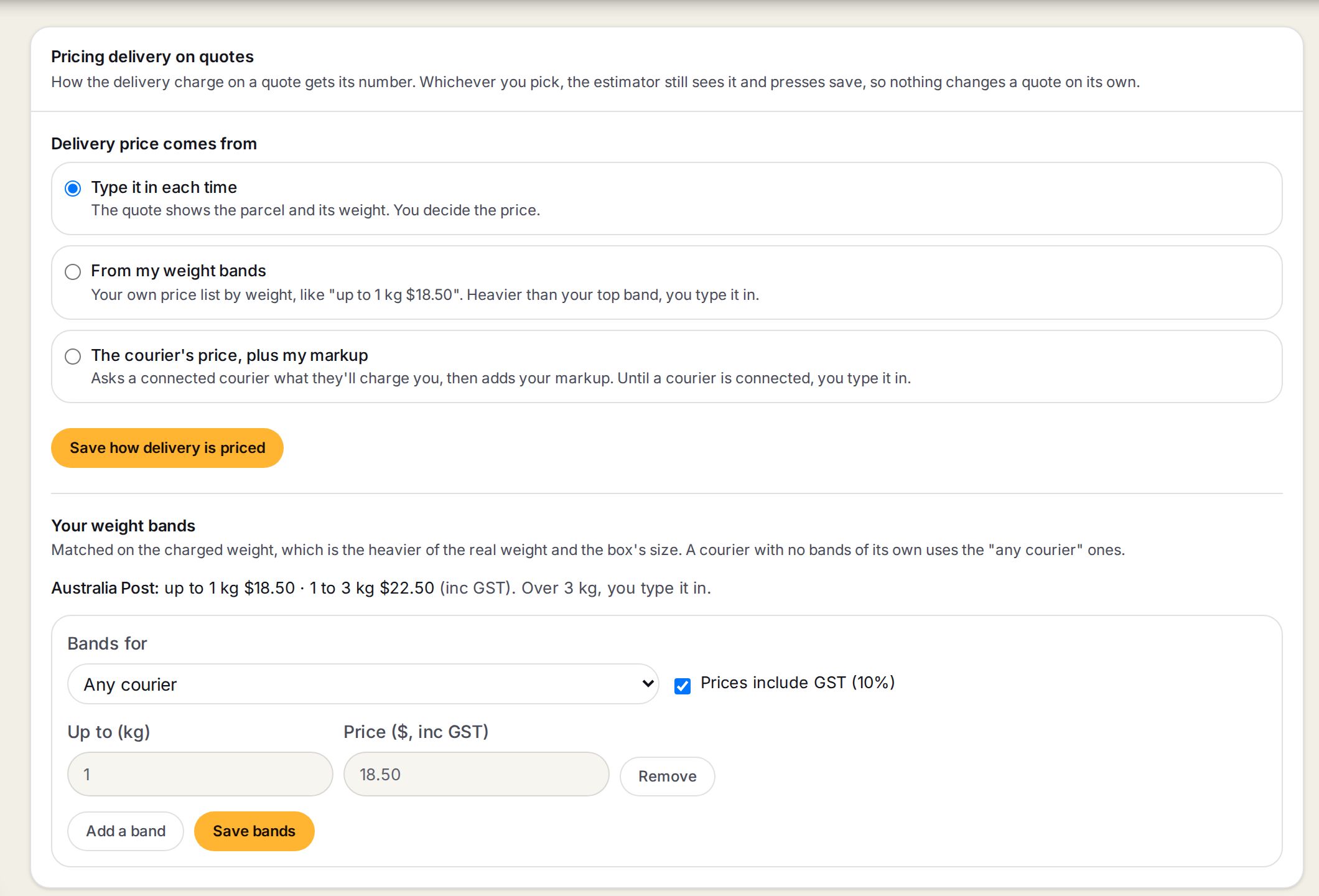
- 1Type it in each timeThe quote shows the parcel and its weight. You decide the price.
- 2From my weight bandsThe quote offers your band for the parcel's charged weight.
- 3The courier's price, plus my markupThe quote asks your connected couriers, then adds your markup. Until a courier is connected, you type it in.
- 4Save how delivery is pricedSaves which of the three you picked.
- 5Bands for and Prices include GSTBands for one courier, or Any courier for the rest. Tick the box to type prices the way you say them.
- 6Up to (kg), Price, Add a band, Save bandsOne row per band, lightest first.
Step by step
- 1
Open Pricing delivery on quotes
Go to Settings, then Shipping & delivery, and find Pricing delivery on quotes.
- 2
Pick From my weight bands
Pick From my weight bands and press Save how delivery is priced.
- 3
Enter your bands
Under Your weight bands, pick the courier in Bands for. Enter Up to (kg) and the price for the first band, then press Add a band for the next.
- 4
Press Save bands
Press Save bands. The line above the form reads them back, like up to 1 kg $18.50 · 1 to 3 kg $22.50.
- 5
Use it on a quote
On a delivery quote, The parcel shows your band and a Use this price button. It fills the delivery charge. Nothing is on the quote until you press Save delivery charge.
Which band a parcel lands in
Bands of up to 1 kg $18.50 and 1 to 3 kg $22.50, for a parcel in one small carton.
Prices are kept ex GST like every quote price, so the quote shows $20.45 ex beside it.
Words on this screen
Band
A price for parcels up to a weight.
Any courier
The bands used for a courier that has none of its own.
Markup on the courier's price
A percentage, an amount, and a round-up. It only applies to prices a connected courier gives, never to your bands.
Tips
Bands match the charged weight: the heavier of the real weight and the box's size.
Whichever way you pick, the estimator still sees the price and presses save. Nothing changes a quote by itself.
Watch out
Heavier than your top band? The quote says so and leaves the price to you.
If some lines could not be boxed, the band is for the rest only. The quote warns you to check it before you use it.
Common questions
Do I need a courier connected for bands?
No. Bands are your own price list and work with no courier connected.
Can each courier have its own bands?
Yes. Pick the courier in Bands for. Your couriers are the ones listed under Outbound, Set up carriers.