
Charge for delivery, and set up your couriers
Add a delivery charge to a quote or a won job, and keep your own courier list.
What this is for
A delivery charge is added on top of the signs and shows as its own Delivery line, named after the courier: $100 of signs plus $18.50 delivery is $118.50. You set it on the quote while it is a draft, or on the job's Dispatch tab once it is won, and it follows through to the invoice. The couriers you pick from are your own list, kept on the Outbound board.
What is on this screen
Each part of the screen above, top to bottom, and what changing it affects.
Settings → Money → Quotes & invoices
- Delivery on quotes — Not shown separately · Its own Delivery line
- Not shown separately is the default: nothing on the quote names delivery and there is no delivery charge box. Its own Delivery line adds a Delivery line on top of the signs, named after the courier, and switches the charge box on.
- Save delivery setting
- Saves the choice for every quote the shop makes from now on.
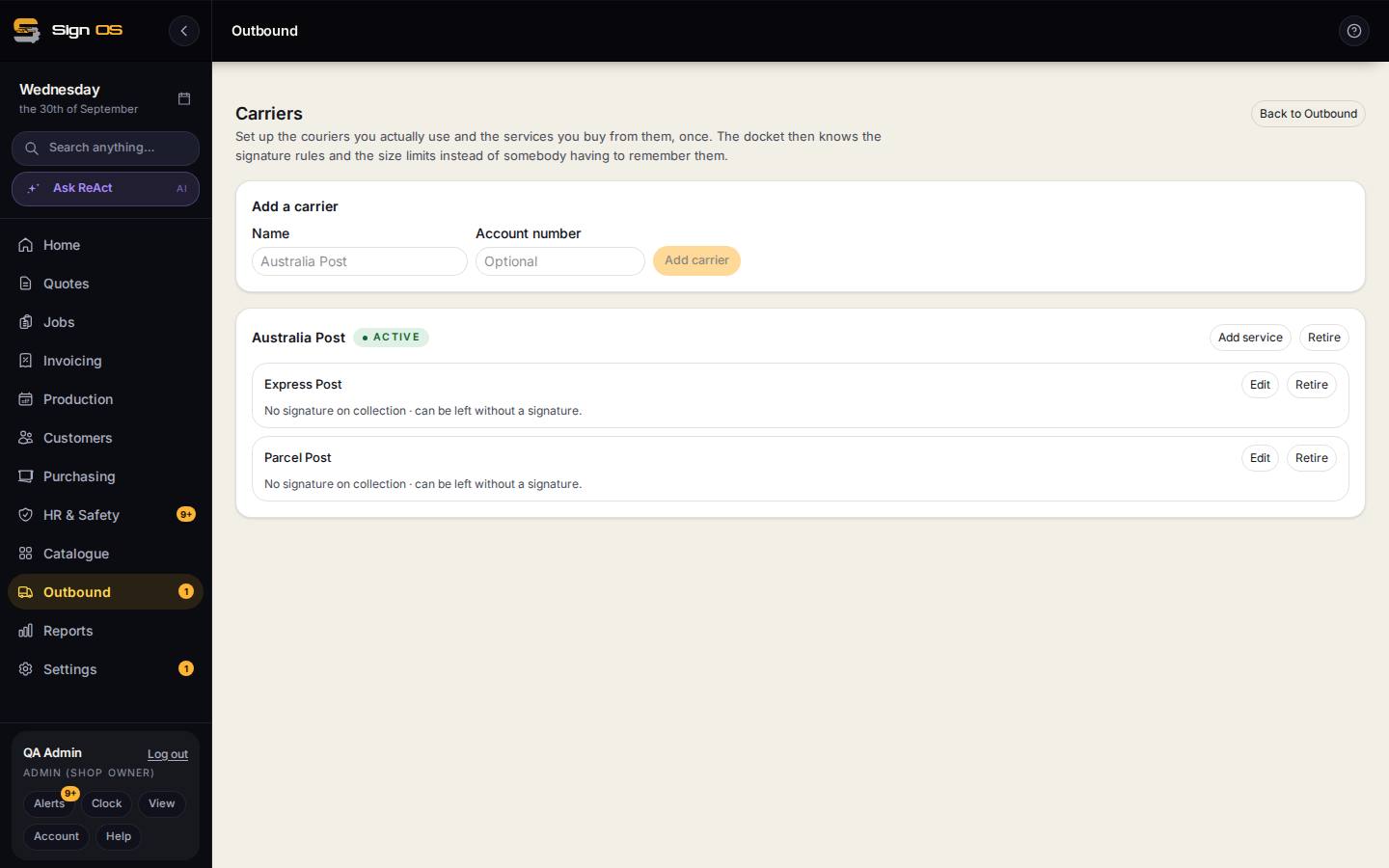
Outbound → Set up carriers
- Add a carrier — Name · Account number · Add carrier
- One row per courier you actually use. The account number is optional and shows beside the name. There is no ready-made list, so the list starts empty.
- Active · Retired · Retire / Restore
- Retire takes a courier off the pick lists without losing it from old jobs and dockets. Restore brings it back.
- Add service
- A service is what you buy from that courier, like Express Post or Road Express. Quotes, jobs and dockets pick a courier and then one of its services.
- Each service — Edit · Retire
- The line under a service sums up its signature rules. Edit reopens its form; Retire takes it off the pick lists without losing it from old jobs.
- Service name
- What the service is called. It appears after the courier's name on the Delivery line, like "Australia Post — Express Post".
- The driver signs when collecting from us · The customer must sign on delivery · Can be left without anyone signing
- The signature rules printed on the docket. Must sign on delivery and can be left are opposites, so ticking the first hides the second.
- Max weight (kg) · Transit days · Max length · Max width · Max height (mm)
- Limits a docket warns about when a parcel is over them. They never block it. Leave any of them blank if there is no limit.
- Tracking link
- Only needed for a courier Sign OS does not already know. Put {consignment} where the tracking number goes; the tracking email uses it.
- Save service · Cancel
- Saves the service under its courier, or closes the form without saving.
On a quote — When & where
- Delivery
- The Fulfilment choice that says the work is delivered. Picking it opens the delivery details. On its own it charges nothing.
- Courier · Service
- Your couriers from Outbound → Carriers, then that courier's services. Decide later leaves it open. The pick names the Delivery line.
- Delivery charge (ex tax) · Save delivery charge
- The amount the customer pays for delivery, before GST. It has its own save button and does not autosave like the rest of the section, because it changes the quote total.
- Shipping cost includes GST
- Tick it when the figure you typed already has GST in it, like an Australia Post price. Sign OS takes the GST out so it is not charged twice.
- Goes on the quote as … ex GST — … with GST
- Both figures for what is in the box, so you can check the tick was right before you save.
On a won job — Dispatch tab
- How it goes out — Installation · Delivery · Client pickup
- How this job leaves, starting from what the quote said. Changing it here changes the job only.
- Save how it goes out · Use the quote's
- Saves the change, or goes back to what the quote said.
- Delivery charge
- The same box as on the quote, for this job. The line above it says what the quote charged, or that it had no charge.
- Remove delivery charge · Use the quote's
- Remove takes the charge off this job. Use the quote's puts back whatever the quote charged.
Before you start
- Delivery on quotes is set to Its own Delivery line (Settings → Money → Quotes & invoices). Until it is, a quote has no box for a delivery charge.
Step by step
- 1
Once, switch the charge on: Settings → Money → Quotes & invoices, set Delivery on quotes to Its own Delivery line, and click Save delivery setting.
- 2
Once, add your couriers: open Outbound in the sidebar, click Set up carriers, type the courier's Name (and Account number if you want it shown) and click Add carrier.
- 3
Under each courier click Add service for each service you use, give it a Service name, tick its signature rules, fill in any limits, and click Save service.
Note: A courier with no services can still be picked. Services are what carry the signature rules and size limits onto the docket.
- 4
On a draft quote, click Delivery under Fulfilment in When & where. Pick the Courier and Service.
- 5
Type the amount in Delivery charge (ex tax). If your figure already includes GST, tick Shipping cost includes GST first. Check the figures under the box, then click Save delivery charge. The quote total goes up and the quote shows a Delivery line.
- 6
On a job that is already won, open the job's Dispatch tab. Under How it goes out, pick Delivery and click Save how it goes out, then type the charge under Delivery charge and click Save delivery charge.
Note: The job total and the invoice move with it. Remove delivery charge takes it off; Use the quote's goes back to the quote's figure.
Tips & gotchas
- Picking Delivery charges nothing by itself. Until a charge is saved, the quote's side panel says there is no delivery charge on it.
- The quote's charge can only change while the quote is a draft. Once it has been sent, change it on the job after it is won.
- Change the courier and the Delivery line changes with it, so the quote never names a courier you are no longer using.
- Couriers only hold names, services and rules. They do not look up freight prices; the charge is the figure you type.