
Give your signs a weight
Where do I record what a sign weighs once it is packed?
- For
- Whoever looks after your products
- Where to find it
- SidebarCatalogueopen a productShipping
- Takes
- A minute a product
- You need
- A login that can edit products, and kitchen scales
What it is for
A catalogue sign weighs the same every time. Weigh one, packed, and Sign OS uses that figure on every quote. Signs made to a new size use the material weight instead.
After this you can
- Record a packed weight and thickness on a product
- Point a made-to-size sign at the material it weighs like
- Read what the sign will post as
Before you start
- Your boxes and materials are set up (Set up your boxes and material weights).
Step by step
- 1
Open the product
Open the product and scroll to the Shipping card near the bottom. Only your own products have it, not ones still in the shared catalogue.
- 2
Enter the weight and thickness
Type the Packed weight in kilograms and the Packed thickness in millimetres. For a sign sold in any size, pick what it Weighs like instead.
CatalogueWindow PosterShipping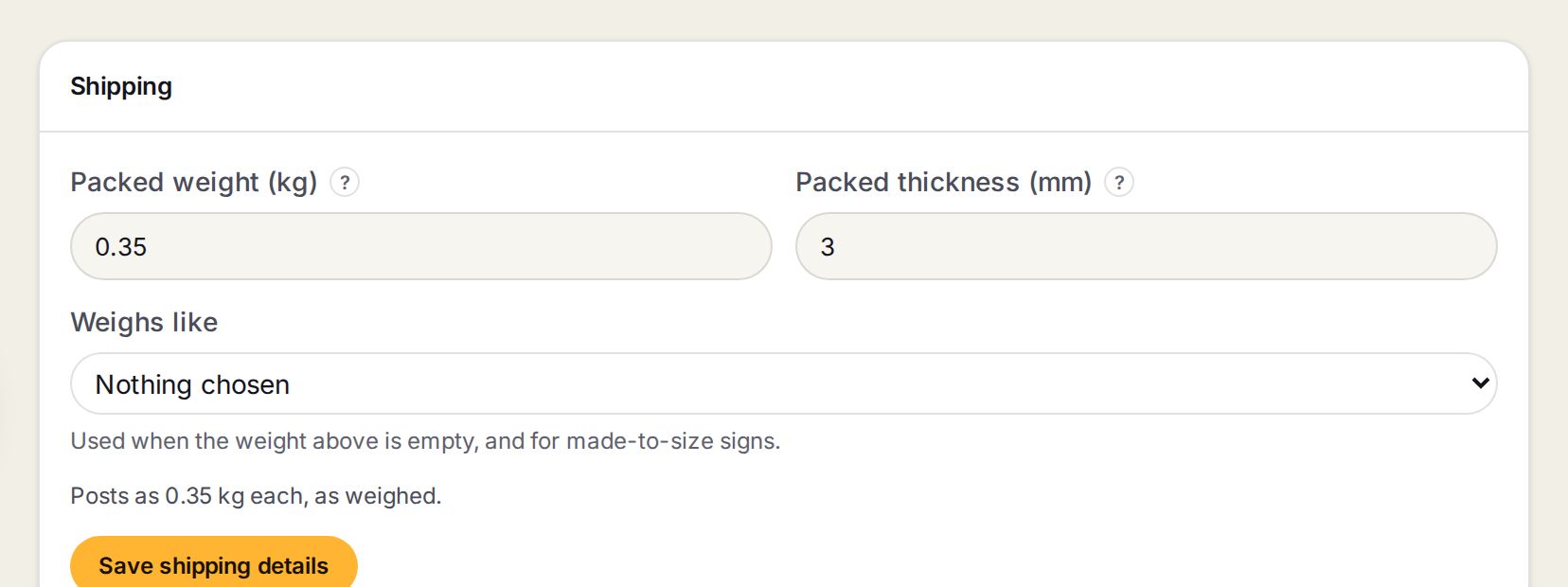
- 1Packed weight (kg)One sign, wrapped and ready to box. Kitchen scales are fine.
- 2Packed thickness (mm)How thick one sign is once wrapped. It decides how many stack in a box.
- 3Weighs likeThe material to work the weight out from. Used when the weight is empty, and for made-to-size signs.
- 4Posts asWhat Sign OS will use: the weight you typed, or one worked out from the material and the usual size.
- 5Save shipping detailsSaves the card. It is separate from the product's own Save.
- 3
Press Save shipping details
Press Save shipping details.
- 4
Done
The next quote with this sign shows it in the parcel.
Words on this screen
Packed weight
What one sign weighs in its sleeve or wrap, in kilograms.
Weighs like
A material from your Weights for custom signs list. Its weight per square metre times the sign's size gives the weight.
Tips
Many signs to do? Import from the spreadsheet on the Shipping & delivery settings page updates them all at once.
A weight typed in grams by mistake, like 185 instead of 0.185, is caught before it saves.
Watch out
A sign with no weight is named on the quote as not boxed. It is never packed as weightless.
A sign with a weight but no packed thickness cannot be boxed either. Fill in both.
Common questions
The card says the weight is worked out on each quote. Why?
The product has no usual size, so there is nothing to multiply the material by until a size is quoted.
Which wins, the weight or Weighs like?
The packed weight, whenever one is entered.