
Decide how the day clock behaves
Whether staff must clock on, what closes forgotten steps, and rounding.
What this is for
Time keeping records where the hours went so you can compare a job's real time to its estimate. These settings decide how strict it is — from 'scans work either way' to 'nobody scans a job until they have clocked on' — and what happens to a step someone forgot to clock off on Friday.
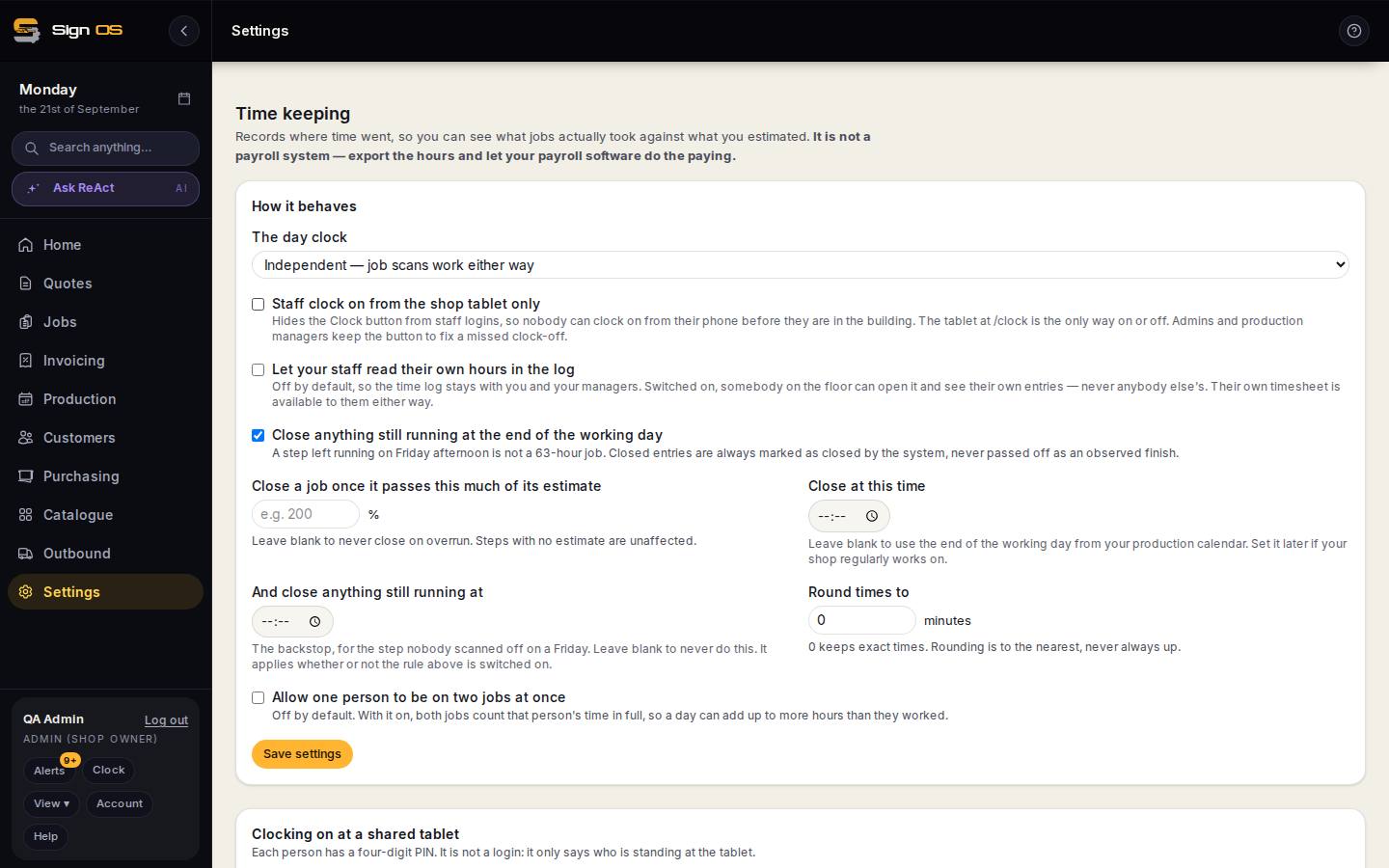
What is on this screen
Each part of the screen above, top to bottom, and what changing it affects.
- The day clock
- Independent, Required (clock on before scanning) or Automatic (first scan clocks you on).
- Staff clock on from the shop tablet only
- Hides the Clock button from staff logins; the tablet at /clock is the only way on or off. Admins and production managers keep the button.
- Let your staff read their own hours in the log
- Off by default; on, each person can open the log and see their own entries only.
- Close anything still running at the end of the working day
- With a percentage of estimate, a time of day, and a backstop time. Closed entries are marked as closed by the system.
- Round times to (minutes)
- 0 keeps exact times; rounding is to the nearest.
- Allow one person to be on two jobs at once
- Off by default; on, both jobs count the time in full.
- Clocking on at a shared tablet — Person · PIN · Clear
- Four-digit PINs; not a login, only says who is at the tablet.
Before you start
- Time keeping has to be on for your shop. If the Time screen is missing from the sidebar, it is not.
Step by step
- 1
Open Settings → Your shop → Time keeping.
- 2
The day clock: Independent means job scans work whether or not someone clocked on; Required means they must clock on first; Automatic means the first job scan clocks them on.
- 3
Tick 'Staff clock on from the shop tablet only' if you do not want people clocking on from their phone before they are in the building. The tablet's clock screen becomes the only way on or off; admins and production managers keep the button to fix a missed clock-off.
- 4
Choose whether staff can read their own hours in the log. Off by default — each person can always see their own timesheet regardless.
- 5
Close anything still running at the end of the day: set a percentage of the estimate after which a step is closed, a time of day, or a backstop time. Entries closed this way are always marked as closed by the system, never passed off as a real finish.
- 6
Set rounding in minutes (0 keeps exact times; rounding is to the nearest, never up), decide whether one person can be on two jobs at once, and Save settings.
- 7
Below the settings, give each person a four-digit PIN for the shared tablet. It is not a login — it only says who is standing at the tablet.
Tips & gotchas
- This is not payroll. Export the hours and let your payroll software do the paying.
- Two jobs at once counts that person's time in full on both, so a day can add up to more hours than they worked. Leave it off unless you know why you want it.