
Invoice a finished job
Bill the whole job, or only the items you tick.
What this is for
A job is billed from its own invoice page. You choose how much of it goes on this invoice — everything, or only some items — and where the invoice goes: to your accounting software, or straight to the customer as a card-payment link.
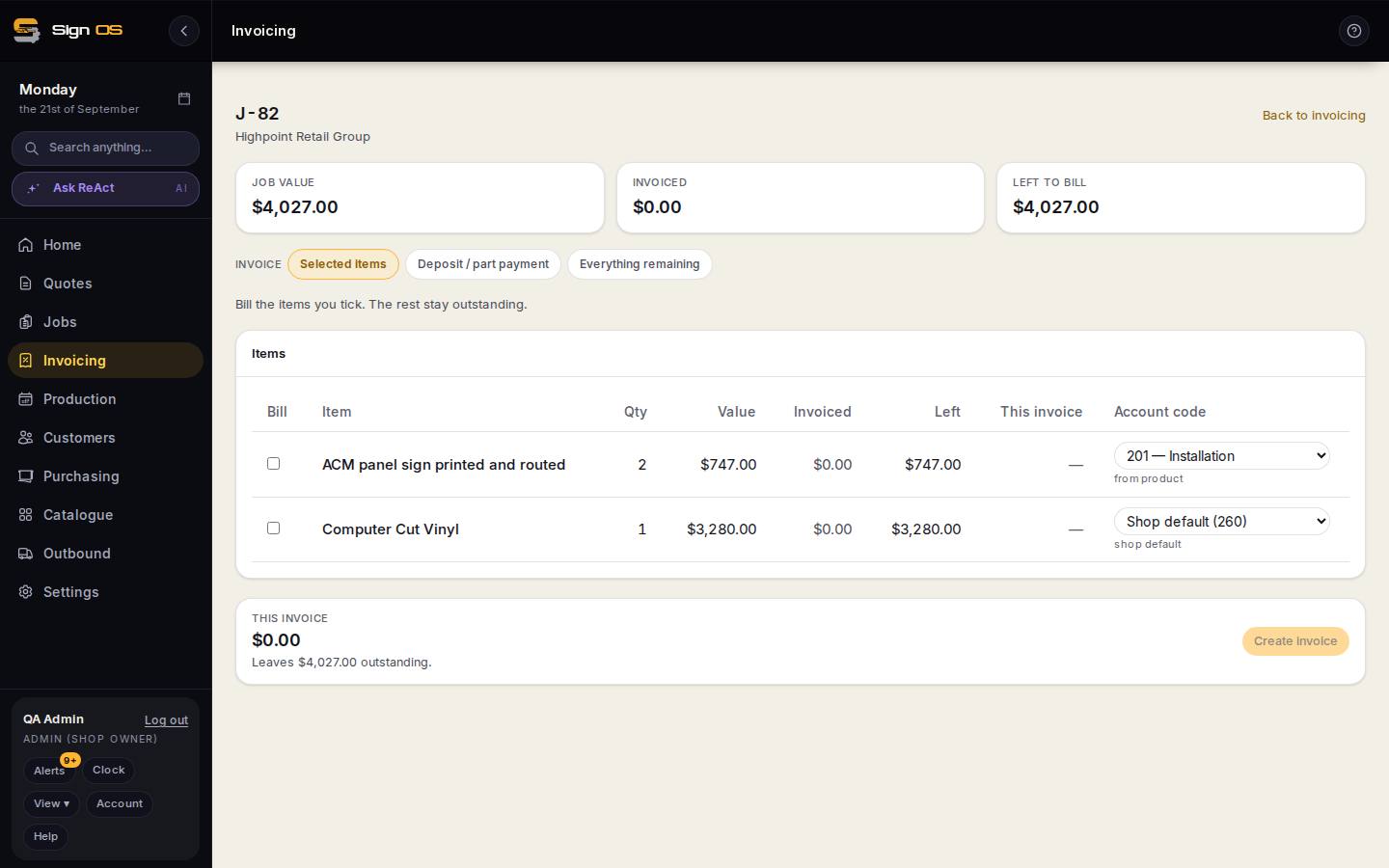
What is on this screen
Each part of the screen above, top to bottom, and what changing it affects.
The invoice page
- Job value · Invoiced · Left to bill
- The job's total, what has been billed, what remains.
- Selected items · Deposit / part payment · Everything remaining
- What this invoice covers: the lines you tick, one figure split across everything, or the whole balance (the final invoice, which closes the job).
- Items — Bill · Item · Qty · Value · Invoiced · Left · This invoice · Account code
- Each line, what it has already been billed, what goes on this invoice, and the accounting code it posts to (from product or the shop default).
- Adjustment
- A plus or minus on this invoice without touching the lines.
- Accounting software to send this invoice to
- Your connected platform, or Don't send yet to keep a draft.
- This invoice · Leaves … outstanding · Create invoice
- The total, what will still be owed, and the button.
- On a created invoice — Send via Stripe · Void draft · Paid in accounting · Sync failed
- Email a card-payment link; void a draft; the payment state that comes back from accounting; or why accounting rejected it.
Before you start
- The job needs a customer on it. An invoice with no customer cannot be raised.
- If you want invoices to land in Xero or QuickBooks, connect it first under Integrations → Accounting.
Step by step
- 1
Open Invoicing and click the job, or open the job itself and go to its Accounts tab.
- 2
Pick what this invoice covers. Everything remaining bills the whole outstanding balance and closes the job out as its final invoice. Selected items bills only the lines you tick; the rest stay outstanding for a later invoice.
- 3
Check the figures. Each line shows its value, what has already been invoiced, and what is going on this invoice. Left to bill at the top is what will remain afterwards.
- 4
If your accounting software is connected, choose where it goes under "Accounting software to send this invoice to" — or Don't send yet to keep it as a draft in Sign OS.
- 5
Click Create invoice. To take payment by card, use Send via Stripe on the invoice and the customer gets an email with a pay-now link.
Tips & gotchas
- Once an invoice has gone to accounting its lines lock. Fix mistakes with a credit note, not by editing.
- Sync failed means your accounting software rejected it, usually a missing customer or tax code on their side. Fix the cause, then retry from the invoice.
- Sent means handed to the mail service. The Email log under Settings tells you whether the customer's server accepted it.