
Connect Xero or QuickBooks
Sync invoices and payments to your accounting software.
What this is for
Connecting your accounting software means invoices flow out of Sign OS into your books and payment status comes back, with no double entry. With Xero you can also bring your existing customers, suppliers and business details across once, from Import from Xero. Xero and QuickBooks Online work today, on a free trial as well as a plan. MYOB is built and tested but not switched on yet: MYOB charges for the developer access the connection needs.
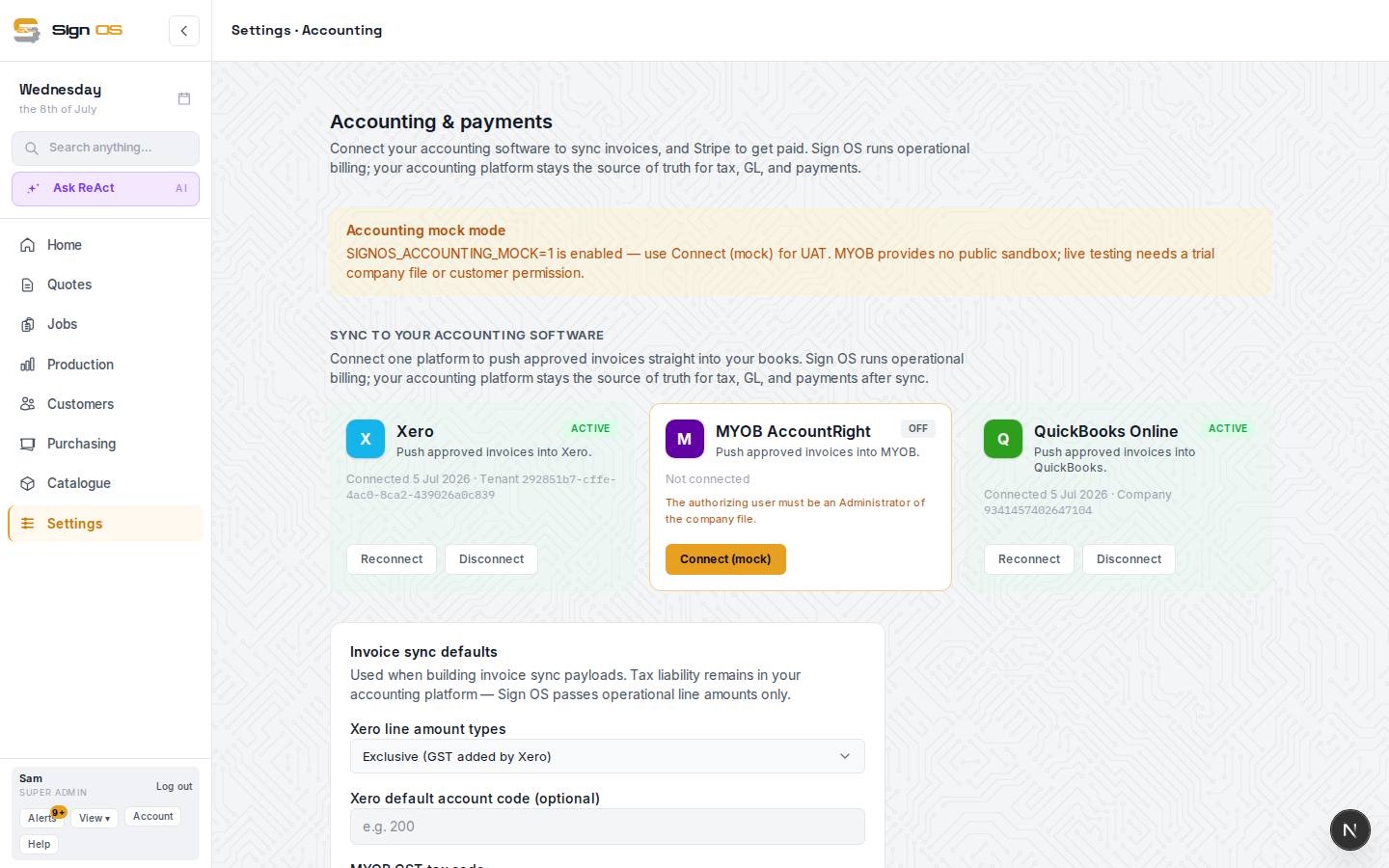
What is on this screen
Each part of the screen above, top to bottom, and what changing it affects.
Sync to your accounting software
- Xero · MYOB AccountRight · QuickBooks Online — Connect · Reconnect · Disconnect
- One platform receives approved invoices. The card shows Active (with the name of the business it's linked to), Off, Unlinked (the link was removed from inside Xero, or Xero stopped accepting the saved login) or Not ready (MYOB is built but not switched on).
- Unlinked
- Sign OS noticed your business was unlinked inside Xero. Invoices and bills won't reach Xero, and payments made there won't show here, until you press Connect again. Your admin and accounts people get a notification when it happens.
- Needs one more permission
- A Xero link made before Sign OS asked to read your business details, accounts and tax codes. Invoices keep syncing; press Reconnect and approve it to use Import from Xero fully and pick accounts and tax codes from your own Xero.
- Paused when your trial ended
- Xero is unlinked automatically the day a free trial ends without a plan. Once you subscribe, press Connect: your settings and customer links are all still here.
- Import customers and suppliers
- On the Xero card while it's Active. Opens Import from Xero.
- Connected message
- When you come back from authorising Xero, QuickBooks or MYOB, a green message such as 'QuickBooks connected successfully.' shows above the cards. If the connection didn't go through, a red message says why instead, and the card stays Off.
Invoice sync defaults
- Xero line amount types
- Exclusive (GST added by Xero) or inclusive.
- Xero default account code · Bad debt account code
- Where invoice lines post when a product has none, and where a written-off debt posts. With Xero linked, you pick from your own chart of accounts. Leave blank to let your accounting software decide.
- Xero tax on sales · Xero tax on bills
- The tax code from your own Xero that invoice lines and bill lines carry. Leave on the account's default to let Xero decide, as it always did.
- MYOB GST tax code
- The tax code MYOB invoices use, once MYOB is switched on.
- Save settings
- Applies from the next invoice.
Emailed invoices in Xero
- Invoices you've emailed go into Xero approved (Awaiting Payment) instead of Draft
- Off unless you turn it on, and only shown while Xero is connected. On: once Sign OS has emailed an invoice to your customer (Email PDF, or the automatic deposit invoice), it lands in Xero's Awaiting Payment instead of the Draft tab. If it was already in Xero as a draft when you emailed it, Sign OS approves it there straight after. Invoices you haven't emailed still go in as drafts for you to check. Emailed credit notes are approved the same way; a written-off debt is not. Anything already approved, paid, voided or deleted in Xero is left alone. Saves as soon as you flick it.
- In Xero as a draft, not approved
- On the invoice, if Xero refused to approve it (for example, an account code your Xero doesn't have). Xero's reason is shown, Sign OS tries again by itself, and Retry approving in Xero tries straight away once you've fixed it.
Record card payments in Xero
- Record card payments in Xero · On / Off
- Off unless you turn it on, and only shown while Xero is connected. On: when a customer pays an invoice by card through Sign OS (the pay now link on an invoice, or your online store), Sign OS records that payment against the invoice in Xero, so it shows Paid there too. It's dated the day the card was charged and carries the Stripe reference. A draft invoice is approved first. Website orders that came through your own WooCommerce store aren't included: that money didn't come through Sign OS.
- Bank account in Xero for card payments
- Where in Xero the payments go. The list shows your Xero bank accounts, and any other account you've allowed payments to. Most shops add a bank account called Stripe in Xero for this, so the payments line up with Stripe's payouts. You have to pick one before the switch will turn on.
- Reconnect Xero to let Sign OS record card payments
- Shown when Xero hasn't given Sign OS permission to record payments yet (every link made before this existed). Press Reconnect Xero and approve it. Until you do, nothing is recorded; payments that come in meanwhile wait in the list and go across once you've reconnected.
- Recent card payments · Recorded in Xero · Waiting · Needs a look · Didn't go
- The last few card payments and where each one is. Waiting usually means the invoice is still on its way to Xero. Needs a look means Sign OS left it alone on purpose, with the reason: the invoice was voided in Xero, its total there is different, it's already paid there, or it's waiting for someone to approve it in Xero. Your admin and accounts people get a notice too. Fix it in Xero, then press Try again, or record the payment by hand.
Developer & webhooks
- OAuth redirect URI · Xero webhook signing key
- Only needed when a platform asks for them during connection.
Before you start
- You are signed in as an admin.
- You have your accounting login handy to authorise the connection. For Xero, your Xero login needs permission to connect apps to the business.
Step by step
- 1
Open Settings → Connections → Accounting (Xero · MYOB · QuickBooks).
- 2
Under 'Sync to your accounting software', find the card for your platform — Xero or QuickBooks Online — and click Connect. Authorise with your accounting login and tick the one business this shop is. You land back here with a green 'connected successfully' message.
Note: The MYOB AccountRight card is on the page, but connecting it will not work yet. Built and tested, and switched off for one reason: MYOB charges A$110 a month just for access to its developer API, for as long as a single shop is connected. It goes on once enough shops need it to cover that. Talk to us before planning around it.
- 3
Set your 'Invoice sync defaults' (Xero line amount types, account codes and tax codes) and click Save settings.
- 4
Using Xero? Click Import customers and suppliers on the Xero card to bring your existing records across once.
- 5
Done. Approved invoices you raise in Sign OS now sync across, the card shows Active, and payments recorded in your accounting software come back and mark the invoice paid here.
Tips & gotchas
- Set your 'Invoice sync defaults' carefully once — it is what keeps your bookkeeper happy afterwards.
- If a sync looks off, this is the first place to check — the card shows Active, Unlinked or Off, and Reconnect / Disconnect sit right on it.
- Disconnect removes just this business from Sign OS's Xero link. If one Xero login links two shops, the other shop keeps its link.
- Sign OS is not your general ledger. It raises and syncs invoices; your accountant keeps working in Xero or QuickBooks.
- A customer you invoice is created in your books if they are not there already, matched on their email address. Customers brought across by Import from Xero are already linked, so their invoices land on the same Xero contact. After that, contact details are kept in each system on its own.
- Invoices sent by Stripe's own email (Send via Stripe) don't count as emailed for 'Emailed invoices in Xero'. Only emails Sign OS sends do.
- Record card payments in Xero doesn't record Stripe's fees. Leave those to Xero's own Stripe feed or a bank rule, the way you reconcile your payouts now.
- Refunds aren't recorded in Xero either. Refund a card payment that Sign OS recorded and your admin and accounts people get a notice to fix it in Xero by hand.
- A customer who pays by card before the invoice has reached Xero is fine: the invoice still goes to Xero, approved, and the payment follows it.
- Three things that used to be on this page have moved: taking card payments through Stripe is Card payments, the default deposit is on Quotes & invoices, and supplier bill syncing is on Purchasing settings.