
See what is ready to bill
One list of every job with money left on it, without opening them one at a time.
What this is for
Finished work that never gets invoiced is the quietest way a sign shop loses money. The Invoicing screen is the list of every job with money still on it: the job's value, what you have billed so far, and what is left to bill.
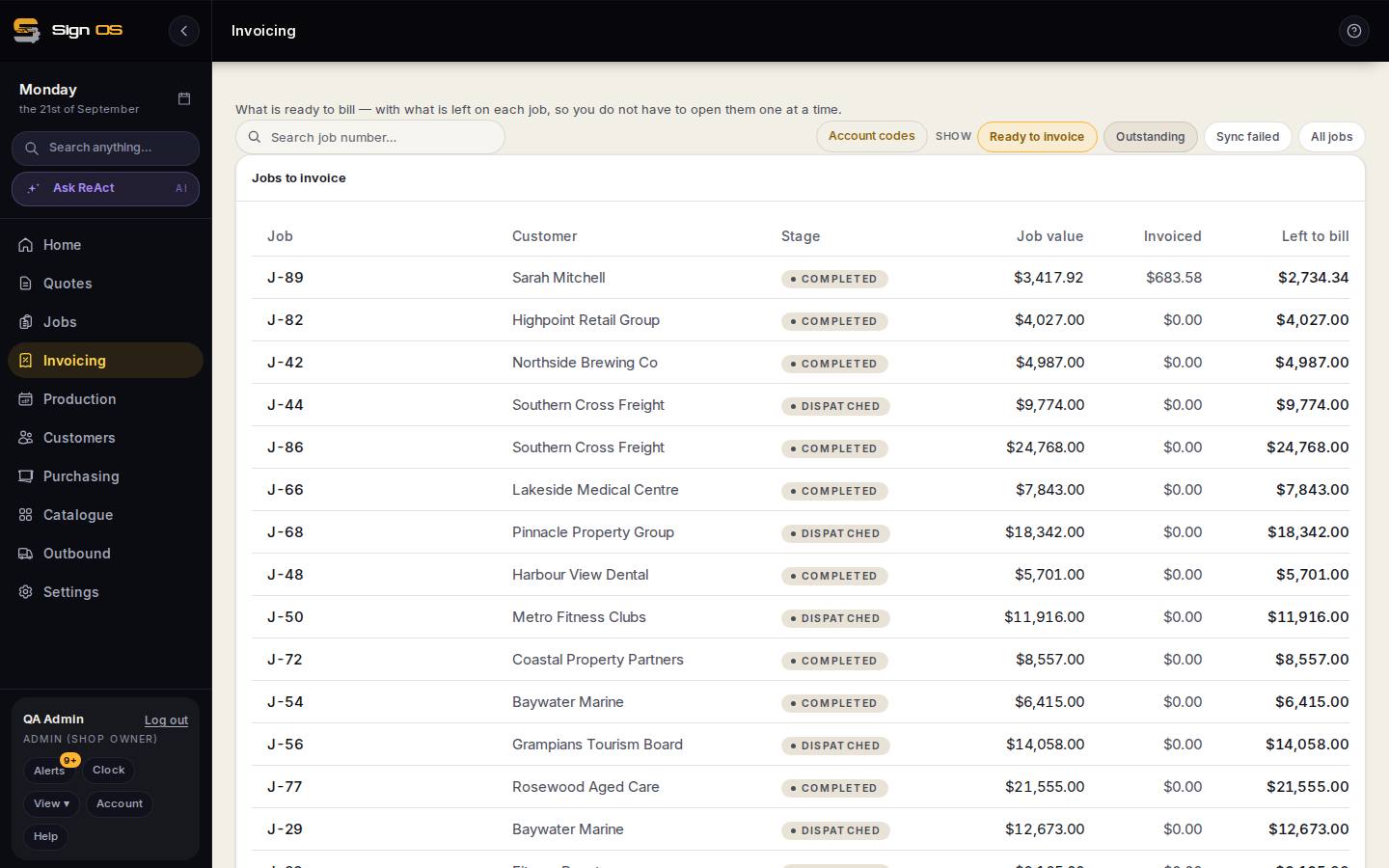
What is on this screen
Each part of the screen above, top to bottom, and what changing it affects.
- Ready to invoice · Outstanding · Sync failed · All jobs
- Finished or dispatched jobs with money left; sent but unpaid; rejected by accounting; everything.
- Account codes
- Which code in your accounting software each product bills to, once Xero or QuickBooks is connected.
- Job · Customer · Stage · Job value · Invoiced · Left to bill
- One row per job. DRAFT OPEN on a row means an invoice is already started. Click a row for its invoice page.
Step by step
- 1
Open Invoicing in the sidebar. Every job with something left to bill is listed with its stage, job value, amount invoiced and the amount left.
- 2
Use the buttons across the top to narrow it: Ready to invoice (finished or dispatched jobs), Outstanding (sent but unpaid), Sync failed (your accounting software rejected it), or All jobs.
- 3
A job showing a DRAFT OPEN tag already has an invoice started on it. Open the job to finish that one rather than starting another.
- 4
Click a job to open its invoice page and bill it — see the next guide.
Tips & gotchas
- The Home screen shows the same money by age under Outstanding by age: 0–30, 31–60, 61–90 and 90+ days. If the 90+ box is not zero, start there.
- Account codes, at the top right, is where you set which code in your accounting software each product bills to. Only matters once Xero or QuickBooks is connected.