
Take a deposit or part payment
Bill one figure up front and spread it across the job.
What this is for
Big jobs get paid in stages. A deposit invoice bills one amount now — a percentage or a round figure — and Sign OS spreads it across the items on the job, so the final invoice later is simply what is left.
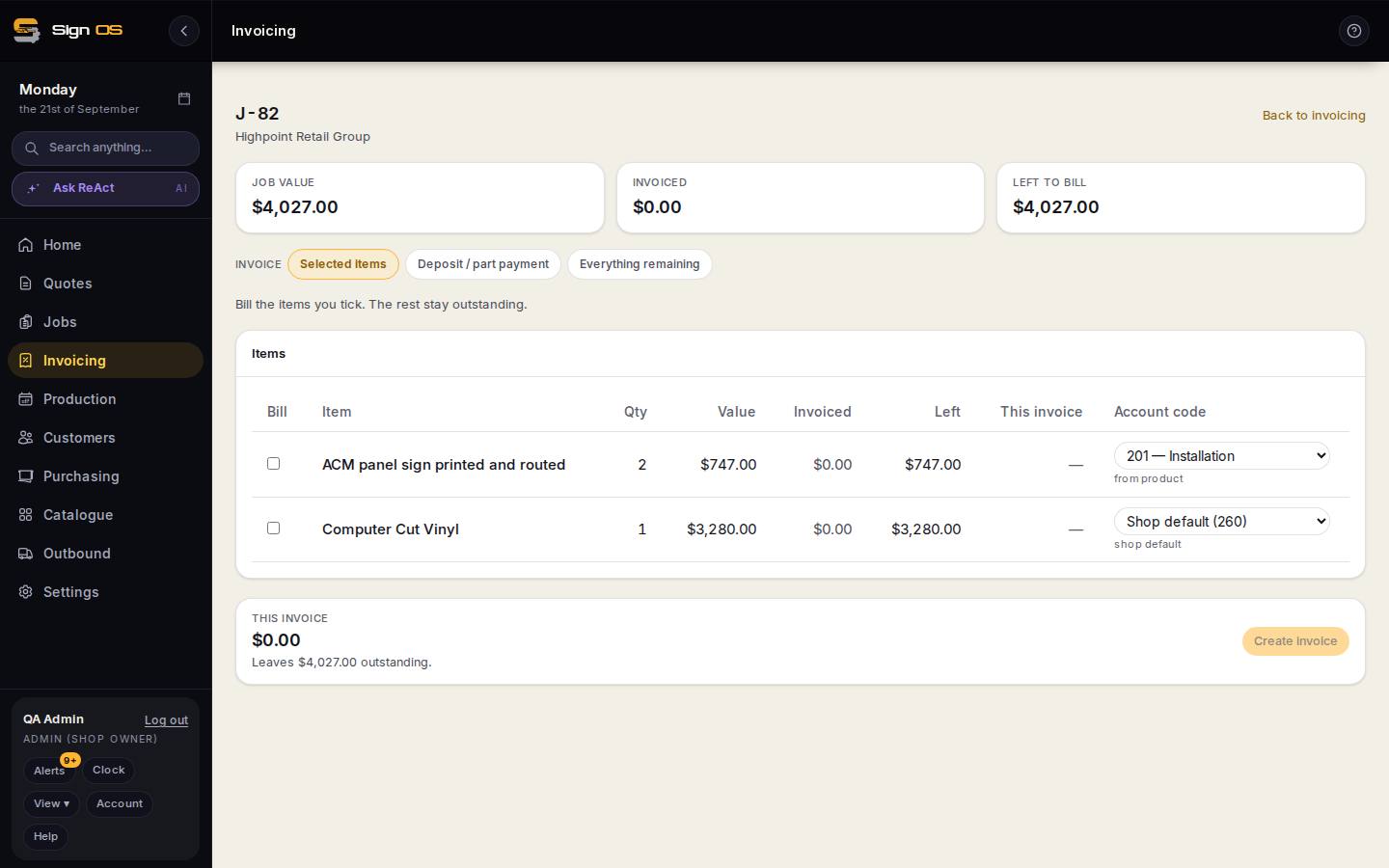
What is on this screen
Each part of the screen above, top to bottom, and what changing it affects.
- Deposit / part payment
- The mode that splits one figure across every item still to bill.
- Amount to bill
- A plain figure like 1000 or 1,000.00. Each line's This invoice column shows its share.
- Leaves … outstanding
- What the balance invoice will be.
Step by step
- 1
Open the job's invoice page from Invoicing or from the job's Accounts tab.
- 2
Choose Deposit / part payment.
- 3
Type the amount to bill — a plain figure like 1000 or 1,000.00. It is split across every item still to bill in proportion.
- 4
Send it the same way as any invoice: to accounting, or Send via Stripe for a card link. When the job is done, come back and bill Everything remaining for the balance.
Tips & gotchas
- The job's Left to bill figure always shows what is still owed after every deposit, so you never have to work it out by hand.
- A deposit does not close the job. Only Everything remaining marks the final invoice.