
Work out a number the size does not give you
Letters × height, sheets needed, spares added — then price lines per it.
What this is for
Sometimes the number a line needs is not the width, the length or the quantity. It is the face area of the letters, the number of sheets a job takes rounded up, a count with spares added. Custom Workings is where you write that sum once, in plain steps, and then point lines at the result.
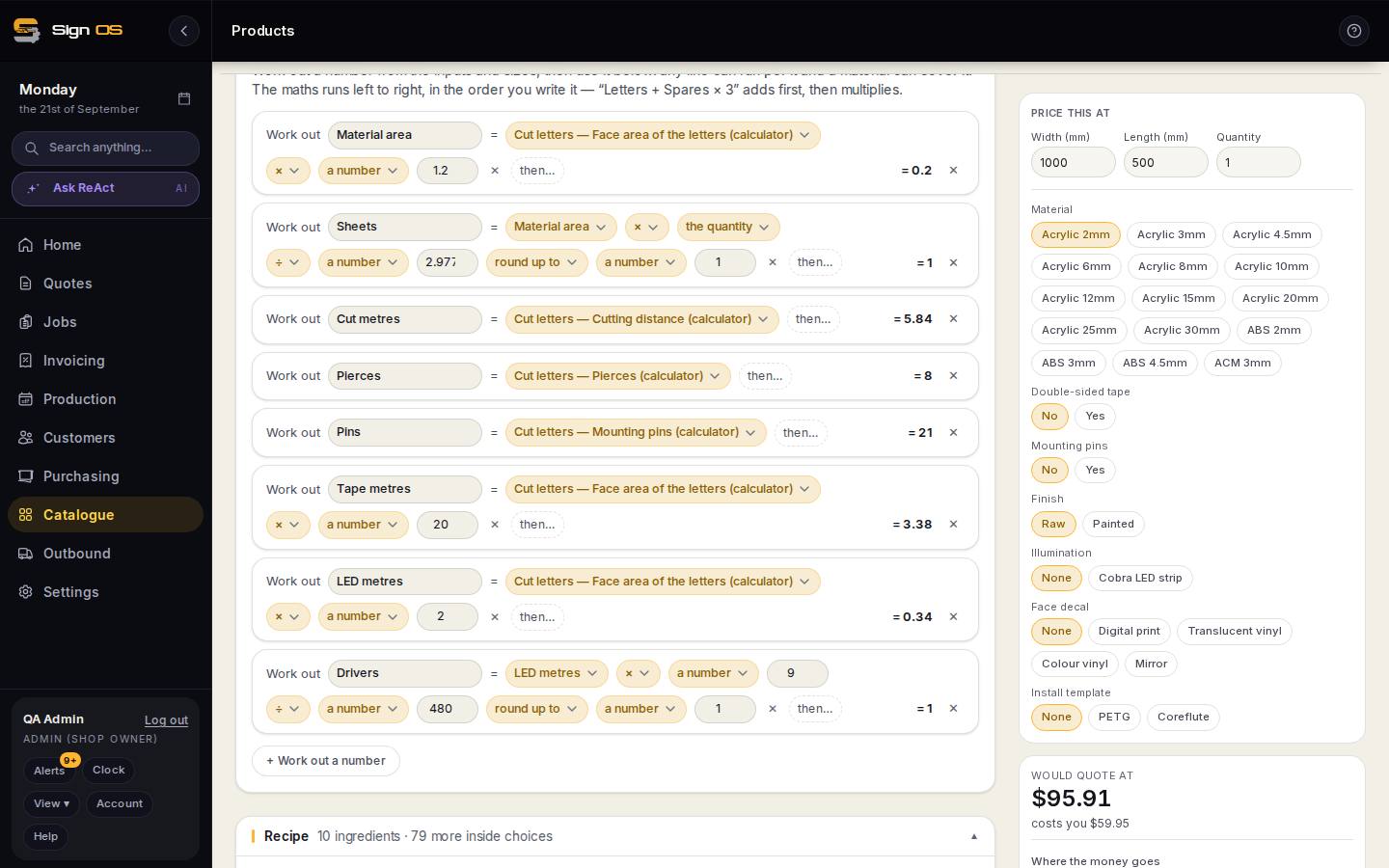
What is on this screen
Each part of the screen above, top to bottom, and what changing it affects.
Custom Workings card
- + Work out a number
- Adds a working.
- Work out = … then …
- Left side is a size, an input, the quantity, a calculator result or a plain number; then ×, ÷, +, − the next, left to right in the order written.
- round up to
- Forces a whole number of sheets, modules or people.
- = result
- The running answer at the sample size, so you can see it is right before a line uses it.
- Nothing uses this yet
- Until a line picks the working under per or covers, it does nothing.
Before you start
- Any custom inputs the sum needs should exist on the Inputs card first.
Step by step
- 1
Open the product and the Custom Workings card, then + Work out a number.
- 2
Name it, then build the sum: Work out = a size, an input, the quantity, a calculator result or a plain number; then… ×, ÷, +, − another; and round up to a step if it must be a whole number of sheets or modules.
- 3
The maths runs left to right, in the order you write it. 'Letters + Spares × 3' adds first, then multiplies — it does not follow school precedence.
Note: Read the running result beside the working (= 1, = 5.84). It is worked out from the sample size and the inputs' defaults, so you can see the sum is right before anything uses it.
- 4
Point a line at it. On any recipe line, choose the working under per (the line runs that many times) or under covers (the material covers that area). Until something uses it the card says 'Nothing uses this yet'.
- 5
Save recipe and test it in Price this at.
Tips & gotchas
- Sheets needed = Material area × the quantity ÷ sheet area, round up to 1. That one working turns a per-square-metre material into a per-sheet buy.
- A working can use another working, so build the small pieces first and chain them.