
Let a calculator work out the hard numbers
Cut letters, lettering coverage, install details and channel-letter layouts feed the recipe.
What this is for
Some numbers cannot be typed in: the real face area of the letters in a customer's name, how many pierces a laser makes, how many LED modules a run of letters needs, how many motel rooms an install crew books. A calculator is a small tool attached to the product that asks the quoter a question or two and hands the recipe the numbers it worked out.
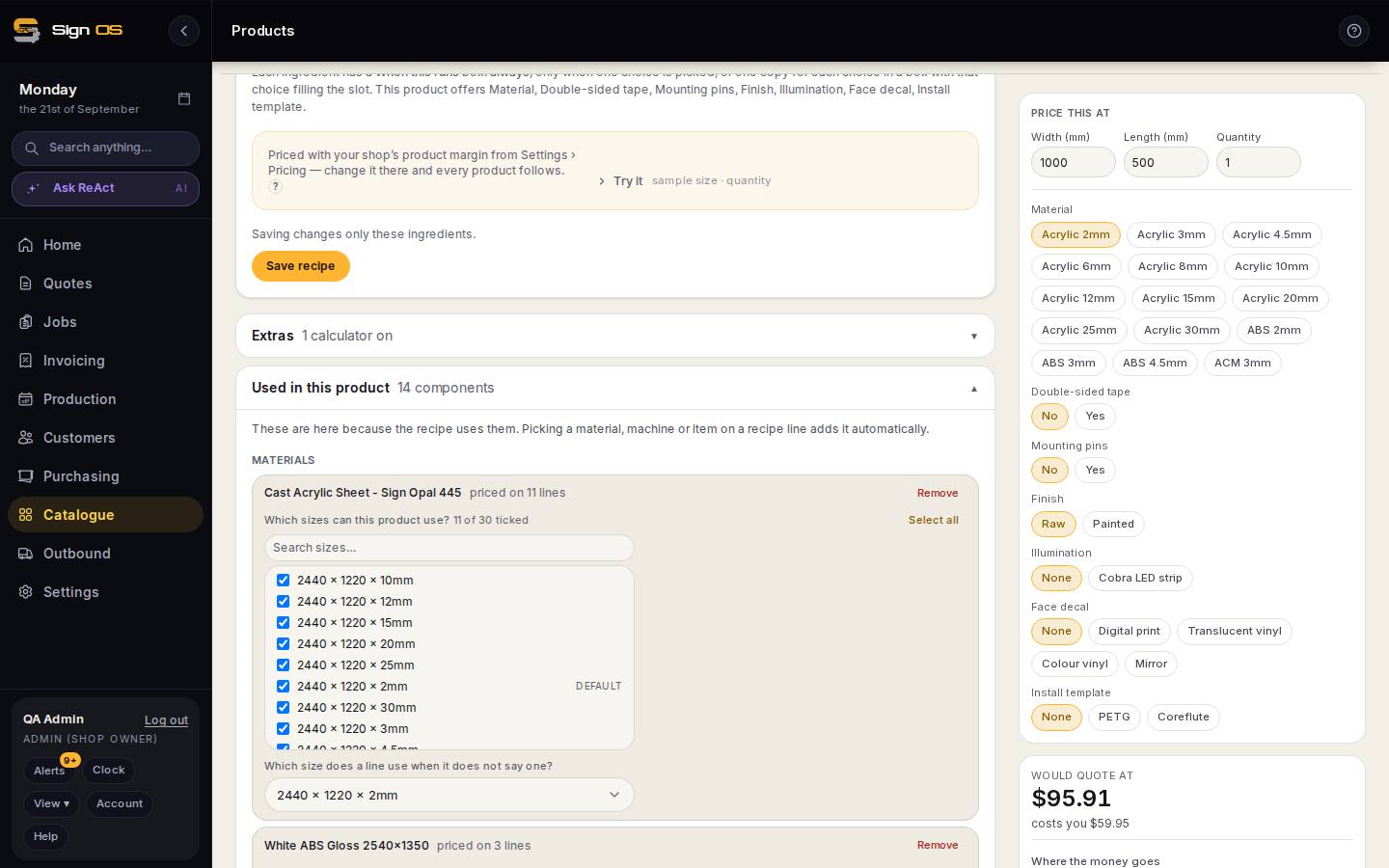
What is on this screen
Each part of the screen above, top to bottom, and what changing it affects.
Extras card
- Calculator list
- Each calculator this product uses, what it asks and what it works out — Install details, Lettering coverage, Channel letter layout, Cut letters.
- Each result — comes from: Ask on the quote / something the product knows
- Whether the quoter is asked, or the value comes from a custom input or working.
- Switch on / off
- Attaches or detaches a calculator; the calculators themselves are defined under Platform → Quote widgets.
Step by step
- 1
Open the product and the Extras card. It lists the calculators this product uses and what each works out.
- 2
Cut letters: the quoter types the letters and a height on the quote line, and the face area, cutting distance, pierces, mounting pins and letter count come through — measured from the font outlines or from the letter table.
- 3
Lettering coverage: how much of a sign face the computer-cut lettering covers, as a percentage. 0 is no lettering; lettering material and labour scale off it.
- 4
Install details: the questions behind an install price — hours to measure up, how many installers, hours on site, travel time and distance one way (doubled for the return), packing, motel rooms, nights away, equipment hire. Everything defaults to zero except installers and equipment days, so an untouched line costs nothing.
- 5
Channel letter layout is filled in by the channel-letter designer, not by hand: send a layout to the quote and the module count, drivers, lit face area and letter edge come across.
- 6
Under each question, choose whether it is asked on the quote or comes from something the product already knows — a custom input or a working. Then use the calculator's results in Custom Workings or straight on a recipe line under per or covers.
Tips & gotchas
- Ingredients that use a calculator say 'scaled by' and name the number, so you can see which lines a calculator drives.
- Cut letters must be built in the product builder, not imported, because the widget's questions have to be wired to lines.