
Read the Home screen
What the cards on Home mean, and which view to pick for your job.
What this is for
Home is the first thing everyone sees when they sign in. It is a snapshot of the shop right now — what is being quoted, what is on the floor, what is owed and what is about to go wrong — with a different view for each kind of job in the business.
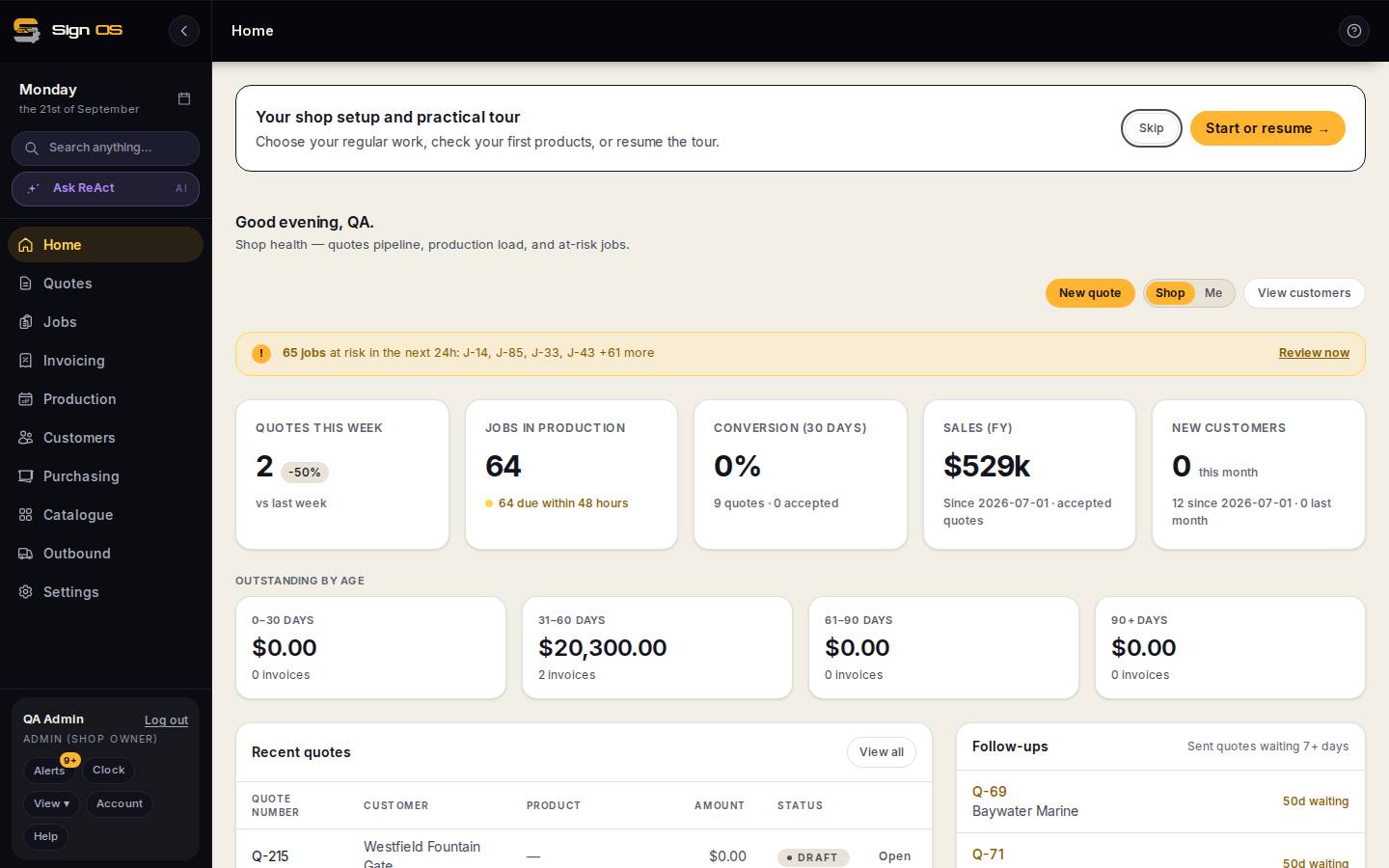
What is on this screen
Each part of the screen above, top to bottom, and what changing it affects.
Top
- Your shop setup and practical tour
- Only until the shop is set up. Start or resume → opens the set-up wizard; Skip hides the card for good.
- Greeting and view line
- Good morning/afternoon/evening, then the view you are on. The view picker swaps between Owner overview, Sales pipeline, Project manager, Production and Accounts.
- New quote · Shop / Me · View customers
- New quote starts a quote from anywhere. Shop shows the whole shop's numbers; Me narrows every card to your own work.
- Alert strip
- Jobs at risk in the next 24 hours, by number. Review now opens them. It only appears when there are some.
Vital signs
- Quotes this week
- Quotes created this week and the change on last week.
- Jobs in production
- How many are live and how many are due within 48 hours.
- Conversion (30 days)
- Accepted quotes as a share of quotes sent in the last 30 days.
- Sales (FY)
- Accepted quote value since 1 July.
- New customers
- This month, with the financial-year total and last month for comparison.
Money and work
- Outstanding by age
- Unpaid invoices in 0–30, 31–60, 61–90 and 90+ day buckets with the count in each. Driven by the invoice date and the customer's credit term.
- Recent quotes
- The last five with status; View all opens the Quotes list.
- Follow-ups
- Sent quotes waiting 7 days or more with no answer, oldest first — the follow-up automation reads the same list.
- Job pipeline
- Active jobs as Queued, In production, Completed and Dispatched.
Step by step
- 1
The view picker at the top swaps the layout: Owner overview (the whole shop), Sales pipeline (quotes and follow-ups), Project manager (active jobs, dispatch this week, correspondence needing attention), Production (today on the floor) and Accounts (the invoicing queue and unpaid invoices). Sign OS picks one to match your role; change it any time.
- 2
The top strip is the shop's vital signs: Quotes this week against last week, Jobs in production and how many are due within 48 hours, Conversion over 30 days, Sales for the financial year, and New customers.
- 3
A red bar above the cards is the alert strip — jobs at risk in the next 24 hours. Review now opens them.
- 4
Outstanding by age splits unpaid invoices into 0–30, 31–60, 61–90 and 90+ days. Anything in the last box needs a phone call, not another reminder.
- 5
Further down: Recent quotes, Follow-ups (sent quotes waiting 7 days or more with no answer) and the Job pipeline — how many jobs are queued, in production, completed and dispatched.
- 6
New quote at the top right starts a quote from anywhere. The Shop / Me switch narrows the numbers to the whole shop or just your own work.
Tips & gotchas
- Until your shop is set up, a card at the top offers the setup checklist and the practical tour. Skip hides it for good, so only skip it once you have the basics in.
- The Follow-ups list is the cheapest sales you will ever make. Ring the oldest one first.