
Build products from a spreadsheet
How do I build a lot of products at once without making each one by hand?
- For
- Whoever sets up the catalogue
- Where to find it
- SidebarCatalogueProductsBuild from spreadsheet
- Takes
- 30 minutes for a first batch
- You need
- A login that can add products, with your materials, machines and labour already set up
What it is for
When you have dozens or hundreds of products to set up, a spreadsheet is quicker than the builder. One tab names the products and another lists what each one is made of, a line per row. The dropdowns hold your own materials, machines, labour and items, so you can only pick what your shop has. Everything is checked before anything is built, and each built product comes back with a test price to check.
After this you can
- Download the spreadsheet with your own catalogue in its dropdowns
- Fill in the Products and Recipe tabs
- Upload it and fix anything it finds
- Check each product's test price, and undo the upload if it is wrong
Before you start
- Add your materials, machines, labour rates and items first. The dropdowns can only offer what is already in your catalogue.
The Build products from a spreadsheet screen
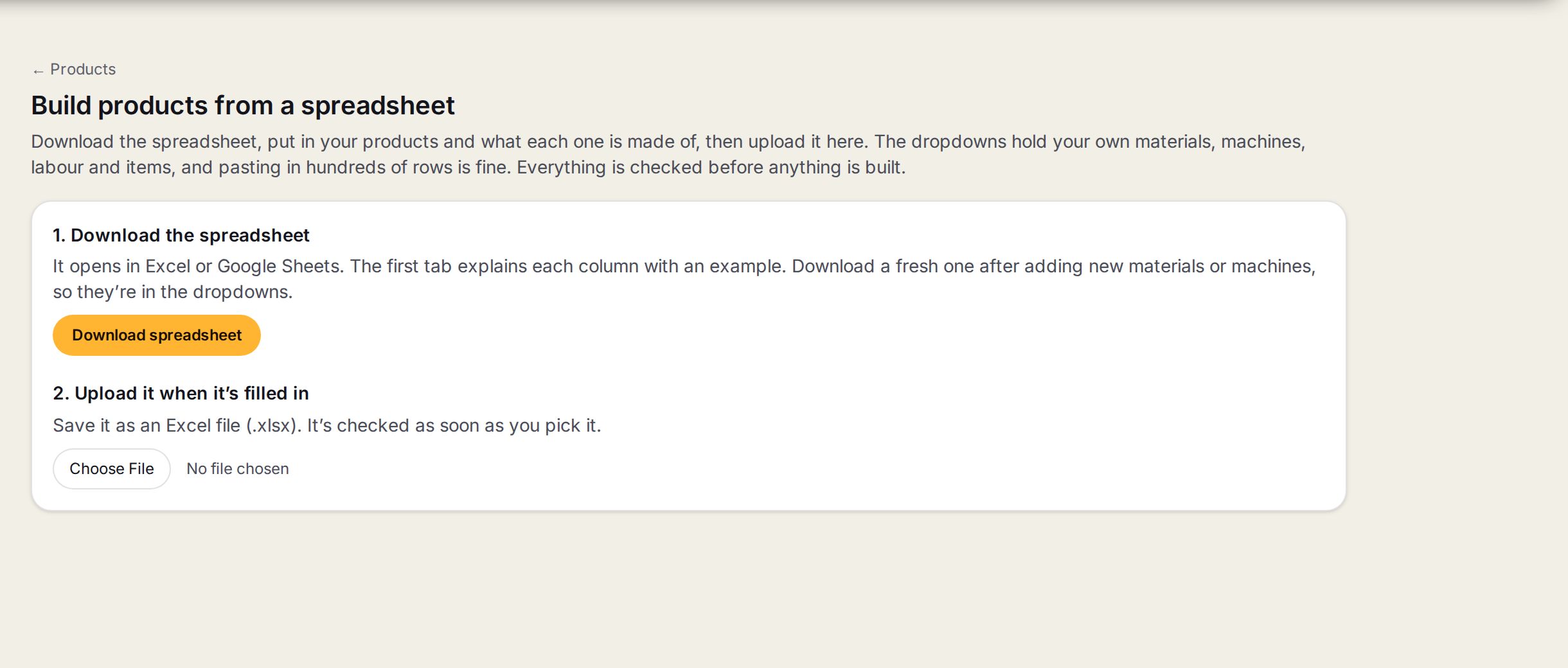
- 11. Download the spreadsheetIt opens in Excel or Google Sheets. The first tab explains each column with an example.
- 2Download spreadsheetMakes a fresh copy with your catalogue as it is right now.
- 32. Upload it when it's filled inSave it as an Excel file first.
- 4The file pickerPick the file and it is checked straight away. Nothing is built yet.
Step by step
- 1
Open the screen
Go to Catalogue, then Products, and press Build from spreadsheet.
- 2
Download the spreadsheet
Press Download spreadsheet and open it in Excel or Google Sheets.
- 3
Name your products
On the Products tab, give each product a name and a family. SKU and description are optional.
- 4
List what each is made of
On the Recipe tab, add a row for each thing a product uses. Pick it under Uses, choose what it is Charged per, and fill in the quantity, minutes or price that line needs.
- 5
Save and upload
Save it as an Excel file and pick it under 2. Upload it when it's filled in.
You’ll seeEither a list of things to fix, with the tab and row of each, or All good. Ready to build.
- 6
Fix what it found
Fix each row it lists in the spreadsheet, save, and upload it again.
- 7
Build
Press the Build button, which counts your products. Keep the page open until it finishes.
You’ll seeEach product with a test price and anything worth a look.
- 8
Check the test prices
Read down the test prices. If something is wrong, press Undo this upload, fix the spreadsheet and upload it again.
The tabs in the spreadsheet
| Tab | What it holds |
|---|---|
| How to use | What each column means, with an example. |
| Products | One row per product: Product name, Family, SKU, Description and Same recipe as. |
| Recipe | One row per thing a product uses: Product name, Uses, Charged per, Quantity, Minutes, Setup minutes, Waste %, Price $, Name on quote, Choice group and Show on quote. |
| Lists | What fills the dropdowns. Leave it alone. |
The columns that matter most
| Column | What to put in it |
|---|---|
| Uses | A material, a machine, labour or an item from your own catalogue, a fixed fee, or None for a line with no charge. |
| Charged per | Square metre, Linear metre (edge), Each sign or Whole job. |
| Same recipe as | The name of another product in the sheet, to give this one the same recipe without typing it again. |
| Choice group | Rows with the same group name become a choice on the product, such as a laminate. |
| Show on quote | Yes or No: whether the customer sees this line's name on the quote. |
What the test price is
Every built product is priced once so you can see it is in the right range.
A test price that looks far too high or low usually means a wrong Charged per or a quantity in the wrong unit.
Tips
Pasting in hundreds of rows is fine. A pasted cell can say m2 or ea in place of the dropdown's wording and it is still understood.
Download a fresh spreadsheet after adding new materials or machines, so they are in the dropdowns.
Use Same recipe as for products that only differ by name, such as the same sign in several stock sizes.
If the build stops part way, press Carry on building. What was built already is kept.
Watch out
Nothing is built while there is anything left to fix. Fix every row it lists first.
It only shows the first batch of problems. Fix those and upload again to see the rest.
One spreadsheet takes up to 1,000 products and 10,000 recipe rows.
Undo this upload removes every product that upload built. Use it before anyone quotes with them.
Don't rename the tabs or the column headings. The upload reads them by name.