
Set where your parcels leave from
Where do I tell Sign OS the address couriers pick up from?
- For
- Admins
- Where to find it
- SidebarSettingsShipping & deliveryWhere you send from
- Takes
- 2 minutes
- You need
- The Scale or Signature plan
What it is for
Every courier price depends on where the parcel starts. Add your dispatch address once. With more than one site, add each and mark the one parcels usually leave from.
After this you can
- Add the address couriers pick up from
- Add a second site
- Choose which site prices and bookings start from
What is on this screen
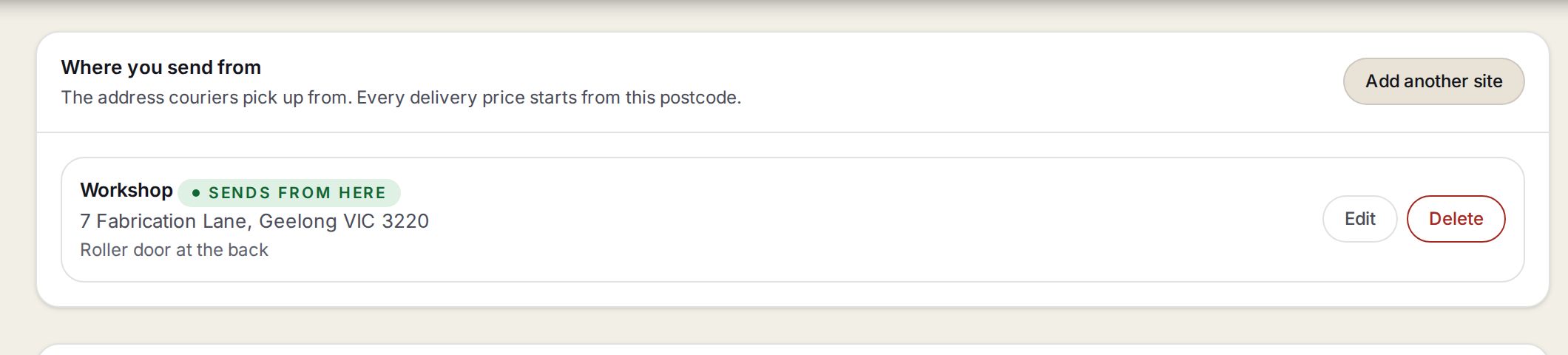
- 1Add another siteOpens the address form. With no address yet it reads Add your address.
- 2Sends from hereThe site every price and booking starts from. The pickup notes sit under the address.
- 3Edit and DeleteChange or remove a site. A site that is not the main one also has Send from here.
Step by step
- 1
Open Shipping & delivery
Go to Settings, then Shipping & delivery. Where you send from is the first card.
- 2
Open the address form
Press Add your address, or Add another site if one is there already. Use my business address fills the form from your business details.
SettingsShipping & deliveryWhere you send fromAdd another site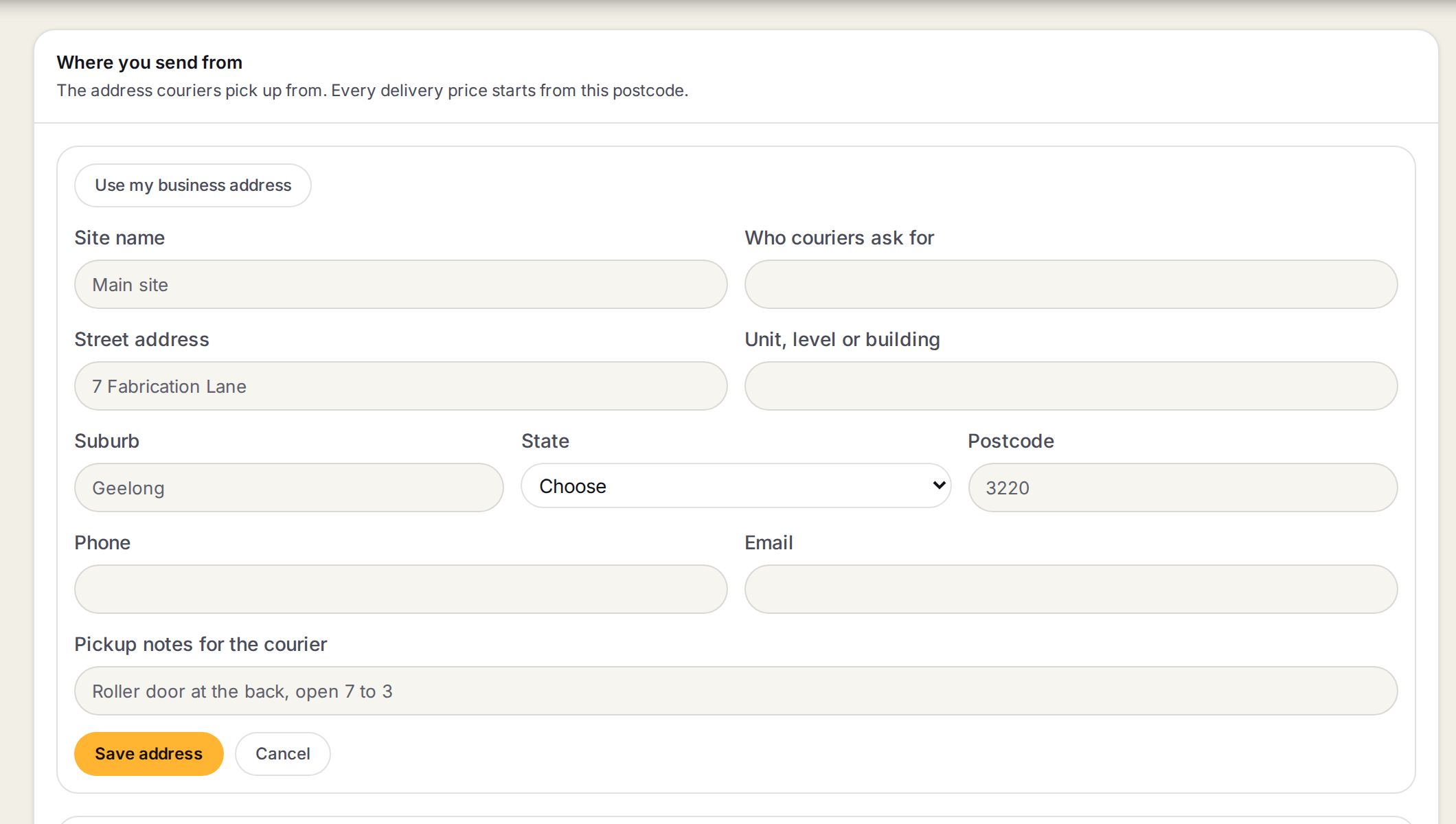
- 1Use my business addressFills the form from your business details, ready to check.
- 2Site name and Who couriers ask forA name for the site, and the person the driver asks for.
- 3Street address, Suburb, State and PostcodeA postcode that is not in that state is refused.
- 4Phone and EmailGo on the booking so the courier can reach you.
- 5Pickup notes for the courierWhich door, and when you are open.
- 6Save addressSaves the site.
- 3
Check it and save
Check the street, suburb, state and postcode, then press Save address.
- 4
More than one site?
Add each the same way, then press Send from here on the one you use most.
Watch out
Until an address is set, no courier can give a price. The quote says the dispatch address is not set.
Aramex picks up from the address on your Aramex account, not this one.
Common questions
Can a quote leave from a different site?
Prices and bookings start from the site marked Sends from here. Change which site that is before you ask for prices.