
Set how quotes and invoices work
Document numbers, the delivery line, deposits, credit terms and who signs off what.
What this is for
The rules every quote and invoice follows, on one page: what number the next job, quote, invoice or purchase order gets, whether delivery shows as its own line, what a deposit invoice suggests, the payment terms customers are on, what happens when an account is on hold, and which steps need a manager's sign-off first.
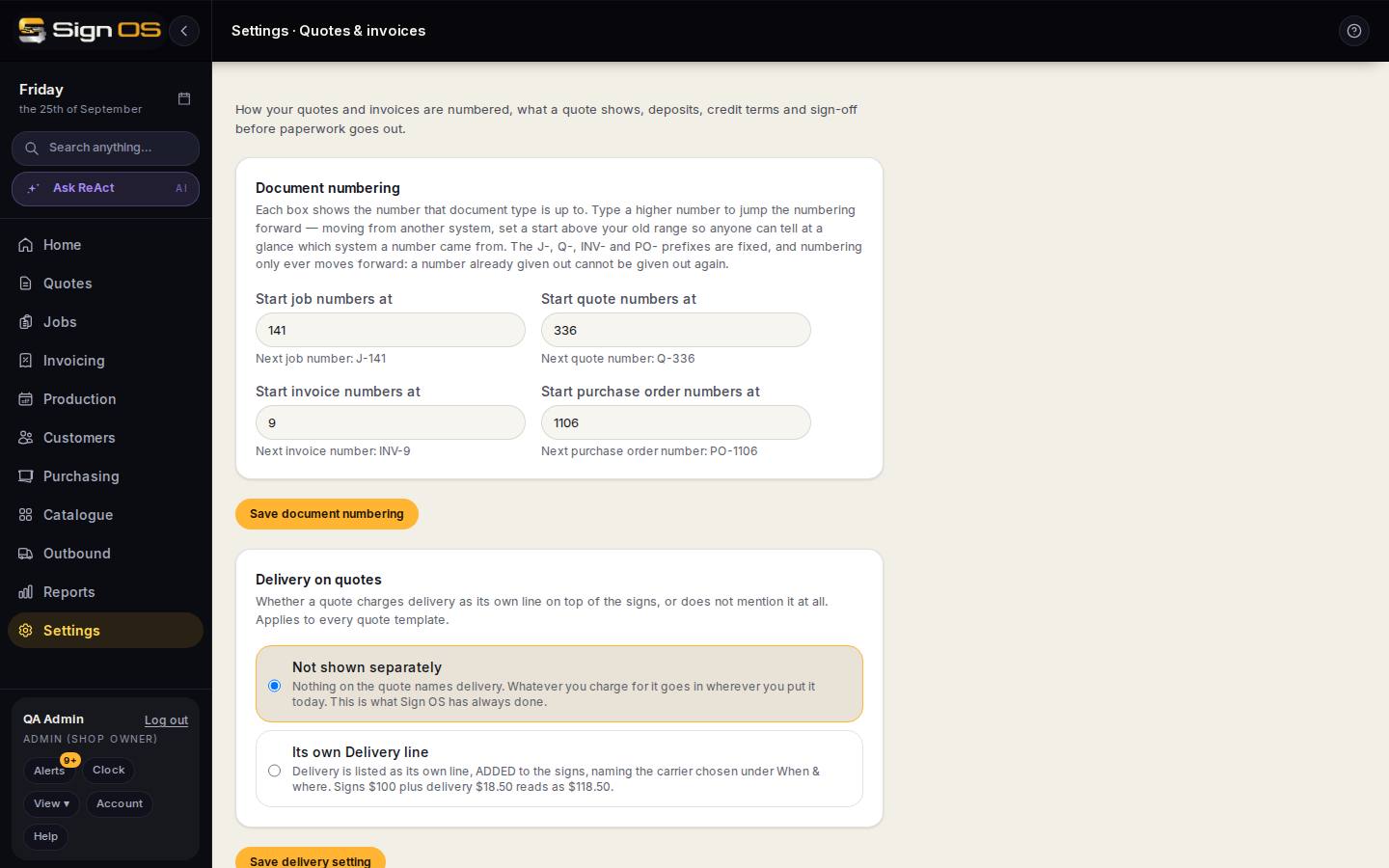
What is on this screen
Each part of the screen above, top to bottom, and what changing it affects.
Document numbering
- Start job / quote / invoice / purchase order numbers at
- Each box shows the number that type is up to, with the next number underneath. Type a higher number to jump forward. The J-, Q-, INV- and PO- prefixes are fixed, and a number already given out is never given out again.
- Save document numbering
- Numbers only ever move forward, so check before you save.
Delivery on quotes
- Not shown separately / Its own Delivery line
- Whether a quote charges delivery as its own line added on top of the signs, naming the carrier chosen under When & where, or does not mention it at all. Applies to every quote template. Website orders fill the delivery charge in by themselves.
- Save delivery setting
- Applies to quotes from now on.
Deposit invoices
- Default deposit (%) · Save default deposit
- What a deposit invoice suggests as its share of the job total. Blank is 50%. You can still change it on each invoice.
Credit terms
- + New credit term
- A name your customers will recognise, the days they get to pay, and Set as default.
- Set as default
- The one term new customers and suppliers start on: added from Customers, from a quote with Add to customers, by Bulk import with the Credit Terms cell blank, by Sign OS AI, or from an online order. The quote's Payment terms box shows it already picked, and you can change it before you add them. Customers and suppliers you already have keep their own term. Only one term can be the default.
- Name · Days · Default
- Your terms. Click one to rename it, change the days, make it the default or delete it. Customers and suppliers on the term follow the change; invoices already sent keep the due date they went out with.
Credit control
- Account on hold · Over credit limit
- What happens when you send a quote or release a job for a customer whose account is on hold, or whose new work would take them past their credit limit: Do nothing, Warn but let it through, or Block it. Anyone with the Override credit holds permission can go ahead anyway, with a reason recorded against the account.
- Save credit settings
- Takes effect on the next send or release.
Approvals
- Quote send requires approval · Invoice issue requires approval
- When ticked, marking a quote sent or sending an invoice to accounting waits in Approvals until someone with the matching approve permission signs it off.
- Who can approve job variations
- The roles that can approve a variation sent for approval. Admin is always ticked. Anyone given the Approve job variations permission can too, whatever their role.
- Save approvals
- Applies from the next quote, invoice or variation.
Before you start
- You are signed in as an admin. Credit terms and credit control also need the Terms permission, and Approvals needs the Users & permissions permission; without them those sections are not shown.
Step by step
- 1
Open Settings → Money → Quotes & invoices.
- 2
Document numbering: moving from another system, type a start above your old range in each box, so anyone can tell which system a number came from. Save document numbering.
- 3
Delivery on quotes: choose Its own Delivery line if you charge delivery on top of the signs, or Not shown separately if it is built into your prices. Save delivery setting.
- 4
Deposit invoices: set the percentage a deposit invoice should suggest, or leave it blank for 50%.
- 5
Credit terms: press + New credit term, give it a name like 30 days and the days to pay, then Create. Tick Set as default on the one most customers get, so new customers start on it. Pick a different term on a customer's record when they need one.
- 6
Credit control: choose what an account on hold and an account over its limit should do when you send a quote or release a job. Save credit settings.
- 7
Approvals: tick the steps that need a manager's yes, tick who can approve job variations, and Save approvals. Anything waiting shows in Approvals in the sidebar.
Tips & gotchas
- Numbers cannot go backwards and a number already given out is never reused. Jump forward once, deliberately.
- Changing a credit term's days never moves the due date on an invoice you have already sent. Drafts pick up the new terms.
- Make your most common term the default and most new customers will never need it set by hand.
- Sign-off before a purchase order goes out is on Purchasing settings, not here.