
Send goods out with the Outbound board
Dispatch collections, deliveries and installs, and get the docket signed.
What this is for
Outbound is where despatch staff work: jobs that have finished production and still have goods to leave the building. You raise a delivery docket, send it, and get it signed for — on a tablet or on paper.
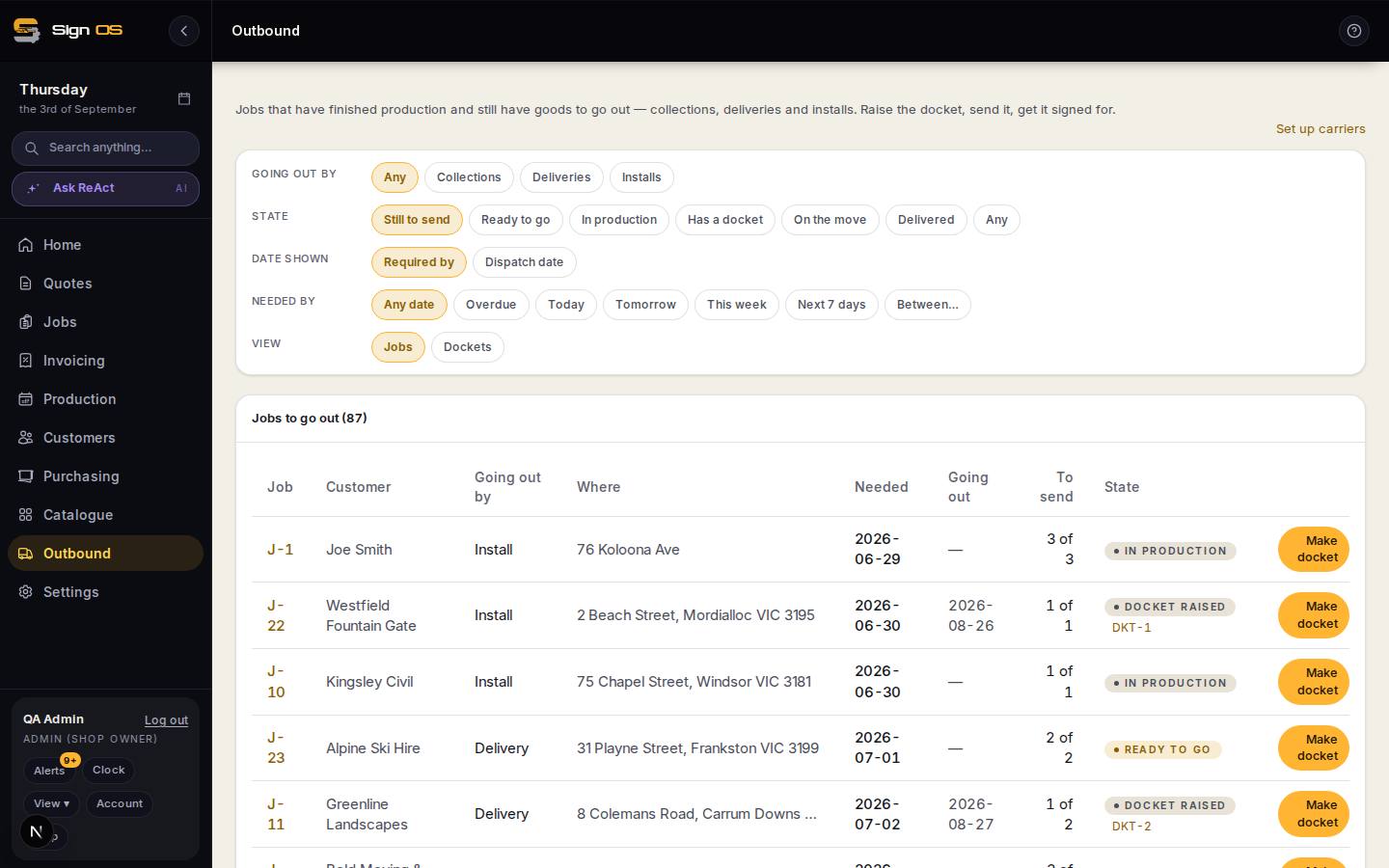
What is on this screen
Each part of the screen above, top to bottom, and what changing it affects.
Outbound board
- Set up carriers
- Your carriers, services and account numbers, offered on dockets.
- Going out by — Any · Collections · Deliveries · Installs
- Filter row one.
- State — Still to send · Ready to go · In production · Has a docket · On the move · Delivered
- Filter row two; the rows combine.
- Date shown · Needed by
- Whether the date column is Required by or Dispatch date, and a range: Overdue, Today, Tomorrow, This week, Next 7 days, Between…
- View — Jobs · Dockets
- Jobs to go out, or the dockets themselves.
- Job · Customer · Going out by · Where · Needed · Going out · To send · State · Paid · Make docket
- To send is how many items still have to go; Paid says Paid, Deposit paid, Part paid, Unpaid or Not invoiced; Make docket opens the builder for that job.
The docket builder
- Going out by — Our vehicle · Counter collection · Courier
- How it leaves. Courier reveals Carrier, Service, Consignment number and Weight; Counter collection reveals Collected by.
- Going out on · Packages (boxes, pallets)
- The date and how many packages.
- Delivery address
- Filled from the job's delivery address; edit if it is going elsewhere.
- Site notes
- Gate codes, access restrictions, who to ask for — printed on the docket.
- What's going out — Item · Ordered · Already sent · Left · Sending now
- Each item with what has gone before; set Sending now for a part-delivery.
- Create docket
- Raises it; a draft for anything left appears when this one is released.
A docket
- Goods have gone out (Customer has picked it up, on a pick-up)
- The one press that marks the docket gone and moves the job to Dispatched. Shown until the docket has gone.
- Print docket · Download
- The branded PDF to print or save.
- Email tracking to customer (Email customer it's ready for pick-up, on a pick-up)
- Opens a check screen: who it goes to, the subject, the email itself and the docket that goes with it. Nothing sends until you press Send it.
- Tracking emailed to… on…
- Under the buttons: who it went to and when, or that it has not gone yet.
- Sign for the goods — Received by · Signed for
- On-screen signature marks it delivered.
Before you start
- The job has finished production and has goods to go out.
Step by step
- 1
Open Outbound from the sidebar. The three filter rows combine, so you can ask real questions — 'installs that are ready to go', or 'collections with a docket, due this week'.
Note: Going out by picks collections, deliveries or installs. State covers still to send, ready to go, in production, has a docket, on the move and delivered. Date shown switches between the date the job is required by and the date the docket says it is going out.
- 2
Find the job and click Make docket. Choose what is going out — the builder shows what has been ordered and what has already been sent, so part-deliveries are easy.
- 3
Fill in where it is going: delivery address, going-out date, site notes, and the carrier and consignment number if someone else is carrying it. For a collection, record who collected it.
- 4
Save the docket, then Print docket for the driver, or Download it. When the goods leave, press Goods have gone out: the job moves to Dispatched.
- 5
Email tracking to customer shows you the email before it goes — the address, the subject, the email as they will read it, and the delivery docket attached to it. Press Send it to send, or Cancel and nothing happens.
Note: The line under the buttons says whether it has already gone, and to whom, so nobody sends a second copy wondering if the first one went. If the docket PDF cannot be built for some reason, the email still goes with the tracking details and tells you it went without it.
- 6
When the goods land, open the docket and use Sign for the goods — the customer signs on screen with a finger or a mouse and the docket is marked delivered. If they will not sign a tablet, the printed docket has a signature block to sign by hand.
Tips & gotchas
- A signature captured on screen prints into the PDF's signature block, so the paper copy and the record agree.
- The wording of the tracking email is yours: Settings → Look & paperwork → Templates → Delivery docket. What you write there is what the check screen shows.
- The docket's look comes from your document templates (Settings → Look & paperwork → Templates), the same as quotes and invoices.
- Switch the board to the Dockets view to see everything already raised, rather than the jobs still waiting.
- A counter collection reads in pick-up words: Ready for pick-up and Picked up. See Let customers know their order is ready to pick up.
- The docket's job number links back to the job.