
Set up job sheets: layout and checklists
How every job is grouped on screen and on paper, and the tasks every job starts with.
What this is for
Job sheets sets two things for the whole shop. Layout decides how every job is grouped on the job screen and the printed job sheet: by department, or by sign. Checklists are the default tasks copied onto every job, so the same quality checks happen no matter who is on it. General tasks show on the job's Details tab; Install tasks show on its Dispatch tab.
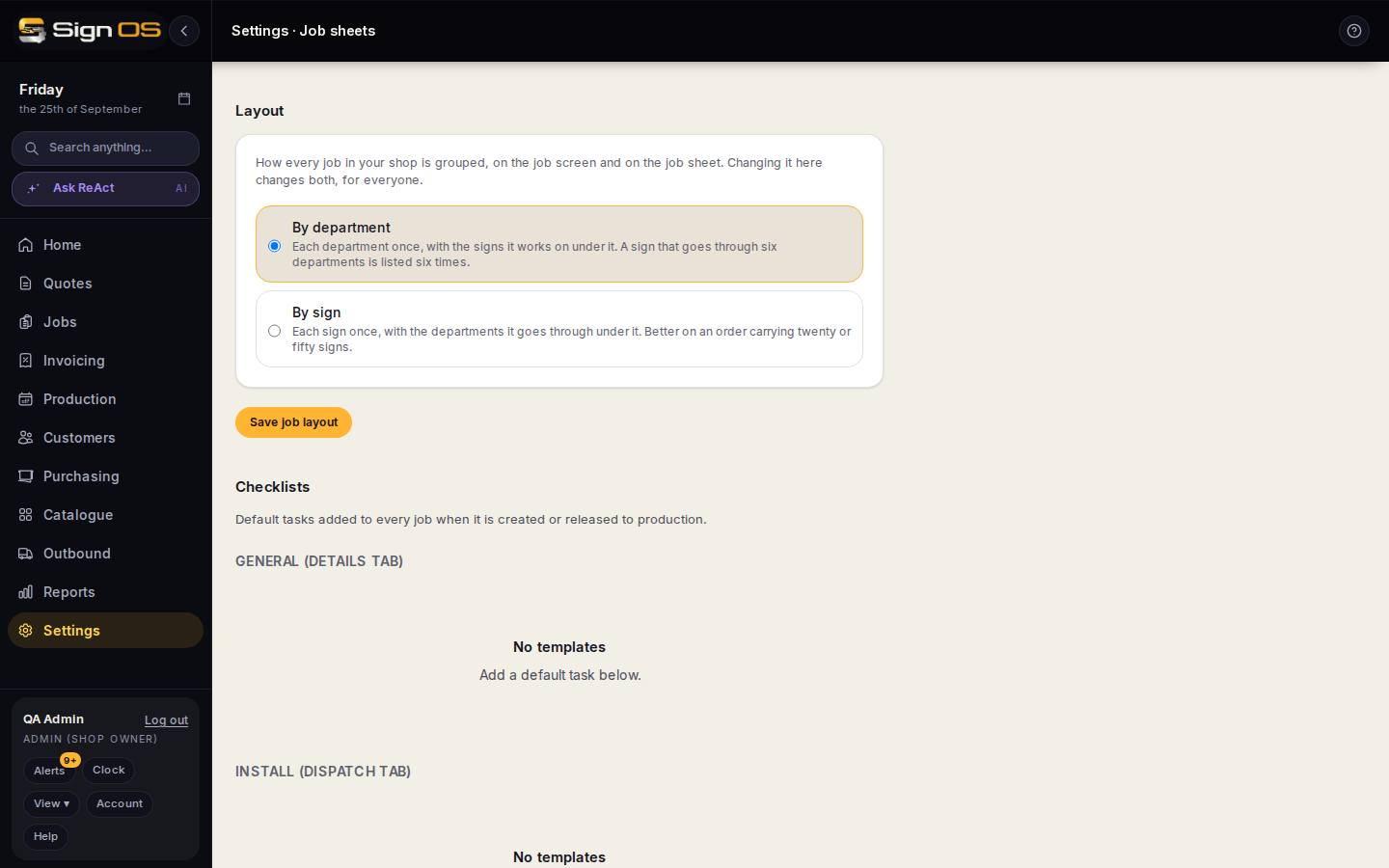
What is on this screen
Each part of the screen above, top to bottom, and what changing it affects.
Layout
- By department / By sign
- By department lists each department once with its signs under it. By sign lists each sign once with its departments under it, better on an order carrying twenty or fifty signs. Changing it changes the job screen and the job sheet, for everyone.
- Save job layout
- Applies the next time a job or job sheet is opened.
Checklists
- General (Details tab) · Install (Dispatch tab)
- Two lists of default tasks, added to every job when it is created or released to production.
- Task rows — ↑ ↓ · Delete
- Edit a task's wording in place (it saves when you click away), change its order, or remove it. Jobs that already have the task keep it.
- New task · list · Add
- Type a task, such as Confirm client sign-off, pick General or Install, and Add.
Before you start
- Layout is for admins only. Checklists need the job checklists permission. You see whichever sections you are allowed to change.
Step by step
- 1
Open Settings → Production → Job sheets.
- 2
Under Layout, choose By department or By sign, then Save job layout.
- 3
Under Checklists, type a task in the box at the bottom, pick General (Details tab) or Install (Dispatch tab), and click Add.
- 4
Each task saves as you go. Use ↑ and ↓ to reorder, or Delete to remove one.
- 5
New jobs pick up these tasks automatically, and staff tick them off as they work.
Tips & gotchas
- A short, real checklist people actually use beats a long one they skip. Start with your most common quality misses.
- Jobs raised by sales, estimators and accounts get your checklist too, not a built-in one. A deleted task is never copied onto a new job.
- Job layout used to be on Regional defaults and checklists on Job checklists. Both live here now.