
Quote a customer under a second brand
Set which of your trading names a customer's paperwork goes out under.
What this is for
Plenty of shops run two names out of one business — a retail brand and a trade one, or a second name for a division. Set the brand on the customer and their quotes, invoices, job sheets and dockets come out under it without anyone having to remember. Leave it blank and they get your usual brand.
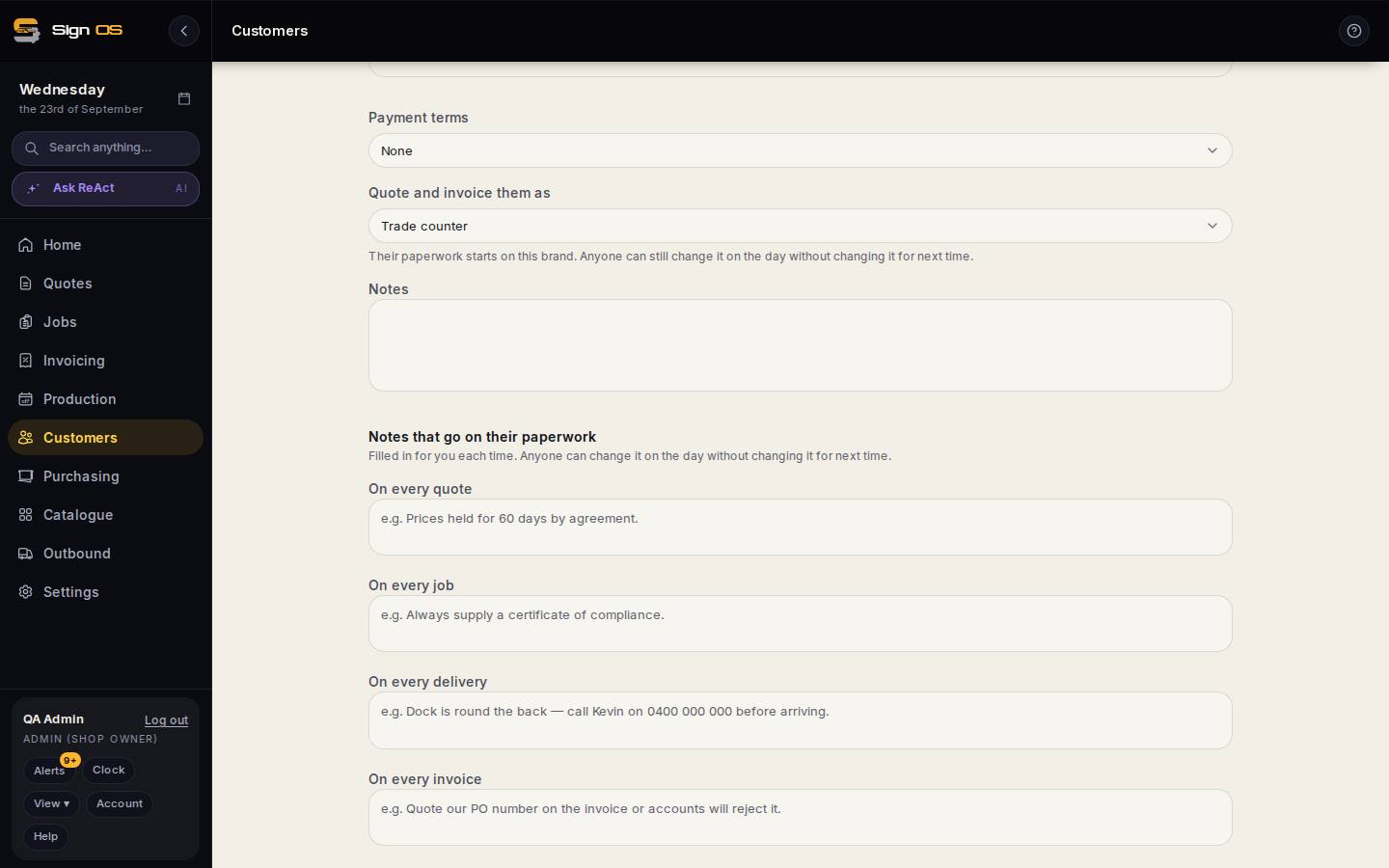
What is on this screen
Each part of the screen above, top to bottom, and what changing it affects.
- Quote and invoice them as
- Under Details, beside Payment terms. Lists your brands, with Shop default at the top. Only shown when you have more than one brand.
- Shop default
- Whatever you set as the default for each document type under Templates. This is what every customer had before the field existed.
Before you start
- Add the second brand first under Settings → Documents → Templates, in the Brand profiles section. The field only appears on a customer once you have more than one brand.
Step by step
- 1
Open the customer and press Edit on the Details card.
- 2
Find Quote and invoice them as, beside Payment terms, and pick the brand.
- 3
Save. Their next quote opens on that brand, and the logo, colours, trading name and ABN on the PDF follow it.
- 4
To send one document under the other name without changing the record, use the brand dropdown on the quote review screen just before you send.
Tips & gotchas
- A document that has already been sent keeps the brand it went out under, whatever the customer record says afterwards. What the customer received is what stays on file.
- Purchase orders always go out under your own default brand — they go to a supplier, not a customer.