
Customise your document templates
The layout, colours, fonts, footer and appendix pages on every quote, invoice, PO, job sheet, SWMS and docket.
What this is for
Every PDF Sign OS produces comes from a template: the layout, how your logo sits, your colours and fonts, the footer wording and any appendix pages. Templates is where you set them once per document type, watch the preview update as you go, and set the wording of the emails that carry them. Your name, ABN, address and logo themselves come from Business details.
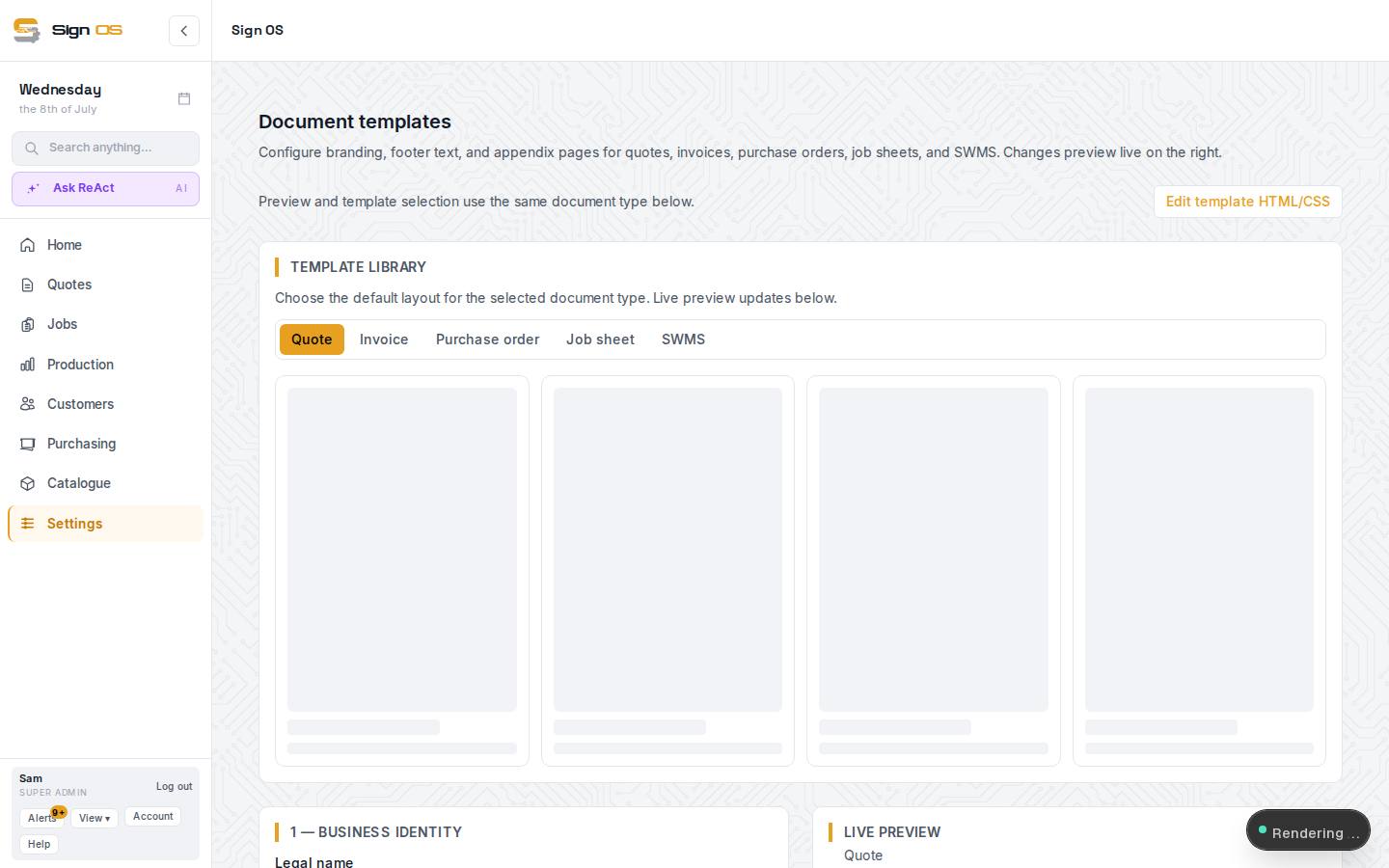
What is on this screen
Each part of the screen above, top to bottom, and what changing it affects.
Top of the page
- Online designer / PDF / Email tabs
- Online designer (when your shop has it) is the templates customers design from; PDF is the documents; Email is the wording of each email Sign OS sends with them (quote sent, invoice, proof ready, review request…).
- Emailing documents
- Email quote sends a quote once you've checked the preview. Order confirmations, follow-ups and aftercare emails send by themselves only when switched on under Email.
- Template library — Quote · Invoice · Purchase order · Job sheet · SWMS · Delivery docket · Price increase letter
- The document type you are editing and its layout; the sections and the live preview follow it.
Sections
- 1 — Business identity
- Read-only: your name, ABN, address and contact details as saved on Business details, which print on every document. Change in Business details takes you there. Until a business name is saved, PDF view and download stay off.
- 2 — Brand — Show logo on documents · logo · size & position · Primary / Secondary colour · Document fonts
- Whether the logo prints, its scale and offset, the two colours, and which typeface each part uses: body text, trading name, headings, business details. The logo itself is the shop's one logo; Change in Business details (or Add one) changes it.
- Old PDF logo note
- Shown if your PDFs still print a logo uploaded just for them before. Uploading a logo in Business details replaces it, so everything shows the same one.
- 3 — Business names — Add another business name
- A second trading name: its business name, legal name, ABN, contact details and address, and its own logo or your main one. Pick one as this document type's default, set a customer's own brand on their record, or swap it on a single quote at send time. Remove brand takes it off.
- 4 — Footer — Footer text
- One-line fine print on every document of this type.
- 5 — Appendices
- Pages after the document — terms and conditions — per document type.
- Save template
- Writes the sections for the selected type.
Live preview
- Preview · View sample PDF · Download sample PDF
- The document with sample data, updated as you edit.
Step by step
- 1
Open Settings → Look & paperwork → Templates. The PDF tab is the documents; the Email tab is the wording of each email Sign OS sends.
- 2
Pick the document type — Quote, Invoice, Purchase order, Job sheet, SWMS, Delivery docket or Price increase letter — then choose its layout in the Template library. The preview on the right follows.
- 3
Check 1 Business identity reads right; if not, fix it on Business details. Then work down: 2 Brand (show logo, its size and position, colours, fonts), 3 Business names if you trade under more than one, Footer and Appendices.
- 4
Save template, then View sample PDF or Download sample PDF to check it reads the way you want.
- 5
To print the quote number, dates and the customer's payment terms in a panel on the right, open Settings → Money → Quotes & invoices, tick Show quote details on the right and press Save quote layout. It applies to every quote template; check a quote PDF afterwards.
Tips & gotchas
- Email quote sends the quote after you check the preview. Order confirmations, follow-ups, aftercare and other automatic emails can also send when their settings are on. Check each email's wording and its sending rule before enabling it.
- Terms & conditions go in the Footer and Appendices sections — see Set your terms & conditions.
- The review request email on the Email tab has no on/off switch of its own. It says where it is turned on: Follow-ups, After the job.