
Set what everyone sees on lists and jobs
Which tab a job opens on, which columns show, and whether review screens can be skipped.
What this is for
Every shop reads its screens differently. A production shop wants a job to open on Production; an office wants Details. Lists and screens sets that for the whole shop, along with which columns the Jobs, Quotes and Outbound lists show and a couple of speed settings.
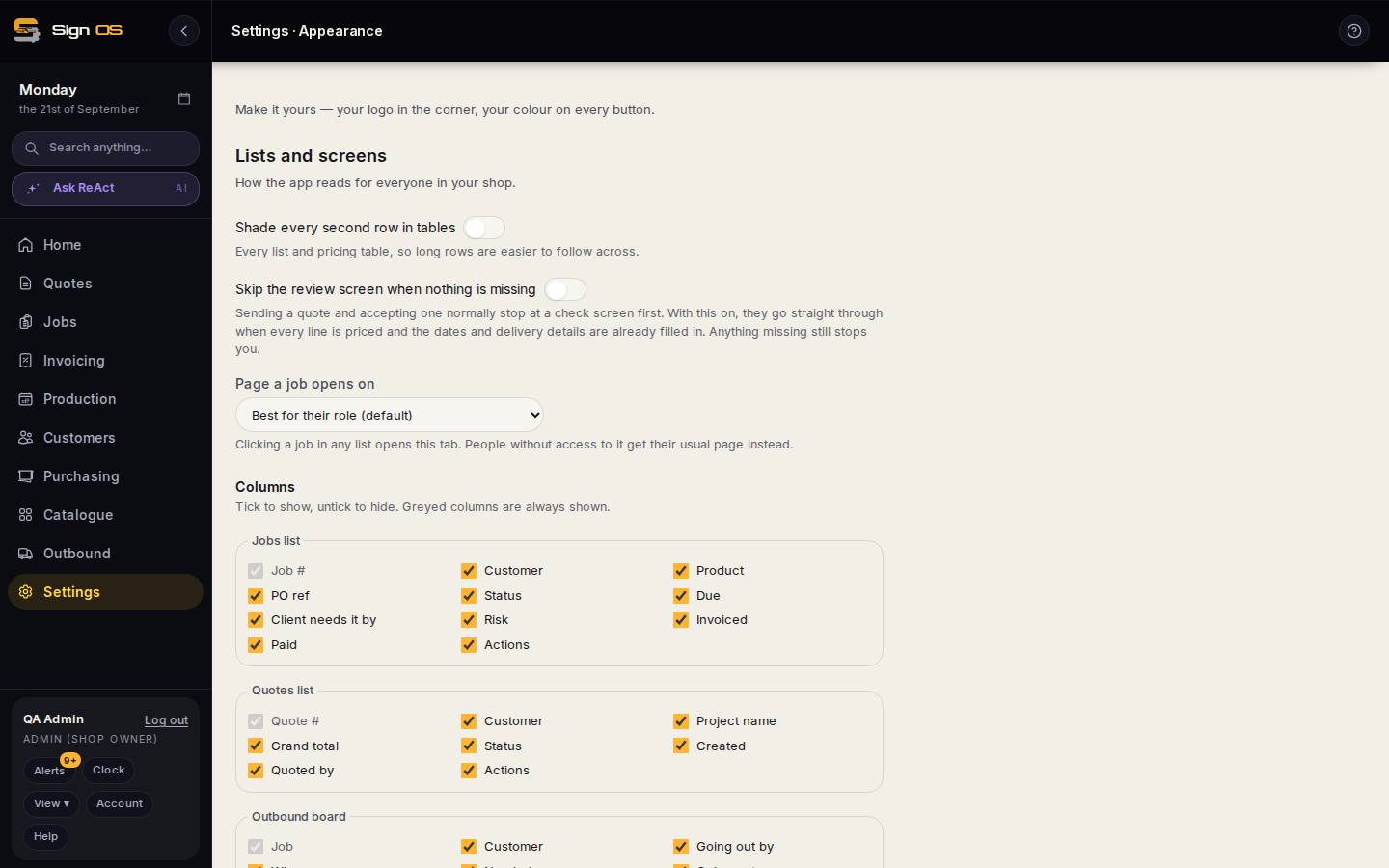
What is on this screen
Each part of the screen above, top to bottom, and what changing it affects.
Lists and screens
- Shade every second row in tables
- Alternate row shading on every list and pricing table. Purely visual; makes long rows easier to follow across.
- Skip the review screen when nothing is missing
- Sending a quote and accepting one normally stop at a check screen. On, they go straight through when every line is priced and the dates and delivery details are filled in. Anything missing still stops you.
- Page a job opens on
- Which tab a job lands on when opened from any list: Best for their role (Details for office roles, Production for the floor) or one fixed tab. Someone without access to that tab gets their usual page.
- Columns — Jobs list, Quotes list, Outbound board
- Tick to show, untick to hide. Greyed columns are always shown. Hiding a column does not change who can see the data — permissions do that — it only tidies the view.
- Save display settings
- Applies to everyone in the shop on their next page load.
Step by step
- 1
Go to Settings → Your shop → Appearance. Lists and screens is the first card.
- 2
Shade every second row in tables makes long lists easier to follow across.
- 3
Skip the review screen when nothing is missing: sending a quote and accepting one normally stop at a check screen first. With this on they go straight through when every line is priced and the dates and delivery details are filled in. Anything missing still stops you.
- 4
Page a job opens on: Best for their role (the default), or a fixed tab — Details, Ordered, Production, Dispatch, Purchasing, Accounts, Files or Approvals. People without access to that tab get their usual page instead.
- 5
Columns: tick to show, untick to hide, for the Jobs list, Quotes list and Outbound board. Greyed columns are always shown. Save display settings.
Tips & gotchas
- Hide the money columns on the Jobs list if the screen is up on the floor. Permissions already hide them from people who cannot see prices; this just tidies the view for those who can.