
List your products for other shops to buy
How do I put what I make in front of other sign shops?
- For
- Owners of shops that make what they sell
- Where to find it
- SidebarPurchasingTrade LinkSelling
- Takes
- Half an hour the first time
- You need
- Trade Link switched on for your shop. It is opening up shop by shop, so ask us if you cannot see it
What it is for
List what you make so other shops can sell it. You keep your recipes to yourself, you decide who buys, and every price comes off your own costing.
After this you can
- Fill in your trade profile and apply to sell
- Put products forward to be listed
- Approve the shops you will trade with
- Pause a finish you have run out of
Before you start
- Your product works on your own quotes, with a real price for every size and choice you will offer.
- You have read the Trade Link rules. They are at the bottom of every Trade Link screen.
What is on this screen
Point at a number in the list and it lights up on the picture.
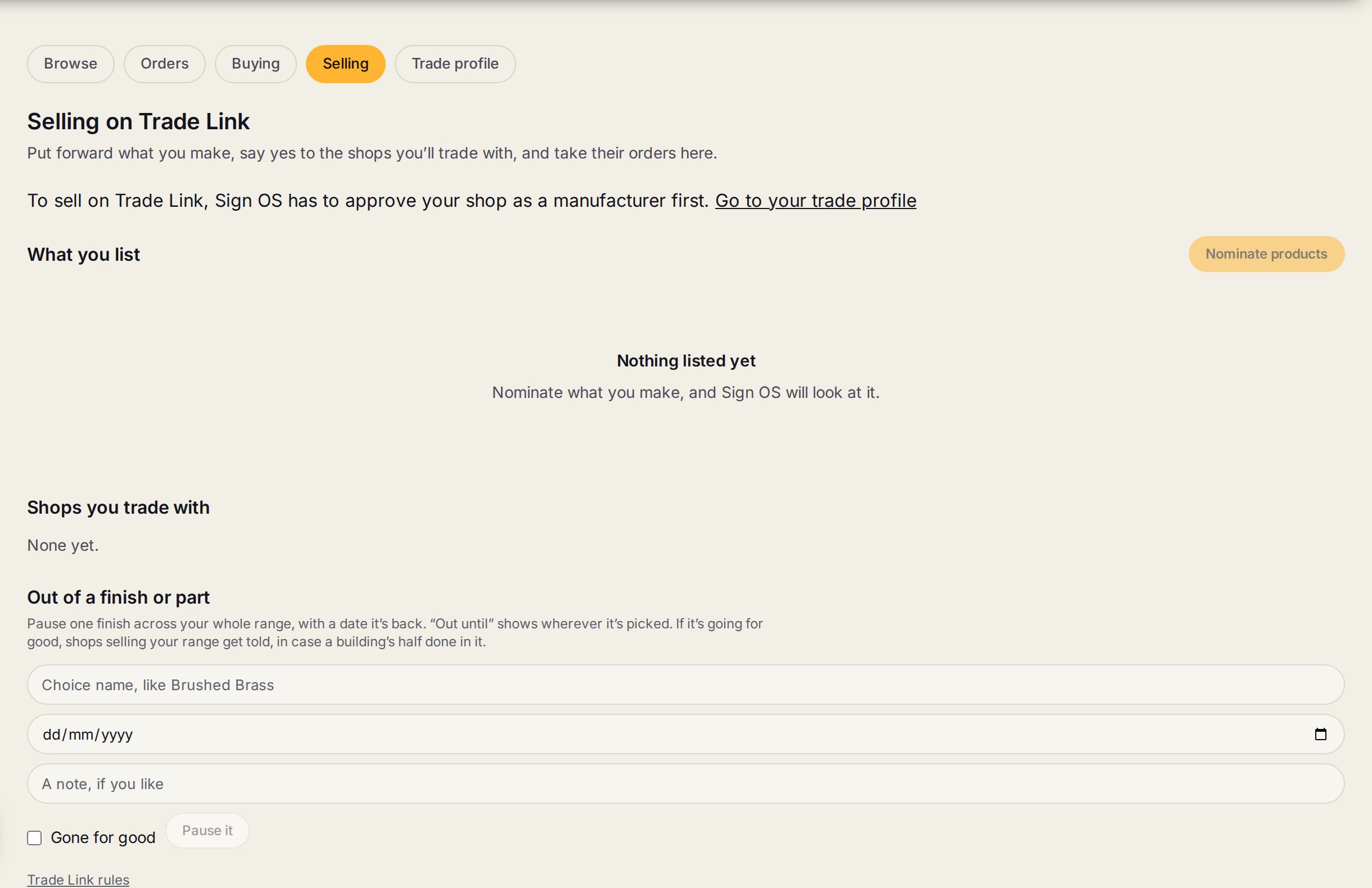
- 1Go to your trade profileShown until Sign OS has approved your shop as a manufacturer. That comes first.
- 2What you list and Nominate productsThe products you have put forward, and the button to put forward more.
- 3Shops you trade withEach shop you have approved. This is where you hold all of a shop's orders, or take the hold off.
- 4Out of a finish or partPause one finish across your whole range, with the date it is back.
- 5Gone for good and Pause itTick if it is not coming back, so shops selling your range are told.
Step by step
- 1
Fill in your trade profile
Open Trade profile. Fill in your business, who gets told about orders, and under Selling as a manufacturer say what you make and how Sign OS can see your machines running. Press Save and apply to sell.
- 2
Say how you sell
Set your lead time, your trade discount, where you ship, your artwork and proof rules and your freight. These go on every order.
- 3
Answer the buyers' questions
Payment, deposits, warranty, who pays freight on faults, how long a buyer has to report a problem. Plain answers in your own words. Anything left blank shows as Not stated.
- 4
Nominate your products
Open Selling and press Nominate products. Say in one line what you make and what is bought in.
- 5
Wait for the check
Sign OS runs its checks on each one and a person looks at it before it shows. Nothing approves itself.
- 6
Approve your buyers
When a shop asks for access, approve them or turn them down. To skip that, tick Open to every shop on Trade Link on your trade profile.
Words on this screen
Trade discount
A percentage off your normal price for that exact size and choices. That is your trade price.
Nominate
Put a product forward to be listed. It shows once it has been checked.
Not stated
What buyers see for any answer you left blank.
Tips
Bought-in parts are fine on something you make, like the base and pole on a flag you print and sew.
You can see how many shops added each product, and the names of the ones you approved. You cannot see what they sell it for.
Want a buyer to have a set price for a while? Agree it on purpose with an end date. It is the only thing that stays still when your costs move.
Watch out
Trade Link is not for reselling something you do not make.
Sign OS does not write your terms and does not check your answers. Get your own advice on what to say.
A price move of 30% or more pauses that product on buyers' stores until you confirm it. It is there for the day a wrong cost gets typed in.
Common questions
How do I stop orders while I am away?
On your trade profile set Away until. Orders can still come in and wait, and lead time counts from the day you are back. Last order date warns buyers before a shutdown.
Can I pause everything?
Yes. Pause everything we list, on your trade profile.