
AI vector design (prototype)
Describe a sign and get a draft SVG for a designer to refine. Not cut-ready.
What this is for
This screen is a prototype and says so on the page. You describe a sign and get a draft SVG — a starting point for a designer, not manufacturable cut artwork. It is here so you know what it is and what it is not; the real cut-pricing and artwork tools are elsewhere.
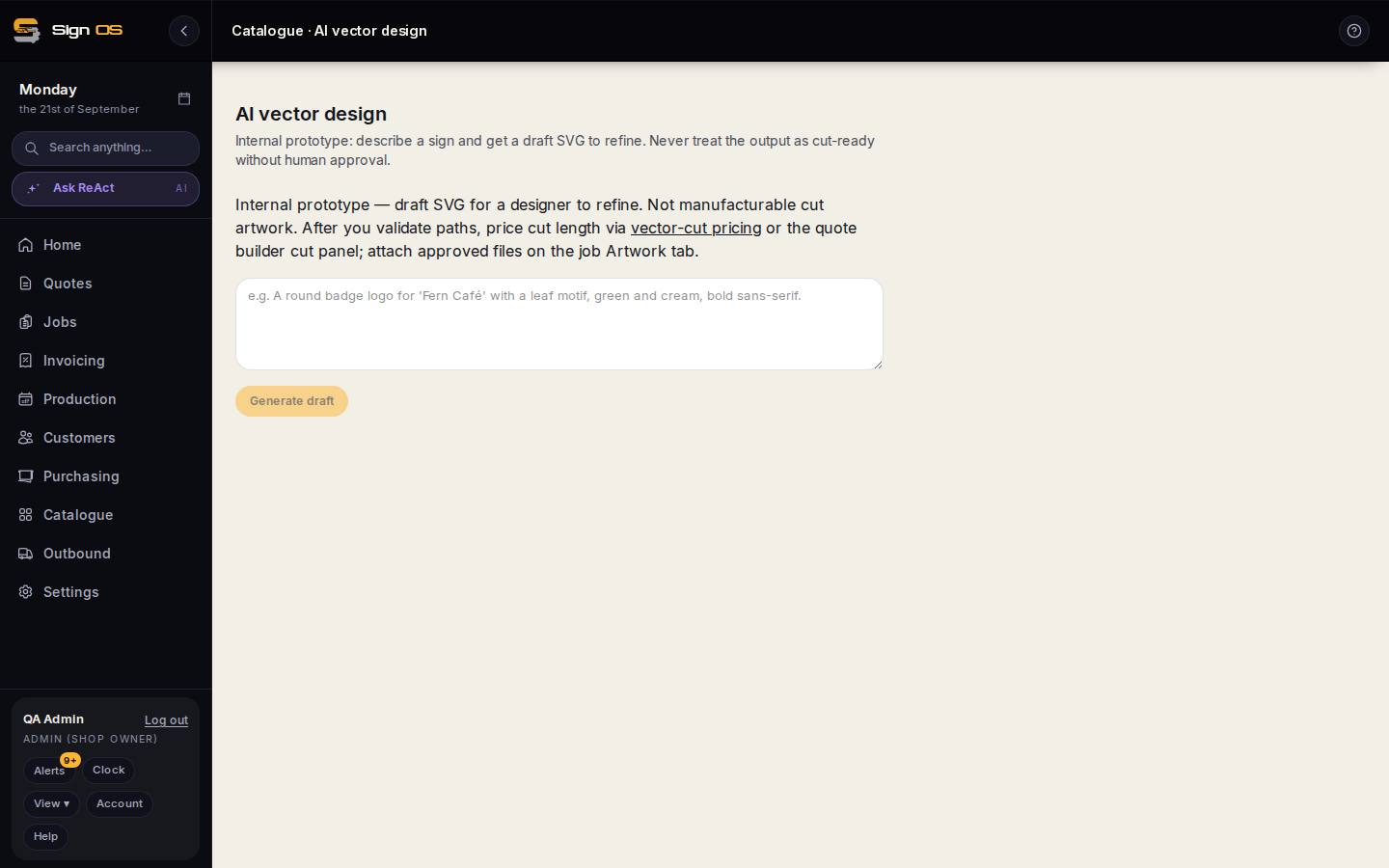
What is on this screen
Each part of the screen above, top to bottom, and what changing it affects.
- The prototype notice
- Draft SVG for a designer to refine. Not manufacturable cut artwork.
- Describe the sign
- A plain-English brief — 'a round badge logo for Fern Café with a leaf motif, green and cream, bold sans-serif'.
- Generate draft · Download SVG
- Makes the draft and lets you save it. Nothing is attached to a job or a quote from here.
Step by step
- 1
Open Catalogue → AI vector design and read the notice.
- 2
Describe the sign and press Generate draft. Download SVG saves the result.
- 3
Hand the file to a designer. After they validate the paths, price the cut length with Vector-cut pricing or the quote builder's cut panel, and attach the approved file on the job's Files tab as Artwork.
Tips & gotchas
- Treat anything it produces as a sketch. The paths are not checked for cutting, so a router will happily cut a mistake.