
Control which choices can go together
Grey out choices that clash, tick partners on together, and hide a question until it applies.
What this is for
Some choices rule each other out and some only come as a pair. Stainless clear does not go on an acrylic sign; a lit sign always needs a transformer; a whole Stainless finish question has no business appearing on a board sign at all. The Choice restrictions card on a product writes those rules once, and every quote, your website and a customer's own login obey them.
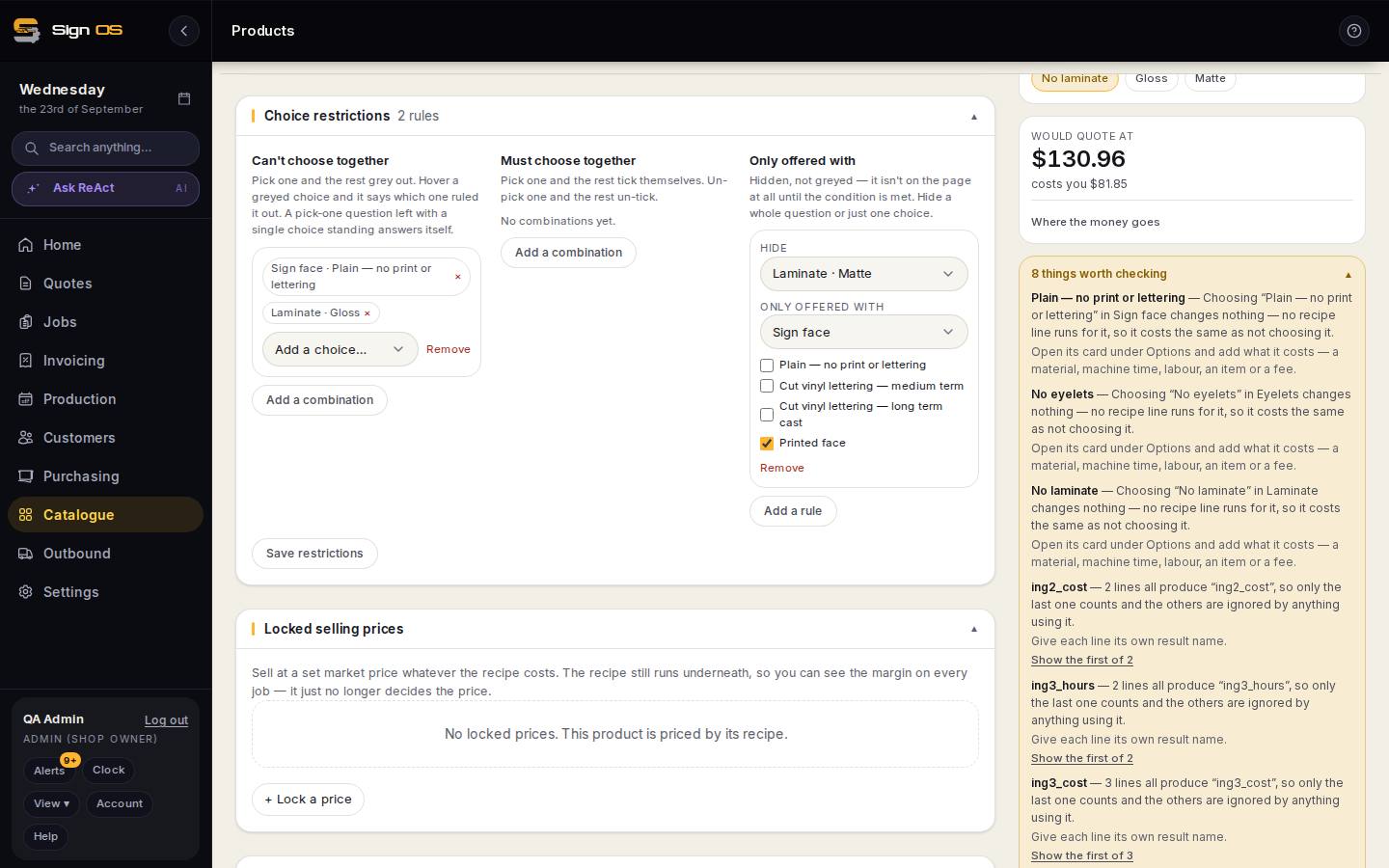
What is on this screen
Each part of the screen above, top to bottom, and what changing it affects.
The Choice restrictions card
- Can't choose together
- Pick two or more choices that clash. Once one is picked the rest grey out on the quote, and hovering a greyed one says which choice ruled it out. If that leaves a pick-one question with a single choice standing, it selects itself.
- Must choose together
- Pick two or more choices that always come as a set. Picking one ticks the rest on. Un-picking one un-ticks them again.
- Only offered with
- Hides rather than greys. Choose what to hide — a whole question or one choice inside a question — then the question it waits on and which of its choices allow it. Until then it is not on the page at all.
- Add a combination · Add a rule
- Each column holds as many rules as you like and they work independently, so one product can carry a dozen unrelated rules.
- Save restrictions
- Saves all three columns at once. If two rules contradict each other the card says so in plain English and nothing is saved.
Before you start
- The questions and their choices need to exist on the product's Options card first.
Step by step
- 1
Open the product and scroll to Choice restrictions, under the Options card.
- 2
For two choices that clash — Acrylic and Stainless clear — press Add a combination under Can't choose together, then pick both from the list. Each choice is listed as its question and its name, so Finish · Stainless clear.
- 3
For two that always go together — Illuminated and Transformer — do the same under Must choose together.
- 4
To make a whole question wait on another, press Add a rule under Only offered with. Under Hide pick 'The whole Finish question', then pick Substrate and tick Stainless. The Finish question now only exists on a stainless sign.
- 5
Press Save restrictions. Open a quote on that product and try the combinations — the clashing ones grey out with a reason, the paired ones tick together, and the hidden question is gone until it applies.
Tips & gotchas
- A greyed choice is still visible on purpose — the quoter can see the shop makes it, and why they cannot have it on this sign. A hidden one is for things that should never have been offered at all.
- Only offered with can hide one choice instead of a whole question, which is how the older rule worked. Both still apply.
- A hidden question is not priced. Anything its choices switch on is simply left off the sign.
- The card refuses a rule that contradicts itself — two choices set to both go together and rule each other out, or two answers to the same pick-one question told they must go together.