
Read your notifications
Everything that needs a human — approvals, permits, warranties and follow-ups — in one place.
What this is for
Notifications is the one place Sign OS tells you things that need a human: a customer approved a proof, a permit is due, a warranty check-up is coming up, a watchdog rule found a low-margin quote, a follow-up automation fired. The badge on the Alerts button in the sidebar is how many you have not read.
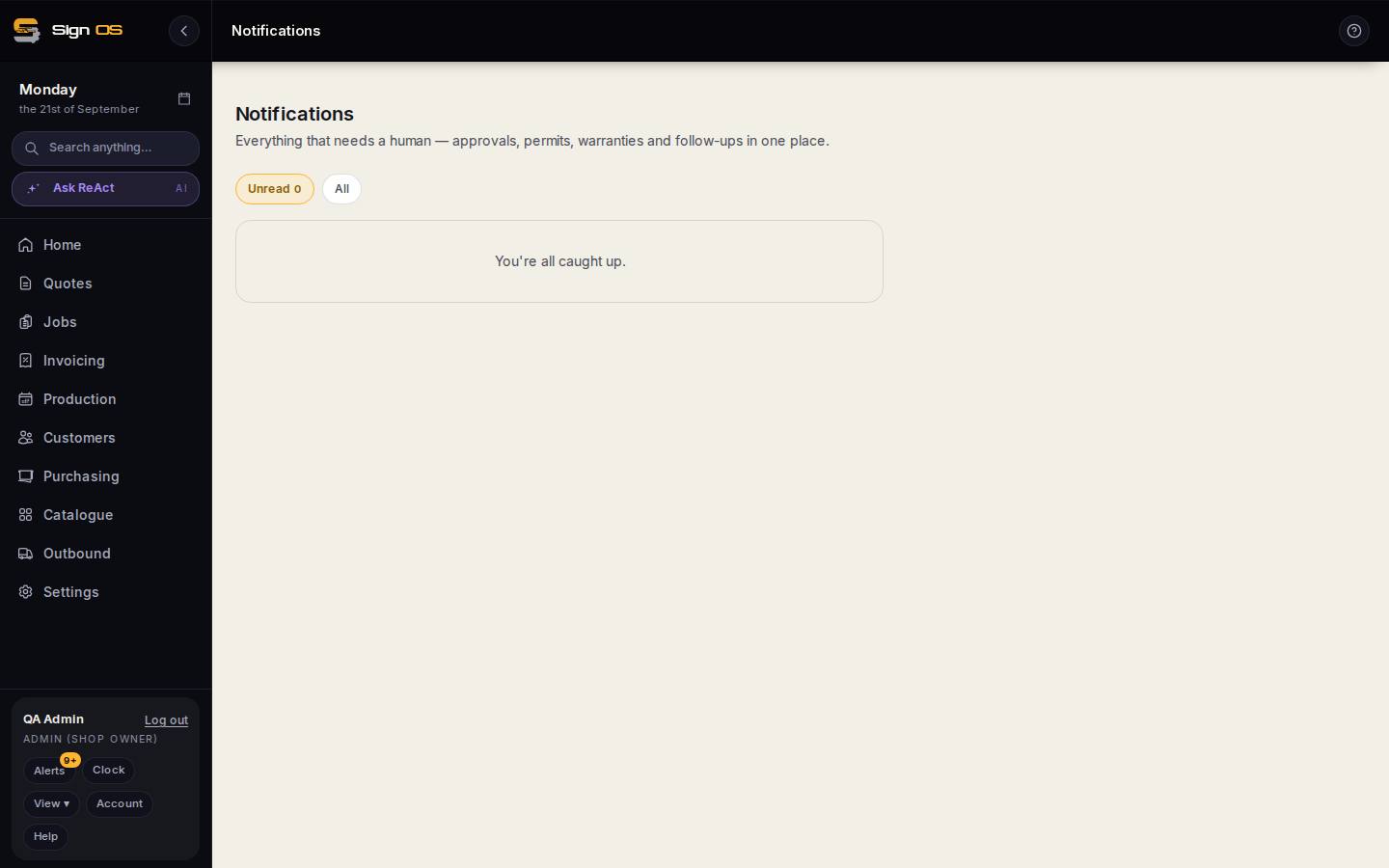
What is on this screen
Each part of the screen above, top to bottom, and what changing it affects.
- Unread / All
- Unread shows only what you have not opened; the count is the same number as the badge on Alerts.
- Mark all read
- Clears the badge without opening each one.
- The list
- Newest first; each links to the quote, job or customer it is about. You're all caught up is the empty state.
- Refresh notifications · Load older notifications
- New ones arriving while you read show a bar to refresh; Load older reaches further back.
Step by step
- 1
Press Alerts in the sidebar footer (the badge is the unread count). The page is headed Notifications.
- 2
Read the list, newest first. Each links to the quote, job or customer it is about. Unread shows only what you have not opened; All shows everything.
- 3
Open one and it is marked read; Mark all read clears the lot. Load older notifications reaches further back.
- 4
If new ones arrive while you are reading, a bar says so — Refresh notifications loads them.
Tips & gotchas
- Which alerts you get depends on your role and on the rules under Watchdog and Follow-up automations. If you are drowning, fix the rules, not the inbox.