
Offer a material in more than one size or gauge
Tick the sheet sizes a product may use, pick the default, and let the recipe run per size.
What this is for
The same acrylic comes in 2mm, 3mm and 5mm, in two sheet sizes. Rather than one product per gauge, a product ticks the sizes it may use; a recipe line can then name a size, or run one copy for each ticked size so the quoter picks the gauge and the cost follows.
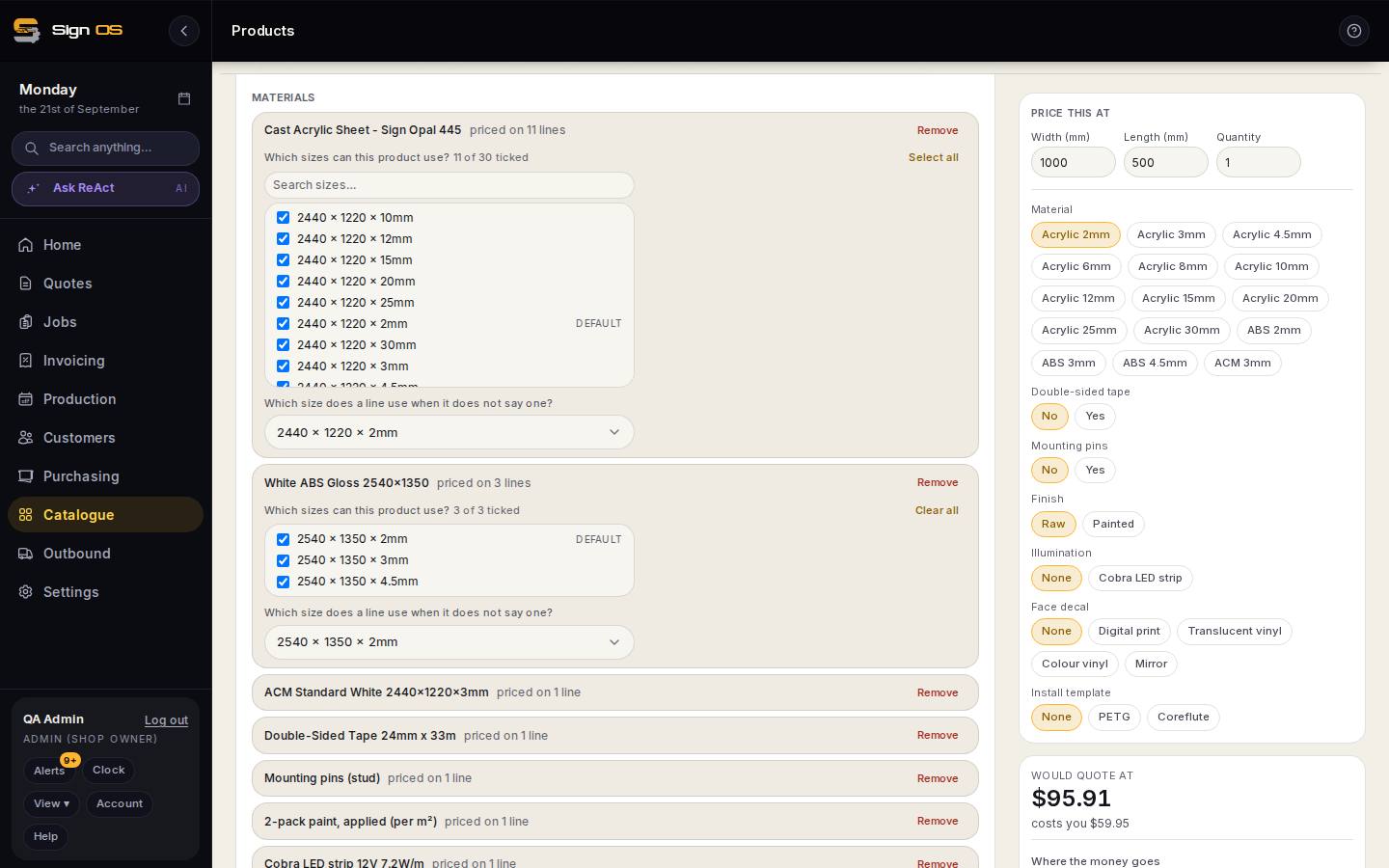
What is on this screen
Each part of the screen above, top to bottom, and what changing it affects.
Used in this product card
- Materials · Machines · Items
- Everything the recipe uses, with how many lines price on it and whether it is offered as a choice. Remove is only offered for something nothing depends on.
- Which sizes can this product use? · Select all · Clear all · Search sizes…
- The size list for a material that comes in more than one size or gauge. Ticked sizes can be named on lines or offered as a choice.
- Which size does a line use when it does not say one?
- The default size.
- Save sizes
- Nothing moves until this: the size box, its chips and lines that run one for each size all follow this one click.
Before you start
- The material's sizes are set on the material itself under Catalogue → Materials — each size with its own cost and default supplier.
Step by step
- 1
Open the product and the Used in this product card. Every material the recipe uses is listed; one that comes in more than one size shows its size list.
- 2
Under "Which sizes can this product use?" tick the sizes and gauges — Select all and Clear all are there for long lists, and Search sizes… narrows it. Then answer "Which size does a line use when it does not say one?" — that is the default.
- 3
Press Save sizes. Nothing moves until you do: the size box, its chips and any line that runs one for each size all follow that one click, so the recipe is never rewritten while you are still deciding.
Note: Tick at least one size, or every line using that material prices at nothing.
- 4
On a recipe line, the material now reads 'Cast Acrylic Sheet in 2440 x 1220 x 3mm'. Leave the size off to use the default, name one, or set When this runs to one for each material size and the quoter picks the gauge on the quote.
- 5
Save recipe and test the sizes in Price this at.
Tips & gotchas
- Untick a size and any line naming it falls back to the default, so a size the shop stops stocking is one click to retire.
- The default should be the gauge you sell most. It is what an estimator gets when they do not think about it.