
Assign roles & permissions
Control who can see prices, run production, or change settings.
What this is for
Roles decide what each person can see and do. Floor staff should see their jobs, not your margins. An estimator quotes but may not touch shop settings. Roles keep the right tools in front of the right people.
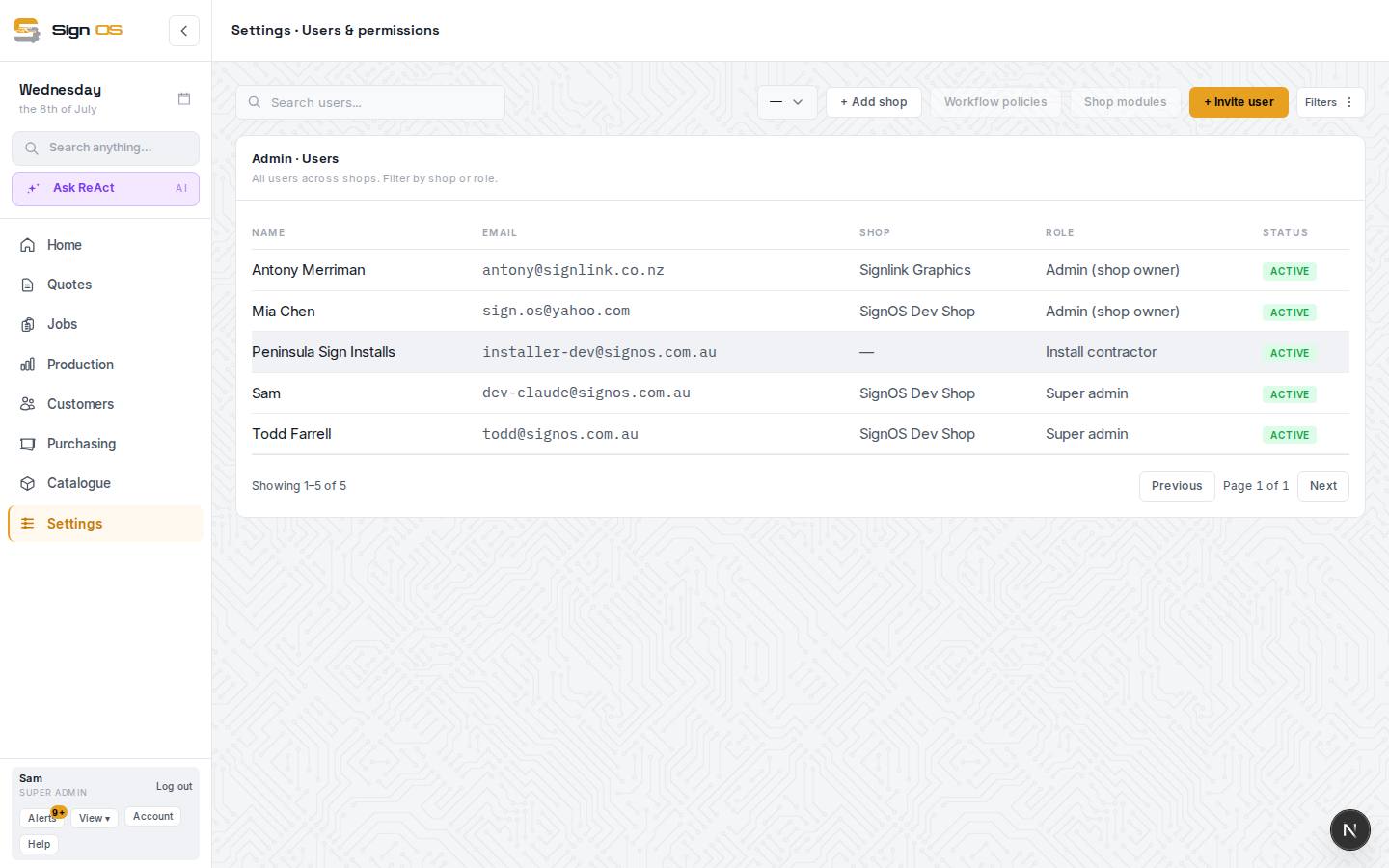
What is on this screen
Each part of the screen above, top to bottom, and what changing it affects.
- Role
- The set of screens and actions a person gets: Admin (shop owner) sees everything; Sales and Estimator quote; Project manager runs jobs; Production manager and Floor staff see the work without prices; Accounts sees money; Install contractor, Customer and Supplier are portal-only and don't count towards your plan's users.
- Per-person access
- Below the role: switch individual areas on or off for this person only, without inventing a new role.
- Deactivate / Reactivate · Delete
- Deactivate keeps their history but ends their access at once, including any open session. Delete is for someone who never really joined.
- Save changes
- Their sidebar and screens change on their next page load.
Before you start
- You have already invited the person (see 'Add your team members').
Step by step
- 1
Go to Settings → Team → Users & permissions, open the person, then choose Edit.
- 2
Choose their Role. Each role opens a different set of areas — Admin (shop owner) sees everything, while Production manager and Floor staff see the work, not the money.
- 3
Choose Save changes. Their sidebar and screens update to match on their next visit.
- 4
Need something more specific? Use the per-person access options below the role to fine-tune what they can see.
- 5
Approval rules are no longer on this page. Whether a quote or invoice needs sign-off, and who approves job variations, is under Settings → Money → Quotes & invoices; sign-off before a purchase order goes out is under Purchasing → Purchasing settings. Who can override a credit hold is a permission you give per person here.
Tips & gotchas
- Give the least access that lets someone do their job — it protects your pricing and reduces mistakes.
- Only the Admin (shop owner) role can change roles, so this stays in trusted hands.
- Keep the chemical and plant registers, under HR & safety, lets someone add chemicals and upload their safety data sheets, and add machines and log their services and repairs, without seeing incident reports. Production managers have it to start with. Set it to Edit to give it to someone else, or Hidden to take it off a production manager.