
Set how purchase orders are labelled, signed off and sent
Expense categories, approval before an order goes out, cancellation emails and supplier bill syncing.
What this is for
The rules for buying, on one page: whether a purchase order needs a manager's yes before it goes to the supplier, whether cancelling one tells the supplier, the expense categories that label general spending, and when supplier bills are sent across to your accounting software.
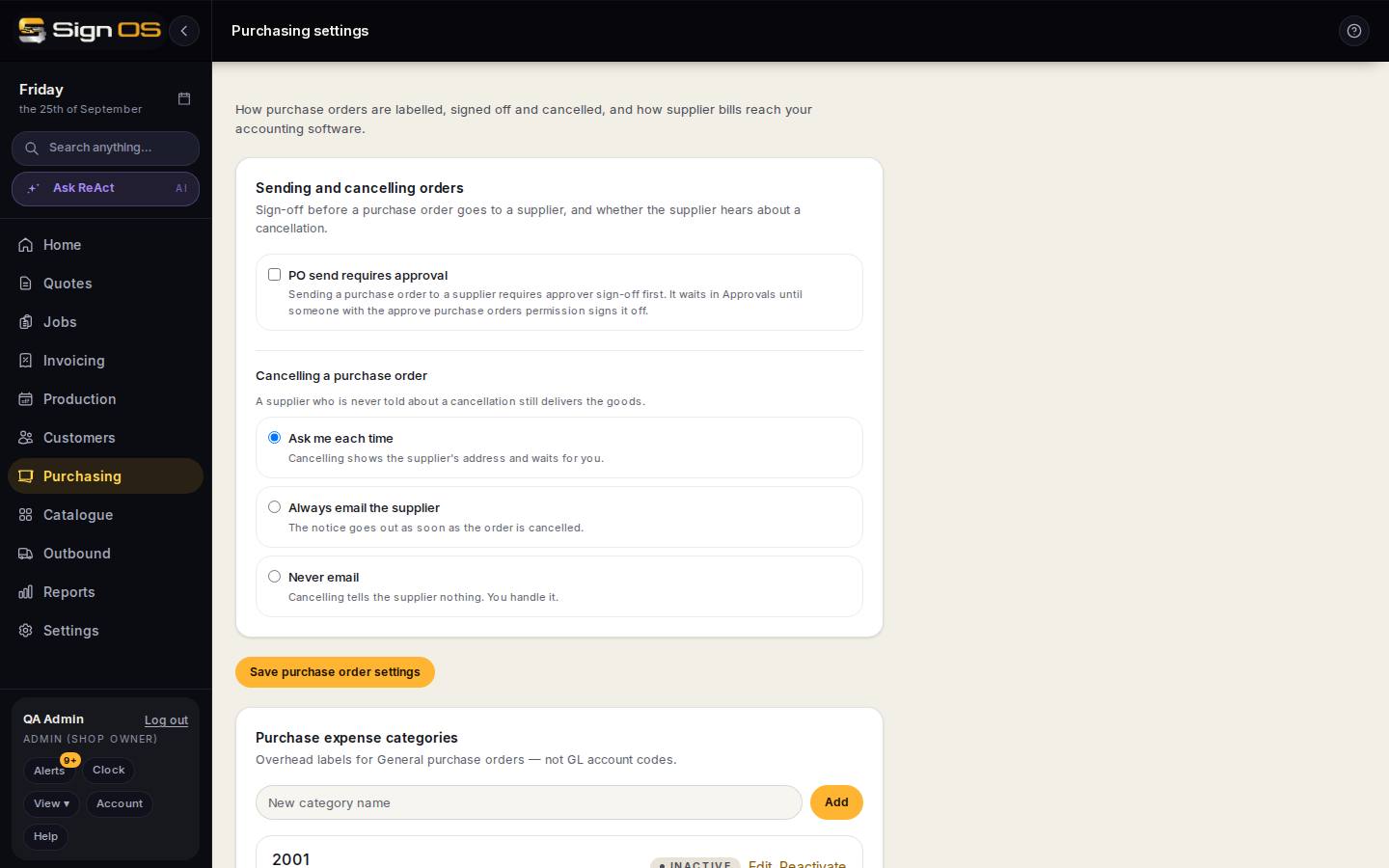
What is on this screen
Each part of the screen above, top to bottom, and what changing it affects.
Sending and cancelling orders
- PO send requires approval
- When ticked, sending any purchase order waits in Approvals until someone with the approve purchase orders permission signs it off. Per-person spending limits are set on each user instead.
- Cancelling a purchase order — Ask me each time · Always email the supplier · Never email
- Ask shows the supplier's address and waits for you. Always sends the notice as soon as the order is cancelled. Never tells the supplier nothing, and you handle it. A supplier who is never told still delivers the goods.
- Save purchase order settings
- Applies to the next order sent or cancelled.
Purchase expense categories
- New category name · Add
- Overhead labels for General purchase orders, such as machine maintenance, office supplies or vehicle. They are plain labels, not account codes in your accounting software.
- Sort · Active / Inactive
- The order they are offered in on a PO, and whether they are offered at all.
- Edit · Deactivate / Reactivate
- Edit renames or re-sorts; a new name shows on every PO that used it. Deactivate retires a label without losing the orders already tagged with it.
Sending supplier bills across
- Never — I will push them myself · Once the goods have been checked · As soon as the goods arrive
- When a bill recorded against a purchase order is sent to your accounting software on its own. Never leaves them on the Supplier bills board until somebody ticks them and pushes. Checked is the safe automatic option.
- Expense account for bill lines
- The account code bill lines post to. It must exist in your chart of accounts: Xero silently posts to a default instead. Leave blank to let the platform decide.
- Save supplier bill settings
- Applies to the next bill.
Before you start
- Each section shows only to people allowed to change it: order sign-off needs an admin with the Users & permissions permission, expense categories need the PO categories permission, and supplier bills need the accounting connection.
Step by step
- 1
Open Purchasing → Purchasing settings.
- 2
Sending and cancelling orders: tick PO send requires approval if every order should be signed off first, choose what cancelling an order does, and Save purchase order settings.
- 3
Purchase expense categories: type a name and press Add for each label you want. Use Edit to rename or reorder, and Deactivate to retire one.
- 4
Sending supplier bills across: choose when bills go to your accounting software on their own, check the expense account, and Save supplier bill settings.
Tips & gotchas
- Keep the category list short. A handful you will actually use beats twenty you won't.
- A rejected delivery's bill is never pushed automatically, whatever the setting says.
- The expense categories used to be under Settings, and the bill settings on the Accounting page. Both live here now.