
Let a supplier confirm an order without an account
A private link where the supplier acknowledges, promises a date, and picks up the artwork.
What this is for
Chasing a supplier by email means their answer lives in your inbox and nowhere else. A supplier link is a private page for one order where they can confirm they have it, tell you when it will be ready, and download the artwork — and every answer lands back on the order.
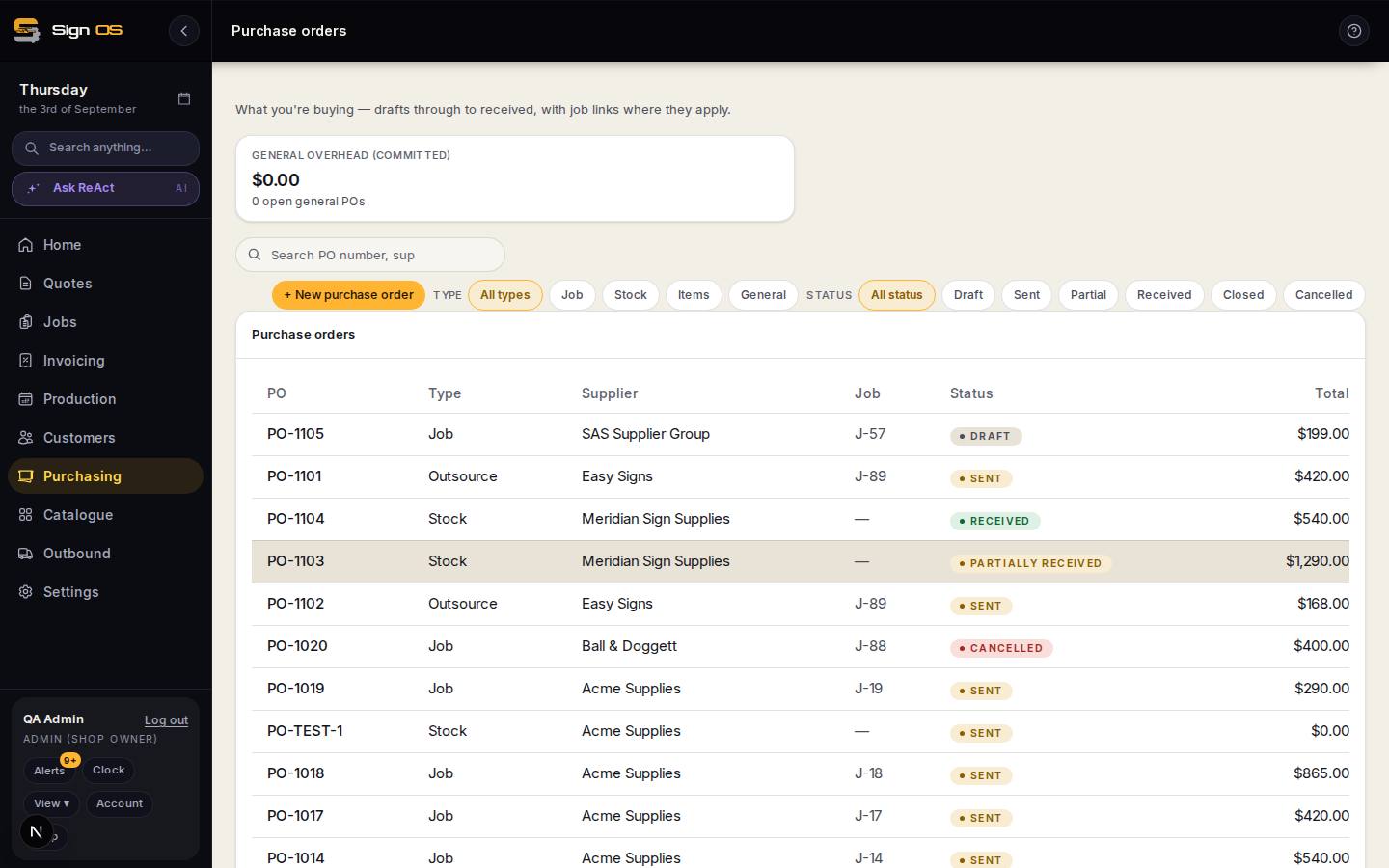
What is on this screen
Each part of the screen above, top to bottom, and what changing it affects.
What the supplier sees from the emailed link
- Order lines · quantities · deliver-to · artwork
- Never your costs, your customer, or anything about another supplier.
- We have got this · ready date
- Acknowledges the order and gives a date.
- It is on its way · courier · consignment number
- Marks it shipped.
- On your side
- Every answer lands on the order's history and moves the card on Out at suppliers.
Before you start
- The purchase order exists and is not closed or cancelled.
Step by step
- 1
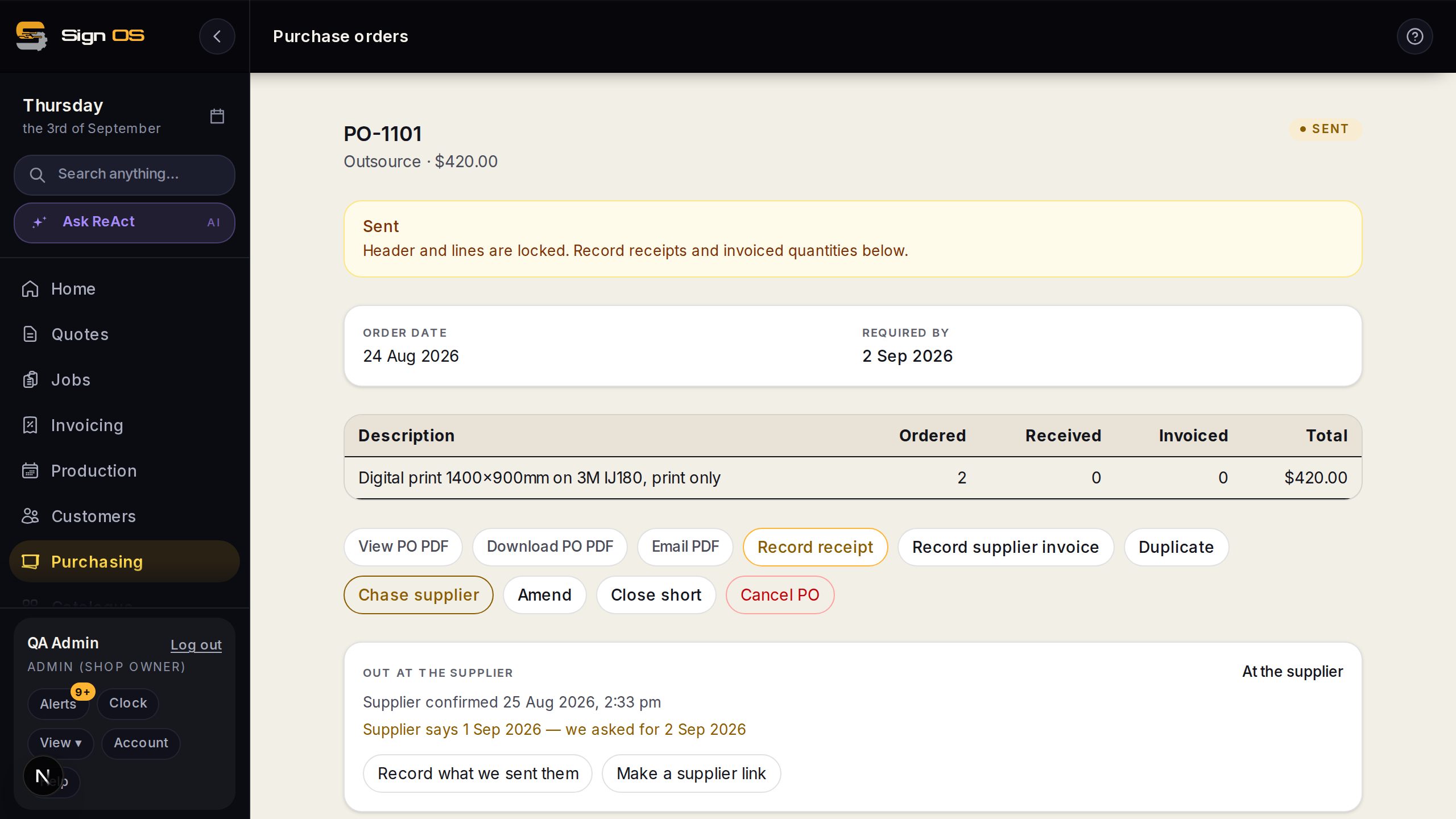
Open the purchase order. When you send it to the supplier, a link goes out in the email automatically.
Note: You can also make one by hand: press Make a supplier link in the Out at the supplier panel on the order — useful when you want to text it or paste it into a message. It is shown once, so copy it then.
- 2
The supplier opens the link. No account, no password. They see the order lines, quantities, where to deliver, and the artwork — never your costs, your customer, or anything about another supplier.
- 3
They press We have got this to acknowledge, and can give the date they will be ready.
- 4
When it ships they press It is on its way and add the courier and consignment number.
- 5
Every one of those answers appears on the order's history and on the outsource board.
Tips & gotchas
- Links last 90 days. The page tells the supplier when theirs expires, so a dead link is never a surprise.
- Opening the link changes nothing — mail scanners follow links in emails, so acknowledging is always a deliberate button press, never just a page load.
- Artwork downloads last one hour and are minted fresh each time the page loads. A link forwarded on is dead by the time anyone else finds it.
- Only files marked artwork or final are shared. Proofs, customer references and anything unclassified stay in your shop.
- Made a link by hand and want it dead? Press Turn off the link on the order. Sending the order again adds a link rather than killing the one you already shared.