
Connect your own AI (ChatGPT, Claude)
Let an AI you already pay for look things up in Sign OS.
What this is for
If your shop already uses ChatGPT, Claude or a similar assistant, you can let it read your Sign OS data and answer questions about your shop — 'what did we quote Bunnings for the pylon sign?', 'which jobs are behind this week?'. ChatGPT connects by signing in to Sign OS; Claude and other apps that take a key get a connection key you paste in once. Either way you tick exactly which parts of your business it may look at. This is only for outside AI: the built-in ReAct assistant already works and needs none of it.
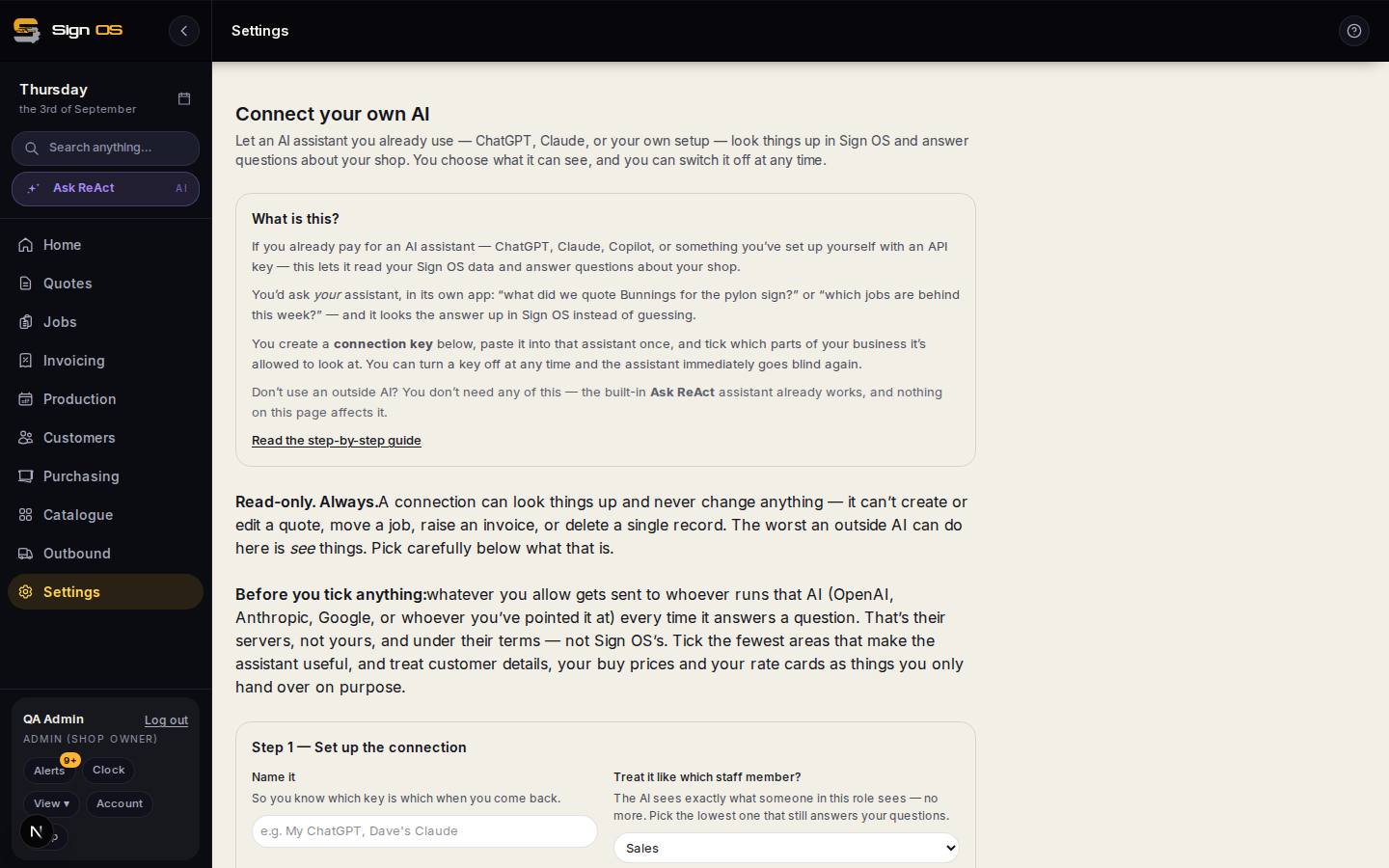
What is on this screen
Each part of the screen above, top to bottom, and what changing it affects.
- What is this? · the two notices
- What an outside AI connection does, that it is read-only, and that whatever you allow is sent to the company that runs that AI. Read these first.
- ChatGPT and other apps that sign in · Allow sign-in from ChatGPT and other AI apps
- The switch that lets ChatGPT connect by signing in. Off by default. Turning it off stops every app that signed in, straight away; keys keep working.
- Step 1 — Set up a connection key · Treat it like which staff member?
- For apps that take a key: a name for the key and the role whose view the AI gets.
- Step 2 — What is it allowed to look at?
- The areas it may read; unticked is invisible.
- Create connection key
- Shown once; copy it.
- Step 3 — Copy address
- The web address to paste into your assistant, with the key as the Bearer token, or into ChatGPT as the server URL.
- Your connections
- Each key or signed-in app, its areas, last used, and a button to turn it off. A signed-in app shows 'Signed in from ChatGPT' instead of a key.
Before you start
- You are signed in as an admin.
- You already have an AI assistant that supports MCP connections (most do — check its settings for 'MCP' or 'connectors').
- For ChatGPT: a ChatGPT plan that allows developer mode (OpenAI lists Plus, Pro, Business, Enterprise and Education, on the web).
- For a key: an app that lets you paste one in (sent as a Bearer token), such as the Claude desktop app or Claude Code.
Step by step
- 1
Open Settings → Connections → AI and scroll to Connect your own AI. Read What is this? and the two notices under it before you set anything up.
Note: Connections are read-only, always. An outside AI can never create or edit a quote, move a job, raise an invoice, or delete anything. The only risk here is what it can see.
- 2
To connect ChatGPT, switch on 'Allow sign-in from ChatGPT and other AI apps' under 'ChatGPT and other apps that sign in', then click Copy address under Step 3.
- 3
In ChatGPT, turn on developer mode in Settings, then add a new app (some versions call it 'Create custom MCP server'). Paste the address as the server URL, set Authentication to OAuth, leave any client ID and secret empty, and create it.
Note: OpenAI moves these settings around. Their own guide currently puts Developer mode under Settings, then has you add the app from the apps list. If the names on your screen differ, look for developer mode and adding a custom app or connector.
- 4
ChatGPT opens Sign OS. Sign in as an admin, choose 'Treat it like which staff member?' and tick what it may look at, exactly as for a key below, then press Allow. ChatGPT takes it from there, and the connection shows under 'Your connections' as signed in from ChatGPT.
Note: If Sign OS says sign-in is switched off, the switch above is off for your shop. Deny sends ChatGPT away with nothing.
- 5
For an app that takes a key instead (the Claude desktop app, Claude Code), go to 'Step 1 — Set up a connection key' and give the key a name you'll recognise later, like 'Dave's Claude'.
- 6
Still in Step 1, choose 'Treat it like which staff member?'. The AI sees exactly what someone in that role sees and no more, so pick the lowest role that still answers your questions — Sales, for instance, sees sell prices but not your cost or margin.
- 7
Under 'Step 2 — What is it allowed to look at?', tick the areas this AI may read. Anything you leave unticked is invisible to it.
Note: Areas marked with an amber ⚠ expose money or people's details — Quotes shows your margin, Stock & suppliers shows your buy prices, Catalogue & rates is the pricing formula behind every quote you send, and Customers sends your customers' contact details out. Tick the fewest areas that make the assistant useful.
- 8
Click Create connection key. The key appears once and is never shown again — copy it straight away.
- 9
Under 'Step 3 — Paste it into your AI', click Copy address and paste that web address into your assistant, then paste the key as the Bearer token. If the app asks what kind of connection this is, the answer is MCP (Model Context Protocol).
- 10
Ask your assistant a question about your shop to confirm it works. The connection then shows under 'Your connections' with the areas it can read and when it was last used.
Tips & gotchas
- Whatever you allow is sent to whoever runs that AI — OpenAI, Anthropic, Google — every time it answers a question. That is their servers, under their terms, not Sign OS's. Decide what leaves the shop on purpose.
- Never post the key anywhere public: not a forum, a Facebook group, a support ticket, a screenshot, or a public code repository. Anyone who reads it can pull your data from anywhere in the world without ever logging in to Sign OS, and you won't see them doing it. The web address is harmless to share — the key is the part that matters.
- Give each person their own key rather than passing one around, so you can turn theirs off without breaking everyone else's.
- Start small. Tick two or three areas, live with it for a week, and make a second key with more access later if you actually need it.
- Turning a key or a signed-in app off takes effect immediately — the assistant goes blind straight away. There's no undo, so you'd make a new key, or sign in from the app again.
- A signed-in app stays connected until you turn it off, even though nobody pastes a key: ChatGPT renews its own access every hour behind the scenes.
- Lost the key or never copied it? You can't get it back. Turn that connection off and create a new one.