
Refund a customer
Send money back to the card it was paid on.
What this is for
This returns the money and raises the matching credit note in one action, so your books and your bank agree. It works on invoices paid through Stripe; anything paid by bank transfer has to be refunded from your bank.
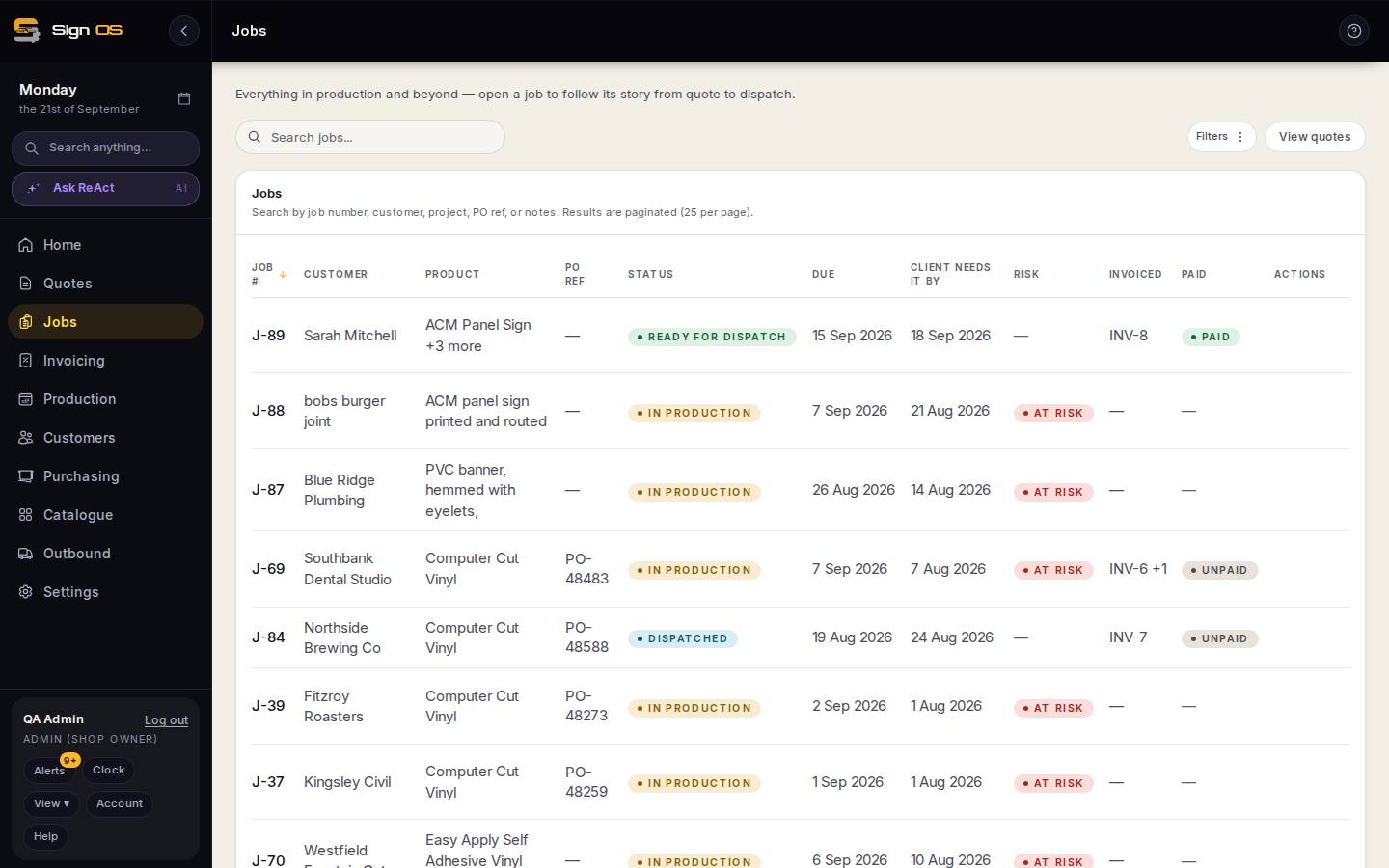
What is on this screen
Each part of the screen above, top to bottom, and what changing it affects.
Job → Accounts tab → the paid invoice
- Refund — amount · reason · Confirm
- The money goes back and a credit note is raised for the same amount.
Step by step
- 1
Open the job, go to the Accounts tab and open the paid invoice.
- 2
Choose Refund, set the amount, and pick a reason.
- 3
Confirm — the money goes back and a credit note is raised for the same amount.
Tips & gotchas
- Refunds can be partial. Refund part of a deposit and the rest stays with the shop.
- Refunding a deposit in full puts the job back behind its payment hold, so production stops until it's paid again.
- A refund you make in the Stripe dashboard shows up here too — you don't have to remember where you started it.