
Units, tax, time zone and document numbers
The defaults every quote, job and invoice inherits.
What this is for
One screen for the things that are the same on every document: what unit sizes show in, which time zone the calendar runs on, currency and tax, what number the next job or quote gets, how a job is grouped on screen and paper, and whether delivery appears as its own line on quotes.
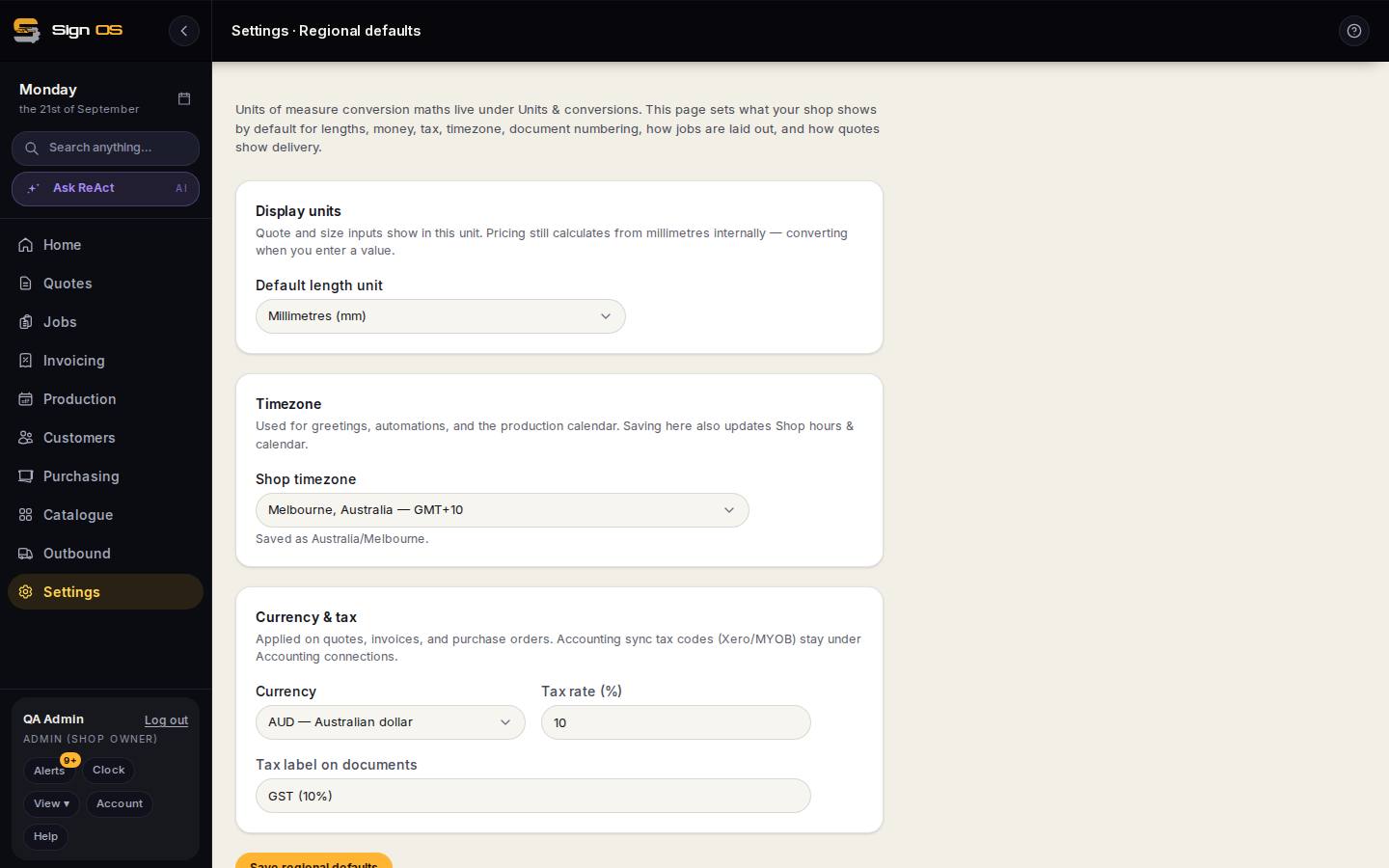
What is on this screen
Each part of the screen above, top to bottom, and what changing it affects.
Display units
- Default length unit
- The unit quote and size inputs show in. Pricing still calculates from millimetres underneath and converts as you type, so changing this never changes a price.
Timezone
- Shop timezone
- Used for greetings, automations and the production calendar. Saving here also updates Shop hours & calendar.
Currency & tax
- Currency
- Applied on quotes, invoices and purchase orders.
- Tax rate (%) · Tax label on documents
- The rate added and the word printed beside it (GST). Accounting sync tax codes for Xero or MYOB stay under Accounting connections.
- Save regional defaults
- Saves the three cards above; the ones below each have their own save.
Document numbering
- Start job / quote / invoice / purchase order numbers at
- Each box shows the number that document type is up to. Type a higher number to jump forward — moving from another system, start above your old range so anyone can tell which system a number came from. The J-, Q-, INV- and PO- prefixes are fixed and numbering only ever moves forward; a number already given out is never given out again.
Job layout
- By department / By sign
- How every job is grouped on the job screen and the job sheet. By department lists each department once with its signs under it; By sign lists each sign once with its departments under it, better on an order carrying twenty or fifty signs. Changing it here changes both, for everyone.
Delivery on quotes
- Not shown separately / Its own Delivery line
- Whether a quote charges delivery as its own line on top of the signs, naming the carrier chosen under When & where, or does not mention it at all. Applies to every quote template.
Step by step
- 1
Open Settings → Your shop → Regional defaults.
- 2
Display units: the unit quote and size inputs show in. Pricing still works in millimetres underneath and converts as you type.
- 3
Timezone: used for greetings, automations and the production calendar. Saving here updates Shop hours & calendar as well.
- 4
Currency & tax: the currency, the tax rate and the tax label printed on documents. Tax codes for Xero or MYOB live under Accounting, not here. Save regional defaults.
- 5
Document numbering: each box shows what that document type is up to. Type a higher number to jump forward — moving from another system, start above your old range so anyone can tell which system a number came from. Prefixes (J-, Q-, INV-, PO-) are fixed and numbers only ever go forward.
- 6
Job layout: By department lists each department once with its signs under it; By sign lists each sign once with its departments under it — better on an order carrying twenty or fifty signs. Changes the job screen and the job sheet for everyone.
- 7
Delivery on quotes: Not shown separately (delivery is baked in wherever you put it) or Its own Delivery line, added on top of the signs and naming the carrier chosen under When & where.
Tips & gotchas
- Numbers cannot go backwards and a number already given out is never reused. Jump forward once, deliberately.
- The maths for converting between units is under Units & conversions. This page only sets what you see by default.