
Only offer a choice when another is picked
Hide 'Gloss laminate' unless a printed face is chosen.
What this is for
Some choices only make sense after another one. Laminate only goes on a printed face; an LED colour only matters if the sign is illuminated; a post-mount eyelet pattern only suits a board. Only offered when hides a choice until the choice it depends on is picked, so the quoter is never offered a combination the shop cannot make.
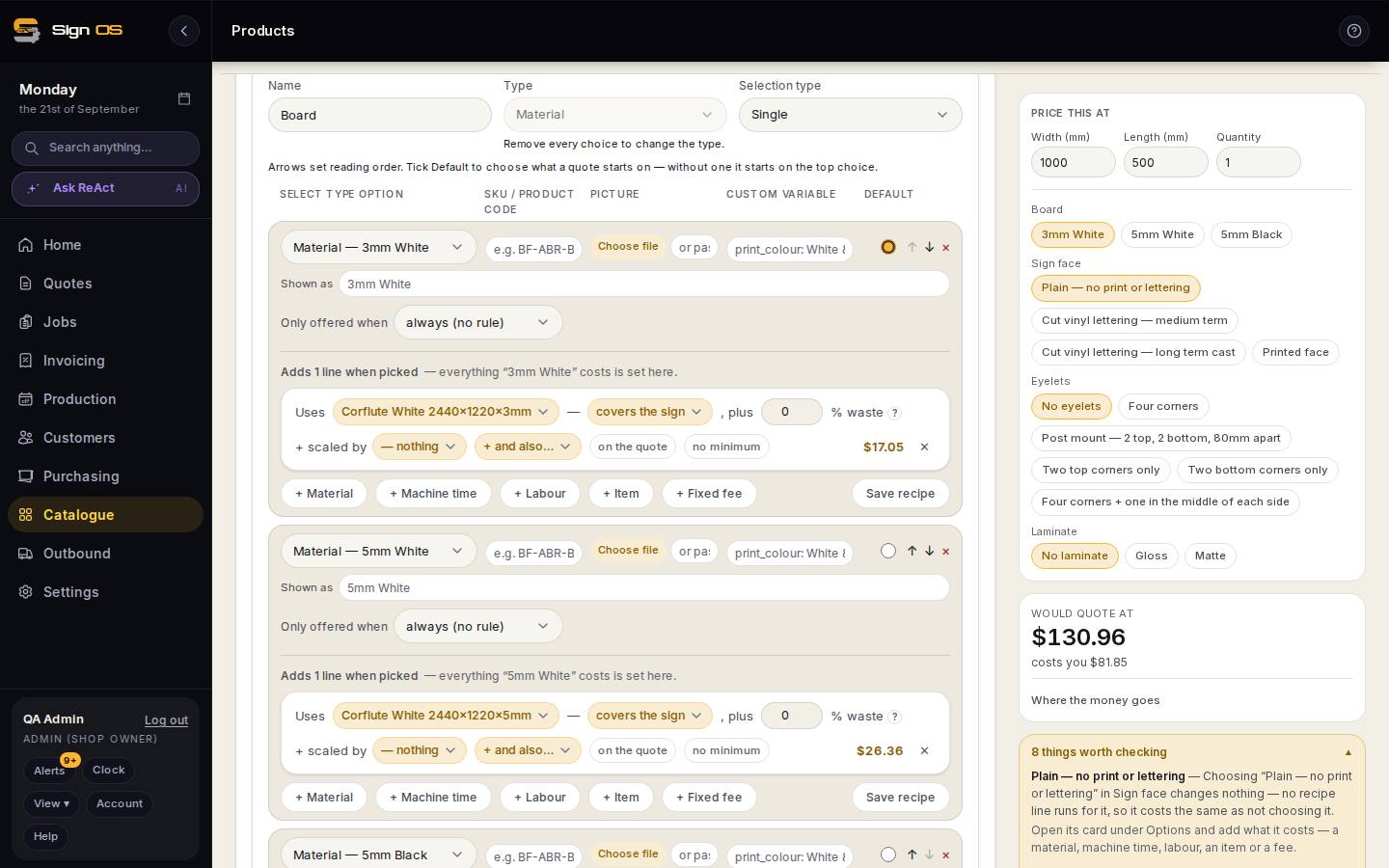
What is on this screen
Each part of the screen above, top to bottom, and what changing it affects.
- Only offered when (on a chip's card)
- always (no rule), or a chip in another box. The chip is hidden on quotes until that other chip is picked, and disappears again if the quoter changes their mind.
- Save box
- The rule is per chip; the box's other chips keep their own rules.
Before you start
- Both boxes need to exist on the product's Options card first.
Step by step
- 1
Open the product, the Options card, and the box holding the choice you want to limit — say Laminate.
- 2
Open the choice's card (Gloss). Under Only offered when, change 'always (no rule)' to the choice in another box it depends on — Sign face → Printed face.
- 3
Save box. On a quote, Gloss now appears only once Printed face is picked, and disappears if the quoter changes their mind.
- 4
Repeat for each dependent choice. A choice with no rule is always offered.
Tips & gotchas
- The rule is per choice, not per box, so 'No laminate' can stay always offered while Gloss and Matte wait for a printed face.
- If a hidden choice was the Default, the box falls back to its top always-offered choice.