
Understand the rate library
Reuse shared rates or set your own shop-specific ones.
What this is for
Machine rates lists all your rate profiles together. Each profile is tagged Shop or Global — Global profiles are shared starting points you can look at, and you add your own Shop profiles with figures that match your shop exactly.
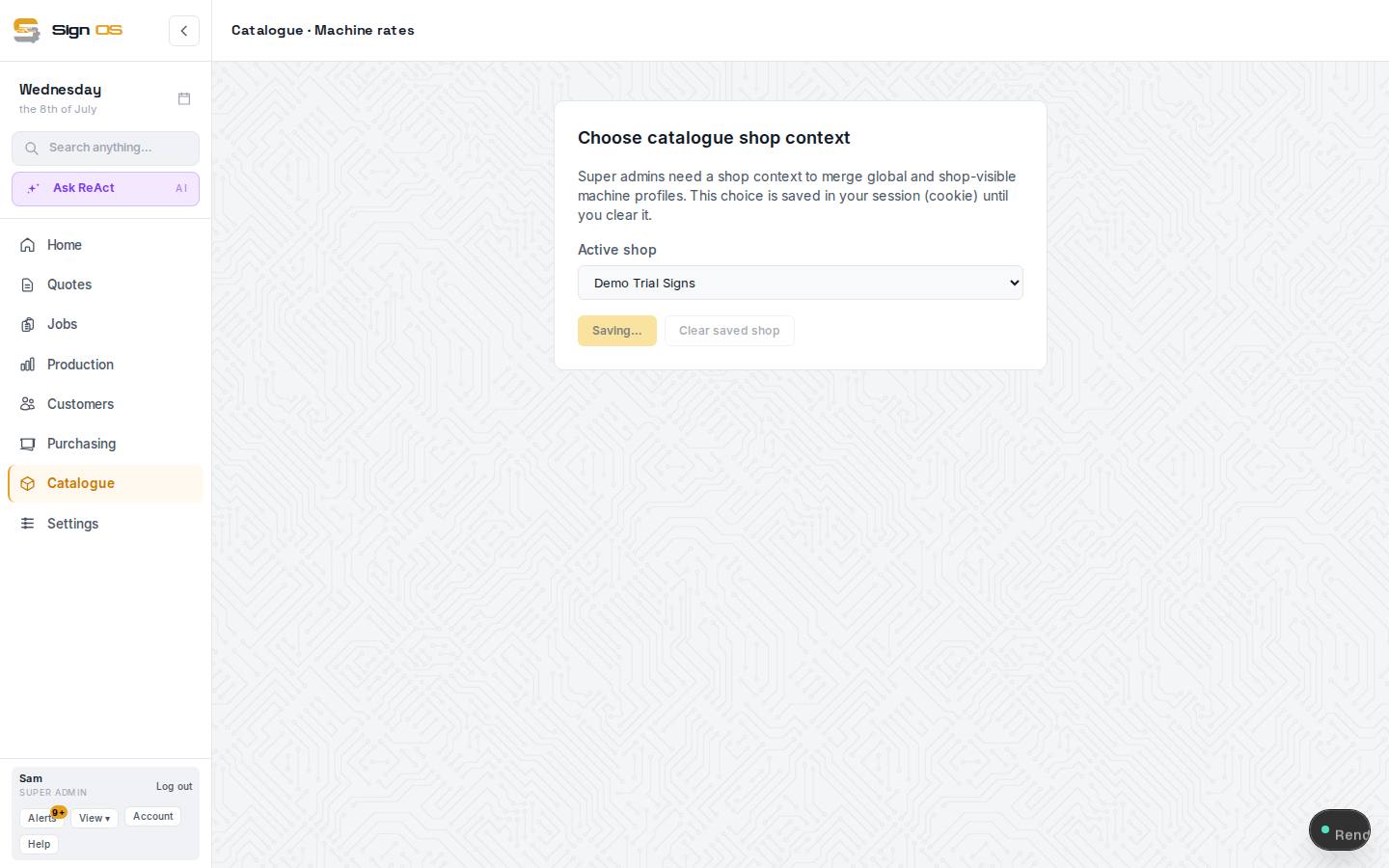
What is on this screen
Each part of the screen above, top to bottom, and what changing it affects.
- Category tiles
- One per machine family with the count of profiles in it. Global categories come with Sign OS; yours are added with + Add category.
- Scope column
- Global is a shared profile — a starting point with typical figures. Shop is yours, with your numbers. Editing a Global profile makes a Shop copy.
- Filters · search
- Find a machine by name, category or scope.
Step by step
- 1
Open Catalogue → Machine rates to see your rate profiles.
- 2
Use the scope control in the header menu to show Global (shared) or Shop (your own) profiles, and use the Scope column to tell them apart.
- 3
Look at a Global profile as a starting point, then press + New rate profile to create your own Shop version with the numbers that match your real cost.
- 4
Your Shop profiles are what feed your quotes — a Global profile never overrides your own figures.
Tips & gotchas
- Treat any Global figure as a placeholder until you have checked it against your own costs.